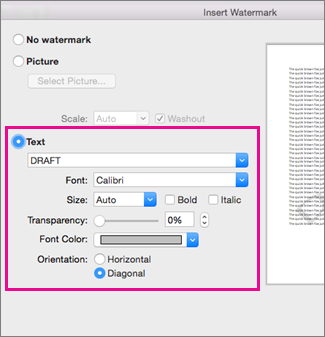
- On the Design tab, select Watermark.
- Choose a pre-configured watermark, like DRAFT, CONFIDENTIAL, or DO NOT COPY.
- For placing a logo or image, Select Watermark > Custom Watermark > Picture watermark > Select Picture. On the same menu you can create a custom text watermark.
Insert a watermark
Applies To
Word for Microsoft 365 Word for Microsoft 365 for Mac Word 2024 Word 2024 for Mac Word 2021 Word 2021 for Mac Word 2019 Word 2016