

Si vous ne disposez pas d’un groupe ou d’une équipe Microsoft 365, vous partez de zéro. Cela signifie que vous pouvez choisir la façon dont votre équipe est organisée et configurée.
Lors de la création de votre équipe, vous obtiendrez un site SharePoint correspondant et OneNote.
Créer une équipe à partir de zéro :
Sur le côté gauche de l’application, sélectionnez Chat icône
 . Si vous utilisez l’affichage distinct, sélectionnez le
 .
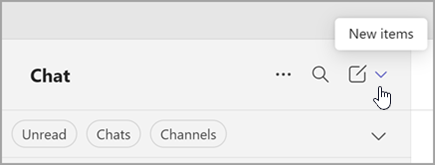
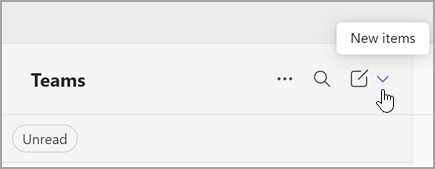
. Sélectionnez Nouveaux éléments au-dessus de votre liste de conversations et de canaux.
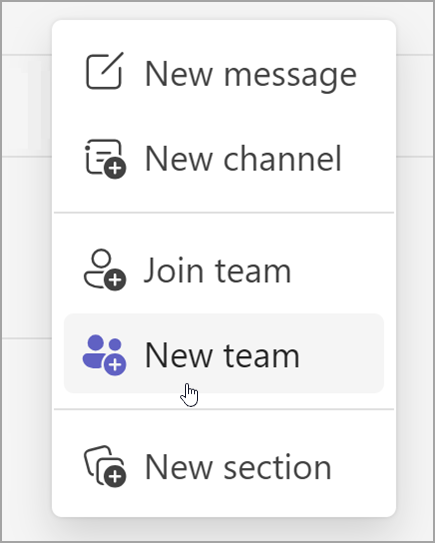
Sélectionnez Nouvelle équipe.
Nommez votre équipe et ajoutez une description facultative.

Décidez du type d’équipe que vous voulez que ce soit. Pour limiter le contenu et parler à un certain groupe de personnes, choisissez Privé. Pour une communauté ou un sujet que tous les membres de l’organisation peuvent rejoindre, choisissez Public. Si votre organisation utilise la classification des données, sélectionnez également l’étiquette de confidentialité de votre équipe.
Remarque
Les équipes sont automatiquement privées (si l’organisation l’autorise). La sensibilité par défaut, si elle est définie par l’organisation, s’affiche automatiquement.

Nommez votre premier canal.
Lorsque vous avez terminé, sélectionnez Créer.
Premier canal de votre équipe
Chaque équipe a au moins un canal. Nous créons le premier pour vous ; Toutefois, vous devez indiquer un nom pour commencer. Sa description est la même que celle de votre équipe.
Remarque
Votre premier canal s’appelait auparavant canal général, mais vous pouvez le renommer. En savoir plus sur Modifier un canal dans Microsoft Teams.
Si nécessaire, vous pouvez ajouter d’autres canaux , mais vous aurez toujours ce canal. Votre premier canal ne peut pas être archivé ou supprimé.
Procédure suivante à suivre
En tant que créateur de l’équipe, vous êtes le propriétaire. Invitez des personnes à rejoindre votre équipe et créez d’autres canaux. Pour plus d’informations sur les rôles et les autorisations, consultez les Capacités du propriétaire d’équipe, du membre et de l’invité dans Teams.
N’hésitez pas à créer d’autres équipes : vous pouvez posséder jusqu’à 250 équipes par compte.
Remarque
Votre organisation peut restreindre la création d’équipes. Si vous ne parvenez pas à créer d’équipe ou si vous souhaitez désactiver la création d’équipe, case activée contactez votre administrateur informatique
Rubriques connexes:
Créer une équipe à partir d’une équipe ou d’un groupe existant
