
Explore your notebook's content and see how key themes, concepts, or topics connect visually through an interactive mind map. Copilot generates a map of key topics and relationships from your notebook, helping you understand how information fits together at a glance. See connections, view quick summaries of individual nodes, and ask Copilot to help explain a concept further. Mind maps help you make sense of your complex work.
Note
Copilot Notebooks is available to Microsoft 365 Copilot, Copilot Chat, Personal, Family, and Premium subscribers. Creating notebooks also requires an active SharePoint or OneDrive license. However, Mind maps is exclusive to Microsoft 365 Copilot and Copilot Chat licensed users. Learn more about Microsoft 365 Copilot licensing, and Microsoft 365 Copilot plans.
Create a mind map
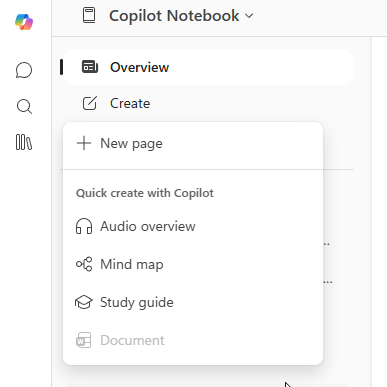
- Open an existing Copilot Notebook in the Microsoft 365 Copilot app or OneNote and go to Create.
- Select Mind map from the quick create with Copilot options.
- The mind map will generate automatically.
Navigate the mind map
Expand and collapse
Click the number on any node to expand its branches.
Use the Expand and Collapse buttons at the bottom of the map to reveal and hide all branches.

Get more details on a topic
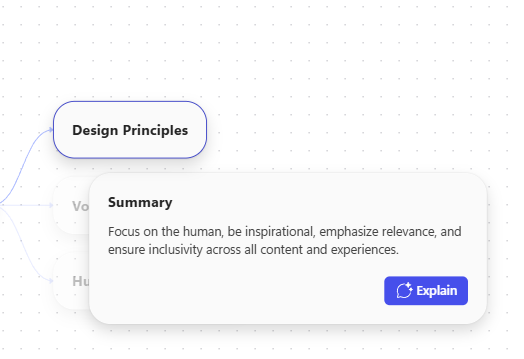
- Click any node to see a summary.
- Select Explain to get a deeper breakdown of the topic in the Copilot Chat pane.
- Continue chatting with Copilot to learn more and ask follow-up questions about that node. Copilot will reference content in your notebook to generate responses.
Export mind maps
- Use the Export option to save the map as a PNG.
- The export takes a screen capture, so expand or collapse nodes before exporting to get the view you want.
Important limitations
- Mind maps are private to you even in a shared notebook.
- Mind maps are stored for 30 days from the date of creation; the expiration date is shown at the top of the map.
- Mind maps are available on desktop and web only in Copilot Notebooks in the Microsoft 365 Copilot app and OneNote.
Feedback
Use the thumbs up / thumbs down buttons on the map to submit feedback.
Learn more
Get started with Microsoft 365 Copilot Notebooks
Add reference files to your Microsoft 365 Copilot Notebooks
Get answers and insights about your Microsoft 365 Copilot Notebook
Frequently asked questions about Microsoft 365 Copilot Notebooks