Within any email, you can initiate an individual chat session with the sender or a group chat with all recipients. Or, select a name from the email recipients or from your contacts to begin a Teams call.
Select a tab option below for the version of Outlook you're using. What version of Outlook do I have?
Note
If the steps under this New Outlook tab don't work, you may not be using new Outlook for Windows yet. Select Classic Outlook and follow those steps instead.
Chat with email recipients in new Outlook
- To chat in new Outlook, begin with the received email open in the new Outlook reading pane.
- In the ribbon menu, in the Teams group, select Chat.
- In the resulting dropdown menu, select to chat with only the email sender or chat with all recipients of the email.

- A new Teams chat window will open for you to begin the conversation.
Make a Teams call from new Outlook
- Select an email to open in the new Outlook reading pane.
- Select the name of a recipient to open their contact card.
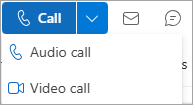
- From the Call dropdown, select Audio call or Video call.
Send an instant message in classic Outlook
You can send an instant message to any person whose online status indicates anything except Offline.
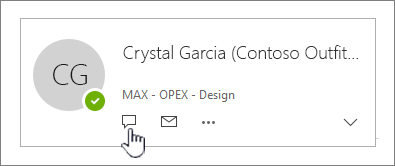
- Next to the person's name, click the online status indicator.
- On the contact card, on the click the Instant Message or Send an IM icon, as represented by a speech bubble.
- Type your message in the lower section of the window, and then press Enter to send.
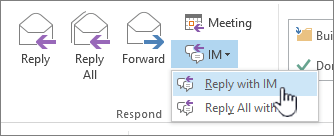
If you have an email message open, you can reply with an instant message to the sender or the sender and all recipients of the message. On the Message tab, in the Respond group, click IM. On the drop-down list, click Reply with IM or Reply All with IM.
Make a Teams call from classic Outlook
- Select an email to open in the reading pane.
- Select the name of a recipient to open their contact card.
- Select their phone number to begin a call.
- To chat in Outlook.com, select Teams in the Outlook header.
- The Teams app opens. From here you can start a chat or Teams call with your contacts, or select Invite to Teams and follow the prompts.
Microsoft Teams help & learning


