
Kada je potrebno da zaštitite privatnost e-poruke, šifrujte je. Šifrovanje e-poruka u programu Outlook znači da se ona konvertuje iz čitljivog čistog teksta u šifrovani tekst. Poruku može da dešifruje za čitanje samo primalac koji ima privatni ključ koji se podudara sa javnim ključem korišćenim za šifrovanje poruke. Svi primaoci bez odgovarajućeg privatnog ključa vide tekst koji nije moguće dešifrovati.
Napomena
Da biste koristili šifrovanje, vaš nalog mora da ima kvalifikovanu Microsoft 365 pretplatu. Uporedite sve Microsoft 365 planove.
Odaberite tip šifrovanja koji želite da koristite
U zavisnosti od tipa šifrovanja koji je dostupan u organizaciji, možete da birate između slanja poruke koja je šifrovana pomoću protokola S/MIME ili Microsoft Purview šifrovanja poruka. Možda je važno da razmislite kako će primalac pristupiti e-pošti.
S/MIME zahteva od primaoca da otključa poruku pomoću certifikata na računaru. Oni će možda morati da pristupe skladištu talera da bi dobili certifikat. Ako je certifikat dostupan, poruka će biti dešifrovana kada je otvore.
Microsoft Purview šifrovanje poruka može da se pročita direktno u novim programima Outlook, Outlook na vebu, Outlook za iOS i Android, Outlook za Windows verzije 2019 i novije verzije i Microsoft 365. Ako primalac koristi drugu uslugu pošte, videće poruku sa uputstvima o tome kako da otvorite poruku.
Uverite se da je poruka stigla nepromenjena
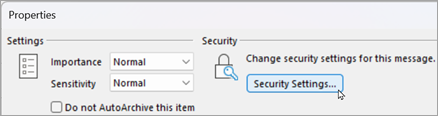
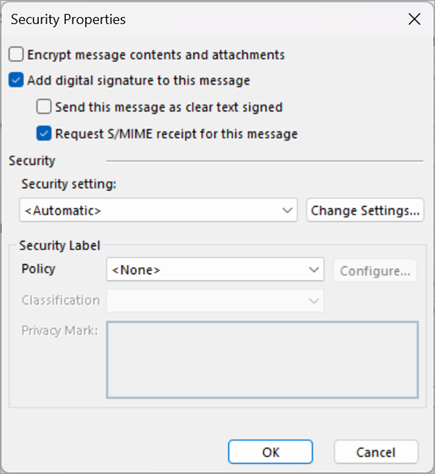
Možete da zahtevate šifrovanu potvrdu kao potvrdu da je e-poruka primljena nepromenjena. Ona takođe sadrži informacije o osobama koje su otvorile poruku, kao i vreme otvaranja poruke. Te informacije o proveri se vraćaju u vidu poruke u Prijemno sanduče. Pošto zahtevi za S/MIME potvrdu moraju da sadrže digitalni potpis, morate da podesite Outlook da koristi šifrovanje i digitalne potpise kako biste zahtevali S/MIME potvrdu.
Da biste poslali poruku sa šifrovanjem, odaberite uputstva na osnovu verzije programa Outlook koju koristite. Koju verziju programa Outlook imam?
Napomena
Da biste mogli da pošaljete šifrovanu e-poštu u programu Outlook, podesite Outlook da koristi šifrovanje i digitalne potpise.
U novom programu Outlook možete da:
Šifrovanje pojedinačnih poruka i zahtevanje potvrde | Šifrovanje svih poruka pomoću protokola S/MIME | Šifrovanje poruka pomoću rešenja Microsoft Purview šifrovanje poruka
Šifrovanje pojedinačnih poruka i zahtevanje potvrda pomoću protokola S/MIME u novom programu Outlook
Digitalno šifrovanje možete da dodate ili uklonite iz pojedinačne poruke koju pišete. Pratite ova uputstva da biste pristupili opcijama za traženje potvrde čitanja, zahtev potvrde o isporuci i digitalno potpisivanje ove poruke.
Napomena
Da bi spoljnim primaocima slao e-poruke šifrovane proširenjem S/MIME, korisnik mora da instalira certifikat primaoca na lokalnom računaru.
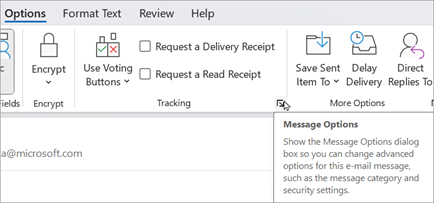
U e-poruci, na traci izaberite Opcije>Više opcija.
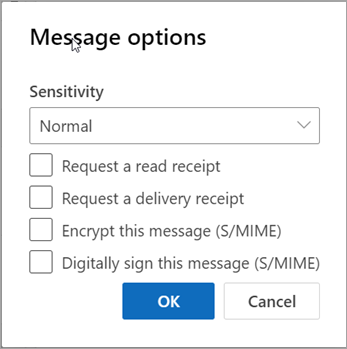
U opcijama poruke možete da odaberete nivo osetljivosti, kao i potvrdu čitanja ili isporuke i opcije S/MIME zaštite. Odaberite neku od sledećih opcija. Imajte u vidu da ako zahtevate potvrdu, morate da potvrdite i izbor u polju za potvrdu "Digitalno potpiši ovu poruku ".
Zahtev potvrde čitanja
Zahtev potvrde o prijemu
Šifruj ovu poruku (S/MIME)
Digitalno potpisivanje ove poruke (S/MIME)
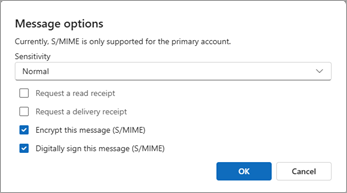
Izaberite stavku U redu.
Ako šifrujete odlaznu poruku, a novi Outlook ne može da verifikuje da svi primaoci mogu da dešifruju poruku, videćete upozorenje koje ističe one primaoce koji možda neće moći da pročitaju šifrovanu poruku. Svejedno možete da pošaljete poruku, uklonite te primaoce ili pokušate da ponovo proverite.
Završite sastavljanje e-poruke, a zatim izaberite stavku Pošalji.
Potrebna vam je pomoć da pregledate šifrovanu poruku? Pogledajte članak Prikaz šifrovanih poruka i odgovaranje na njih u programu Outlook.
Šifrovanje svih poruka korišćenjem proširenja S/MIME u novom programu Outlook
Izaberite Postavke
 >>S/MIME.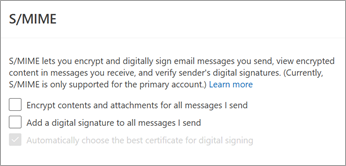
Odaberite nešto od sledećeg:
Šifruj sadržaj i priloge svih poruka koje šaljem: Automatski šifruje sve odlazne poruke.
Dodavanje digitalnog potpisa svim porukama koje šaljem : Digitalno potpisuje sve odlazne poruke.
Automatski izaberite najbolji certifikat za digitalno potpisivanje: Omogućava programu Outlook da izabere osnovni certifikat. Ako izbor nije potvrđen, biće zatraženo da izaberete odgovarajući certifikat.Izaberite stavku U redu.
Napomena
Sve odlazne poruke uključuju nove poruke, odgovore na primljene poruke i prosleđene poruke.
Šifrovanje poruka pomoću rešenja Microsoft Purview Šifrovanje poruka u novom programu Outlook
Microsoft Purview šifrovanje poruka sa IRM zaštitom ne bi trebalo da se primenjuje na poruke koje su već potpisane ili šifrovane pomoću proširenja S/MIME. Umesto toga, da biste primenili IRM zaštitu, S/MIME potpis i šifrovanje moraju biti uklonjeni iz poruke (pogledajte prethodno). Isto važi i za poruke koje štiti IRM; ne bi trebalo da ih potpišete niti šifrujete pomoću protokola S/MIME.
Napomena
Novi Outlook podržava Microsoft 365 šifrovanje poruka sve dok server e-pošte ima licencu za Office 365 Enterprise E3. Ako to nije slučaj, poruke možete da šifrujete pomoću protokola S/MIME.
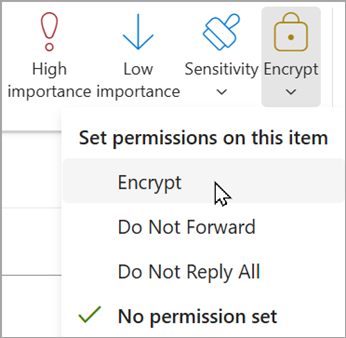
- U e-poruci odaberite stavku "Opcije", a zatim izaberite stavku "Šifruj".
- Izaberite šifrovanje sa ograničenjima koja želite da nametnete, kao što su "Šifruj " ili "Ne prosleđuj".
- Završite sastavljanje e-poruke, a zatim izaberite stavku Pošalji.


Takođe pogledajte
Podešavanje programa Outlook da koristi S/MIME šifrovanje
Otvaranje šifrovanih i zaštićenih poruka
Slanje šifrovanih poruka sa ličnom ili porodičnom pretplatom na Microsoft 365
Obezbeđivanje poruka pomoću digitalnog ID-a u programu Outlook
Saznajte više o obezbeđivanju i zaštiti e-poruka u programu Outlook
Obeležavanje e-poruka oznakama "Normalno", "Lično", "Privatno" ili "Poverljivo" u programu Outlook