
Obavestite osobe da li radite iz kancelarije ili daljinski tako što ćete podesiti dnevnu radnu lokaciju. Ako nešto iskrsne, možete da ažurirate planove u programu Outlook ili aplikaciji Teams tako da odražavaju vašu lokaciju.
Podešavanje radne lokacije
Da biste podesili poslovnu lokaciju za taj dan u usluzi Teams:
Izaberite menadžera naloga u gornjem desnom uglu usluge Teams.
Izaberite stavku "Postavi poslovnu lokaciju"
 ". Ako radite u kancelariji i želite da podesite lokaciju izgradnje, izaberite stavku "Dodaj zgradu". Mogu se dodati samo zgrade u vašoj organizaciji. Promene će se primeniti na vaše radno vreme do kraja dana i odraziće se u aplikaciji Teams i programu Outlook.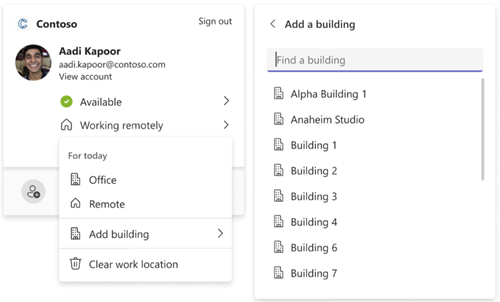
Ažurirajte radnu lokaciju
Kada se raspored promeni, možete lako da ažurirate radnu lokaciju ili da je obrišete, direktno iz usluge Teams.
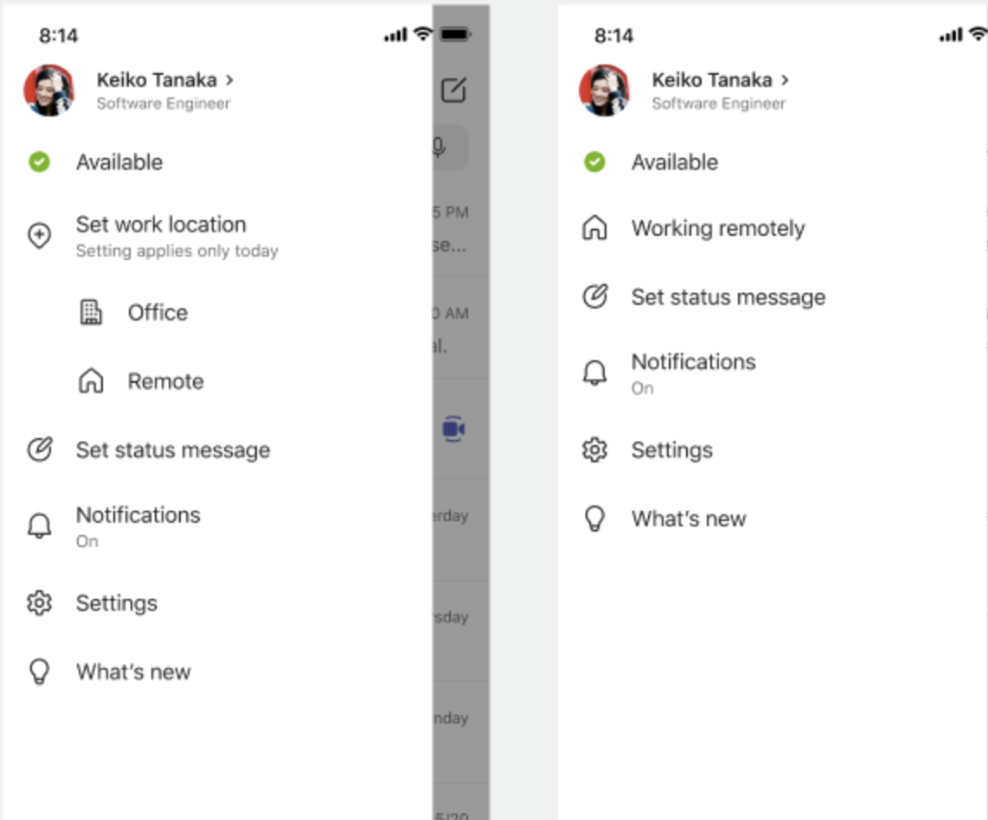
Izaberite menadžera naloga u gornjem desnom uglu usluge Teams i promenite ili obrišite radnu lokaciju. Nova lokacija će se primeniti na vaše radno vreme do kraja dana i odraziće se u uslugama Teams i Outlook.
Podešavanje radnog vremena u programu Outlook
Koristite Outlook da biste naveli još detalja o rasporedu rada: sa mesta na kojem radite (udaljeno ili iz kancelarije) i da li radite u različito vreme različitih dana
Podesite radno vreme i lokaciju u programu Outlook
Prikazivanje hibridne radne lokacije, dostupnosti za sastanak, radnih sati i još mnogo toga
Srodne teme
Saznajte više o radnom vremenu u programu Outlook
Prikazivanje hibridne radne lokacije, dostupnosti za sastanak, radnih sati i još mnogo toga