
Important
The features and functionality available to you might vary based on your organization's configuration, regional settings, and whether you're using the web, mobile, desktop, or embedded app.
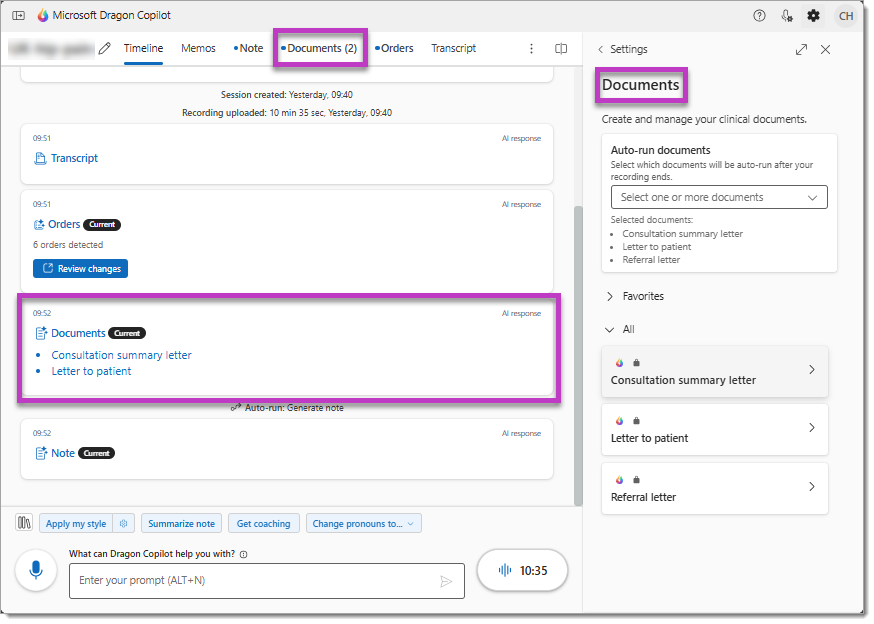
If your administrator enables it, Dragon Copilot can automatically create the critical clinical letters you need to send to patients and other physicians based on the ambient recordings and clinical summaries of your patient consultations.
The documents Dragon Copilot can generate vary by region, including:
- Consultation summary letters for the Primary Care Provider (PCP).
- Letters to the General Practitioner (GP).
- Letters to patients.
- Onward referral letters to specialists.
Note
At this time, you can't modify or create personalized versions of the prebuilt documents. To generate a bespoke clinical document or letter, you can create a custom prompt in the format and style you prefer, then save it to your Library for easy access. You can also select your custom prompt to automatically regenerate your document or letter after each new ambient recording (in the 'Style' settings screen).
Select the documents to generate
Dragon Copilot automatically generates the documents you choose after each ambient recording for the patient consultation. Select the documents you want to generate before you begin recording.
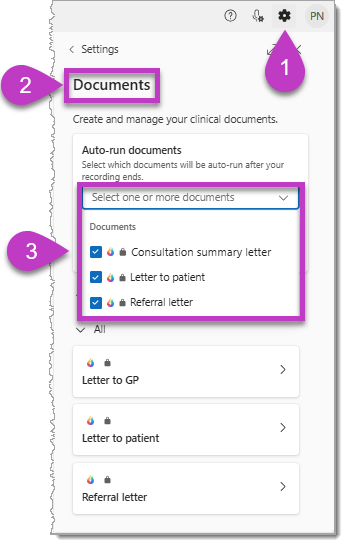
To select the documents you want to generate:
Select the Settings icon.
Go to the Documents section.
Select the check box next to the documents you want.
Your selections are automatically saved, and the documents are generated for any new consultation recording for the current and any future session.
Note
If you forget to select the documents you want to generate before recording, you can still generate them by adding another recording for the consultation after selecting the documents in Settings > Documents (as shown in the preceding procedure).
Review and finalize your documents
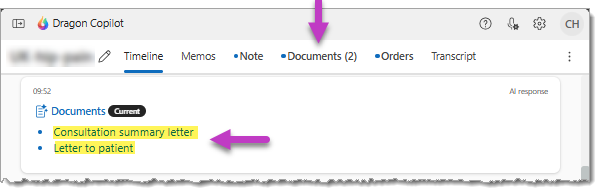
Select your document
After you complete all recordings for the consultation, select the Documents tab or one of the links in the Documents card in the Timeline tab.
Finalize your document
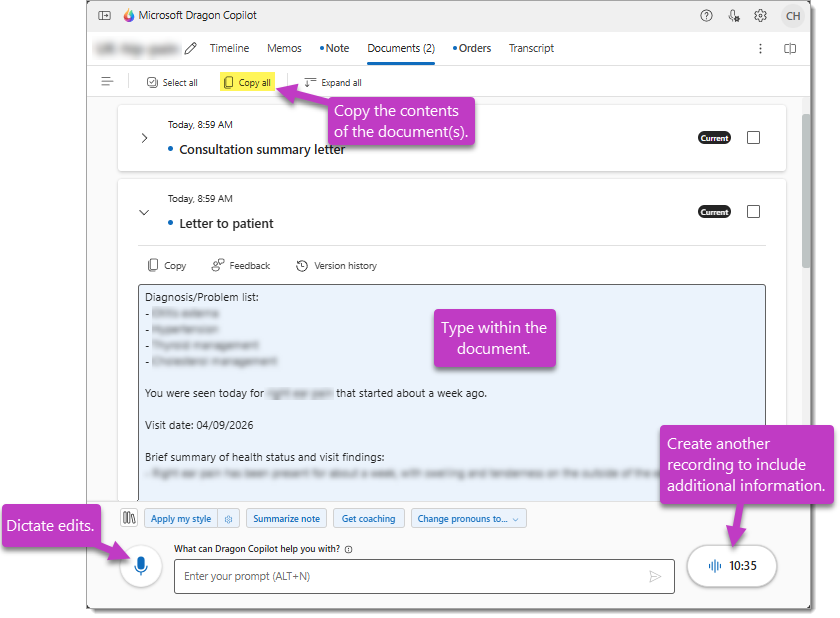
As you review the generated document, use these methods to revise the content:
- Place your cursor in the document and dictate additional text. (Voice commands aren't available at this time.)
- Manually edit the document (for example, by using your mouse and keyboard).
- Create an additional recording to include more information. (NOTE: this action generates a new version of the document and overwrites any edits you already made.)
Important
Dragon Copilot features specialty-specific AI enhancements designed to meet the unique documentation requirements of different medical communities. These enhancements reduce the need for editing the clinical summaries and documents that Dragon Copilot generates.
- The Primary specialty setting in your Dragon Copilot profile (Settings > Profile) determines the AI model used to generate documents and summaries for your note from the combined transcript of your ambient recordings.
- Select "No format change" as the default format option for your summary sections in Settings > Note style & format to generate summaries and documents in specialty-specific format. Then, consider other format options, custom prompts, and customizable templates to achieve your desired outcome.
- Consult the Learning library for more information about the Specialty enhancements in Dragon Copilot.
Document versions
When you set documents to auto-generate, Dragon creates new versions when it identifies new relevant information for that document in a subsequent ambient recording for the patient.
When Dragon creates a new document version, a new notification card appears in the Timeline tab.
- Select Review changes in the Timeline card or go to the Documents tab to display the new document version.

When Dragon generates a new document version, the previous version is still available. If you made any edits to the document before the new version generated, those edits don't appear in the new (current) version, but you can copy them back from the Version history.
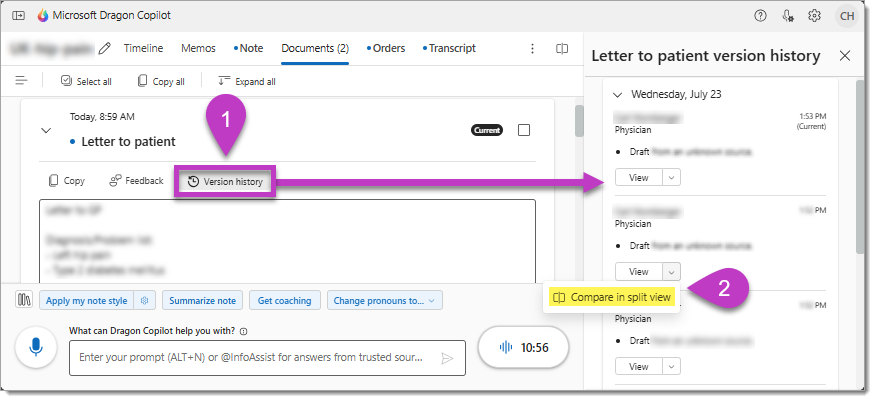
To open a previous version of a document, or compare the new (current) version of the document to a previous version:
- Select Version history.
- Select Compare in split view from the View menu in the side panel for any previous version.
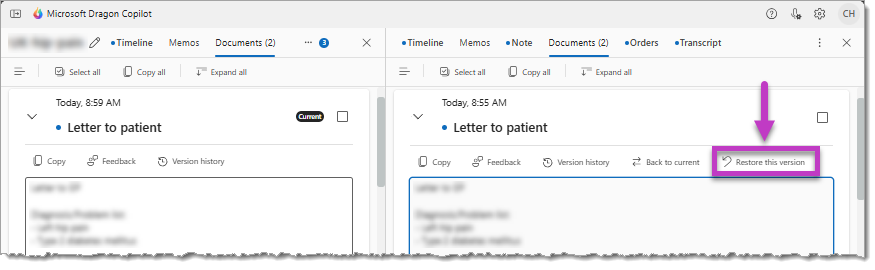
The current and previous versions of the document appear side by side, so you can copy previous edits to the current version. You can also select Restore this version to replace the Current version of the document.
Transfer the content of a document
When you're ready, select the Copy button (or use a keyboard shortcut) and then paste the content into your EMR or another application. You can also use the toolbar options to select and copy multiple documents at the same time.
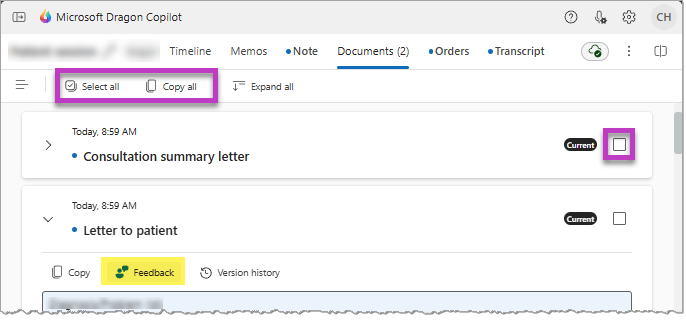
Your feedback is important. Select the Document feedback icon to share your comments and suggestions to help us improve.