
Welcome to Dragon Copilot. This quick start guide gives you the basics for using Dragon Copilot for dictation. Follow the links provided for a deeper dive into each topic.
Access Dragon Copilot
Launch the Dragon Copilot desktop app to use Dragon Copilot as you would Dragon Medical One. Locate the Dragon Copilot icon
 on your workstation, or use the link provided by your Dragon or Microsoft administrator and sign in with your Dragon Copilot username and password.
Note
You can sign in to Dragon Copilot on the desktop, web, or mobile app at the same time. Your work automatically syncs across all surfaces to give you flexibility of where and how you work with Dragon Copilot. But remember to sign out if you work on a shared workstation.
Manage your desktop view
Select the view menu icon
 in the top navigation bar of the Dragon Copilot desktop app to change how Dragon Copilot appears on your workstation. Choose narrow or compact view (Dragon Copilot opens in standard view).

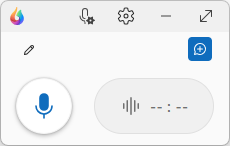
Compact view is the view most similar to your Dragon Medical One experience. Dragon Copilot in compact view can be moved around your workstation and placed where it works best for your workflow. Use the expand icon
 to return to the full Dragon Copilot screen.
Note
Compact, standard, and narrow views are only available in the Dragon Copilot desktop app. When you relaunch Dragon Copilot, it opens in the last desktop view you used. Learn more about desktop views.
Navigate the Dragon Copilot compact view
The compact view shows only the essential functions of Dragon Copilot:
 Mic settings: Select a microphone for dictation and ambient recording, access microphone button settings. Learn more about microphone selection and configuration.
 Settings: Access Dragon Copilot settings in this menu. Change ambient recording language, note style and format, documents, and more.
 Minimize: Minimize the compact view to your system tray.
 Expand: Return to the full Dragon Copilot screen.
 Ambient session icon: Use this icon to create a new ambient session. Learn more about your session list.
 Edit: Change the name of your current session. Learn about your session list.
Dragon Copilot microphones
Dragon Copilot has two microphone buttons:
- Use the dictation microphone
 for dictation and voice commands.
 - Use the ambient recording button
 to capture patient conversations or monologue clinical documentation. If the button is grayed out, ambient recording isn't available. Learn how to record your first patient session.
Manage your Dragon Copilot microphone
Dragon Copilot works with your desktop microphone and other microphones connected to your workstation. For PowerMic Mobile users, there's a feature called mobile mic for Dragon Copilot users. Learn more about microphone management and the mobile mic.
Dictate with Dragon Copilot
Dragon Copilot works like Dragon Medical One for dictation.
- Place your cursor where you want your text to go in your EHR or document.
- Turn on Dragon's dictation microphone
.
- Begin dictating.
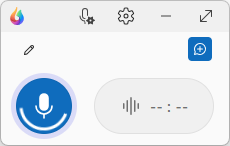
You see the microphone change to indicate that it is recording. Learn more about dictation in Dragon Copilot.
Edit and navigate with your voice
Dragon Copilot recognizes Dragon Medical One voice commands. Place your cursor in a text field or document, turn on Dragon's microphone, and start dictating. Use commands to navigate, select, correct, edit, and more. Learn about what you can say in Dragon Copilot.
Use the dictation clipboard
When Dragon Copilot doesn't recognize the field you're dictating into, your text appears in the Dictation clipboard, just like the Dictation Box in Dragon Medical One. Learn more about the dictation clipboard.
Manage your library
You can access your custom commands, templates, and personal vocabulary entries in the Dragon Copilot library.
 During your organization's implementation, Dragon Medical One moves all your saved step-by-step commands, auto-texts, and vocabulary entries to Dragon Copilot. Learn about the Dragon Copilot library.
Workflows. Dragon Medical One step-by-step commands are called workflows in Dragon Copilot. Learn how to use workflows.
Texts. Auto-texts are called texts in Dragon Copilot. Learn how to use texts.
Custom vocabulary. Custom vocabulary entries are still called vocabulary in Dragon Copilot. Learn how to use vocabulary.
What's next...
Ready to take your dictation skills to the next level? Follow these links to do more with Dragon Copilot.
Dragon Copilot quick start guide