Applies to: Dragon Copilot web, Dragon Copilot desktop, Dragon Copilot mobile
If you work across multiple environments (organizations, sites, EHRs, and so on), you can easily switch between them.
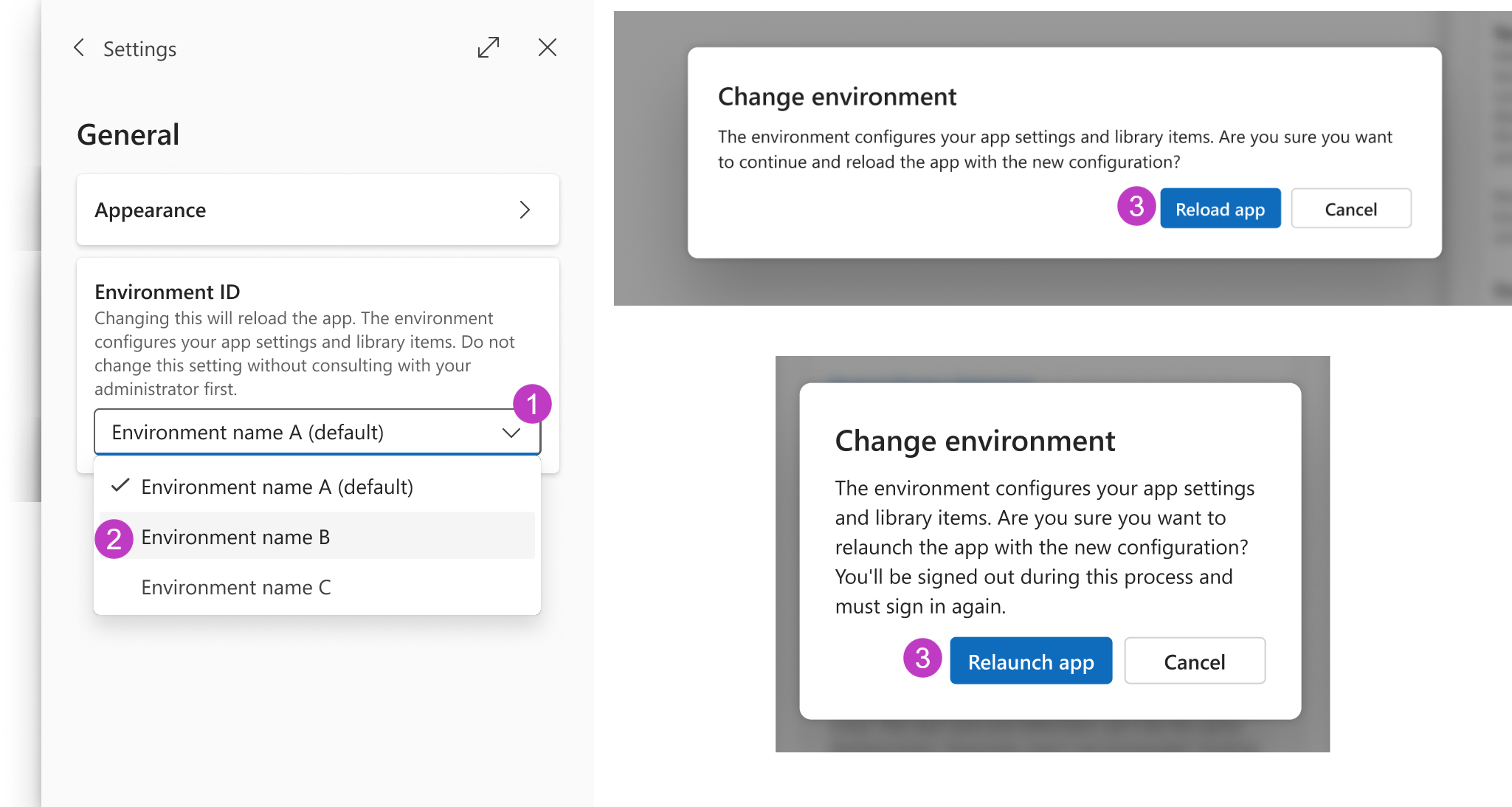
- Under Settings > General, select the dropdown under Environment ID.
- Choose your desired environment.
- Select Reload app (desktop or web) or Relaunch app (mobile).
Note
(MOBILE ONLY)
- When you switch environments, you need to manually sign back in.
- If you go offline, any new sessions and recordings you create associate with whatever environment the device was in when it went offline.
Important
The Environment ID setting will remain on your last picked environment until you change it.
Environment change notification
When you switch to an environment that isn't your default, this banner message appears at the top of Dragon Copilot. If you dismiss the notification or sign out and sign back in, the banner message disappears. It doesn't appear again until the next time you switch your environment to one that isn't your default.

Deleted environment notification
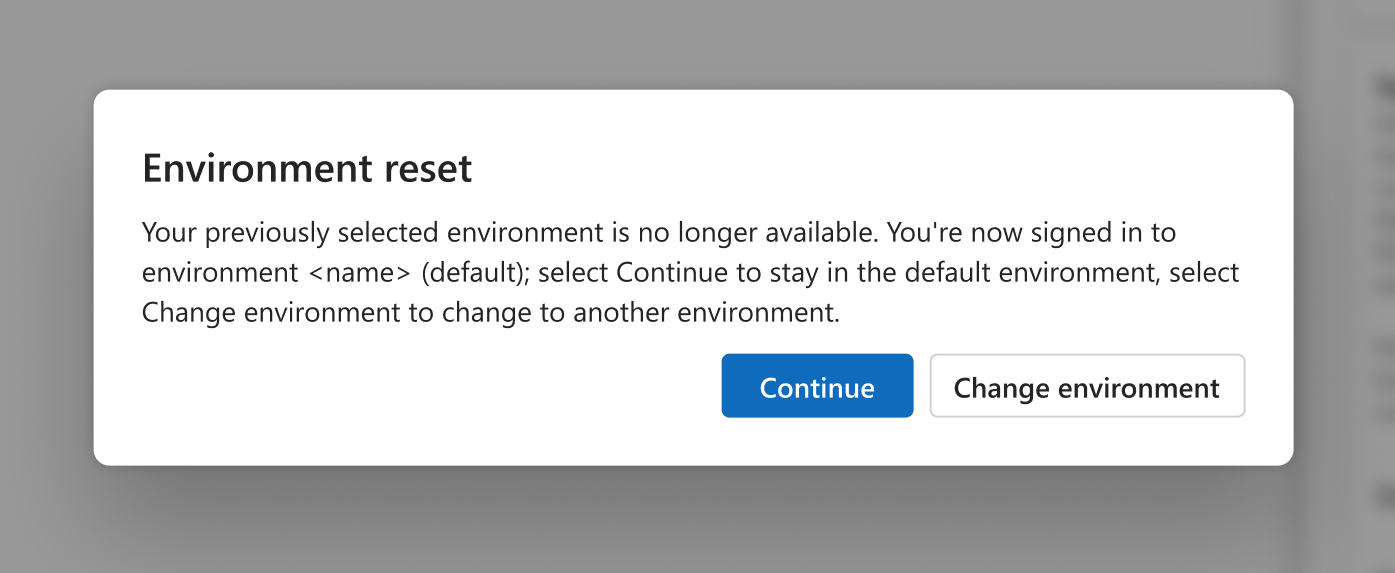
If your organization deletes the environment you're in, you're automatically placed back into your default environment, and the Environment reset message appears the next time you sign in. Select Continue to stay in the default environment or select Change environment to switch to a different environment.