

The steps below describe how to change a known password for a Microsoft personal account. If you need to reset your Microsoft account password because you forgot it, see Reset your Microsoft account password instead.
Tip
To change or reset a Work or School password, go to passwordreset.microsoftonline.com
Step-by-step guide: Change a Microsoft account password
If you know the current password for your Microsoft account, you can create a new password by signing at account.microsoft.com
Tip
If you are already signed in, go to
 Security then select the
 Change Password link at the top of the page.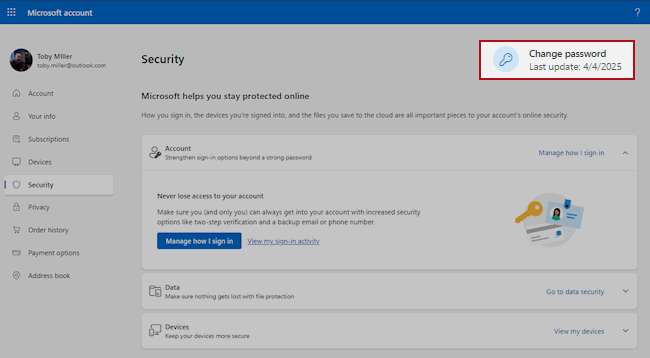
Enter your new password.
Tip
For additional security, select the optional checkbox which prompts you to update your password every 72 days.
For even greater security, you can remove your password or require two steps to sign in. Learn more.Select Save.
Troubleshooting: Unable to change your Microsoft account password
If you couldn't change your password this way, see Reset your Microsoft account password.
See also
How to help keep your Microsoft account secure
How to go passwordless with your Microsoft account
How to use two-step verification with your Microsoft account
Need more help?
Can't sign in?
If you can't sign into your Microsoft account, most issues can be identified by our sign-in helper tool.
Contact Support
For technical support, go to Contact Microsoft Support, enter your problem and select Get Help. If you still need help, select Contact Support to be routed to the best support option.
Important
To protect your account and its contents, our support agents are not allowed to send password reset links, or access and change account details.