
After recording patient interactions in Dragon Copilot for Epic Rover, use Dragon Copilot app on web, desktop, or mobile to ask questions and summarize information from a patient’s transcripts.
This experience helps you quickly recall details, confirm what was discussed, and support follow-up work, without reading through every transcript.
Note
- The features and functionality available to you might vary based on your organization's configuration.
- The features in this article pertain to the Dragon Copilot app (web/desktop/mobile) experience for nurses only.
Steps to query or summarize the transcript
Transcript queries start from the patient view, which brings together all recorded interactions for a patient during your current shift. Each patient view includes access to all transcripts generated from recordings associated with that patient.
Record, then open a patient
After completing a recording in Dragon Copilot for Epic Rover, open the Dragon Copilot app and select a patient from the patient list. This action opens the patient view for the current shift.
Open Copilot chat.
From the patient view, select the Copilot button to open the Copilot chat drawer. This is where you ask questions and request summaries based on the patient's transcripts.
Ask a question or request a summary.
In the Copilot prompt box, ask a natural language question or request a summary. For example:
- What medications did the patient mention today?
- Summarize recent patient interactions for this shift.
Dragon Copilot uses only the patient's recorded transcripts to generate responses.
Review the response.
Dragon Copilot provides a conversational response grounded in the transcript content. Responses include links back to the source transcripts, so you can verify where the information came from.
Copy and use.
Select Copy to quickly transfer the answer into your documentation, handoff notes, or charting.

Note
Transcript queries and summaries come only from the patient’s recorded transcripts for the current shift. Dragon Copilot doesn't reference flowsheet data, structured EHR fields, or information from other patients or shifts. If you didn't speak about a detail during a recording, it won't appear in the response.
When multiple transcripts are available, Copilot chat response will reference the first session recorded in the shift as 'Session 1' and the most recent session recorded as 'Session N'.
Use the prompt library
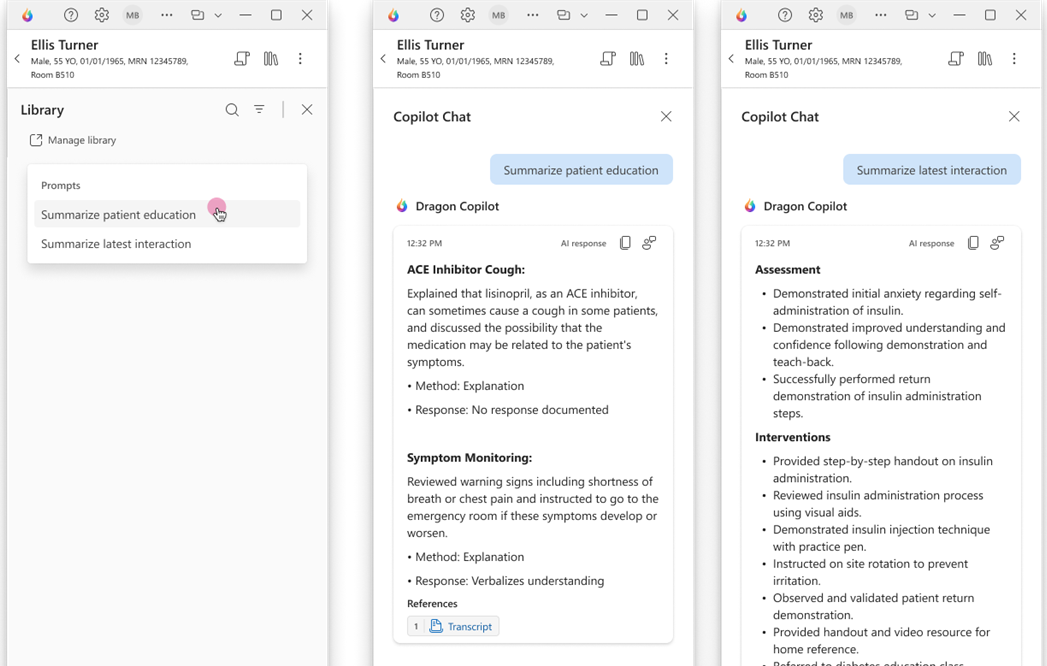
In addition to free-text questions, use the Prompt Library to run common, prewritten prompts against patient transcripts.
Access the prompt library
From the patient view, select
 to access the Prompt Library and see available prompts. Select a prompt to run it in Copilot chat. The response is generated by using the patient’s transcripts for the current shift.
There are two default prompts available:
Summarize patient education: Extracts and summarizes education topics delivered during the current shift, supported by evidence from transcripts.
Summarize latest patient interaction: Provides a summary of the most recent patient interaction, highlighting key concerns, notable moments, and areas of opportunity.
In addition, your administrator may create and manages prompts to align with local workflows or documentation standards.
Note
The library icon might not appear if the setting is disabled by your administrator.