
Providing feedback helps Dragon Copilot learn and adapt. Your input enhances AI reliability, improves accuracy, and streamlines workflows for better patient care.
Responsible AI (RAI) feedback
RAI (Responsible AI) Feedback is a structured process for nurses and other clinical staff to report issues related to the accuracy and appropriateness of AI outputs.
Use RAI (responsible AI) feedback to report problems with AI-generated content, such as:
- Incorrect transcripts
- Inaccurate clinical documentation (for example, flowsheets)
- Implausible or fabricated information
Don't use RAI feedback for system problems, such as:
- Slow performance
- Timeouts or errors
For system or performance problems, contact your onsite administrator.
Note
The team reviews your feedback to improve AI quality. You won't receive a direct response.
Share feedback from Dragon Copilot for Epic Rover
Give feedback on your Dragon Copilot for Epic Rover product experience to share product feedback:
- Select
 to open the Help menu.
 - Select Feedback.
- Enter a rating and comments (if applicable).
- Select Submit.

AI feedback
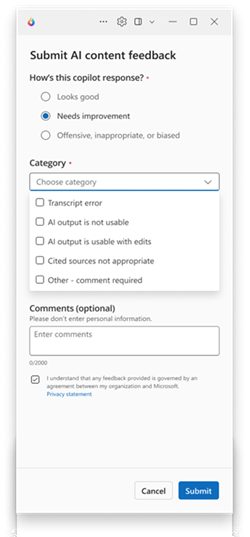
When you pause a recording in Rover, you can provide feedback directly from the Preview tab. Select the feedback icon on the template most relevant to your comment, and a feedback window opens.
A response to the question at the top is mandatory to leave feedback. The category section is optional.
- If you select "Looks good" as the response, the category selection is disabled.
- If you choose "Needs improvement" or "Offensive, inappropriate, or biased", an additional category dropdown appears. Select one of the options, and enter any optional comments.
- After submitting, the feedback window closes and returns you to the previous screen.
Share feedback during your review workflow
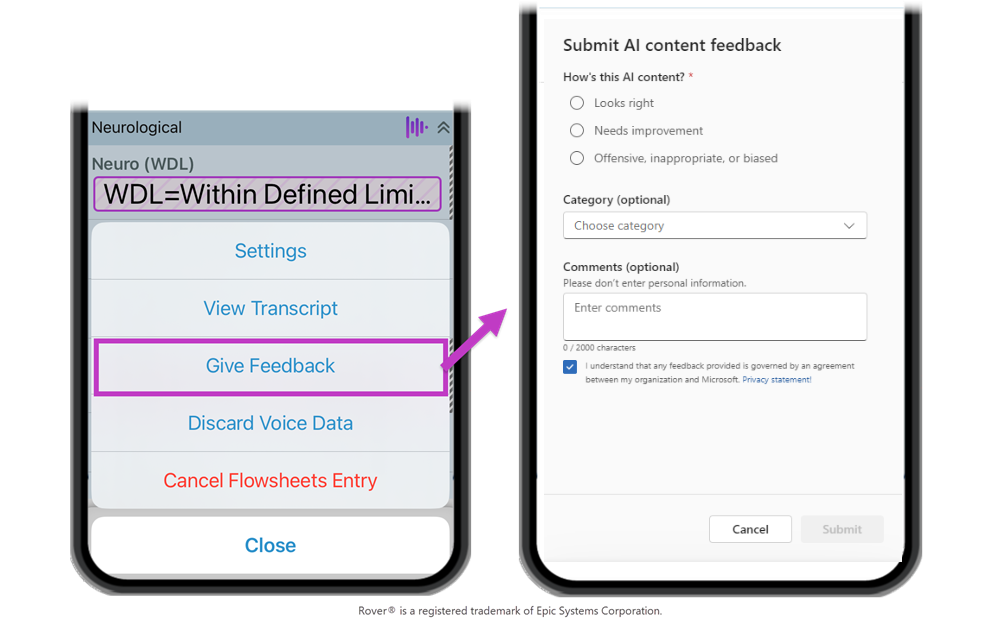
After you complete a recording, you can provide feedback on transcripts or flowsheets directly in Rover during your review workflow.
- Flowsheet template: From the flowsheet, open the ambient documentation menu and select Give Feedback.
- AI values: From the template list screen, open the ambient documentation menu and select Give Feedback.
- Transcript: Open the transcript and select Feedback.
Share feedback from Hyperspace
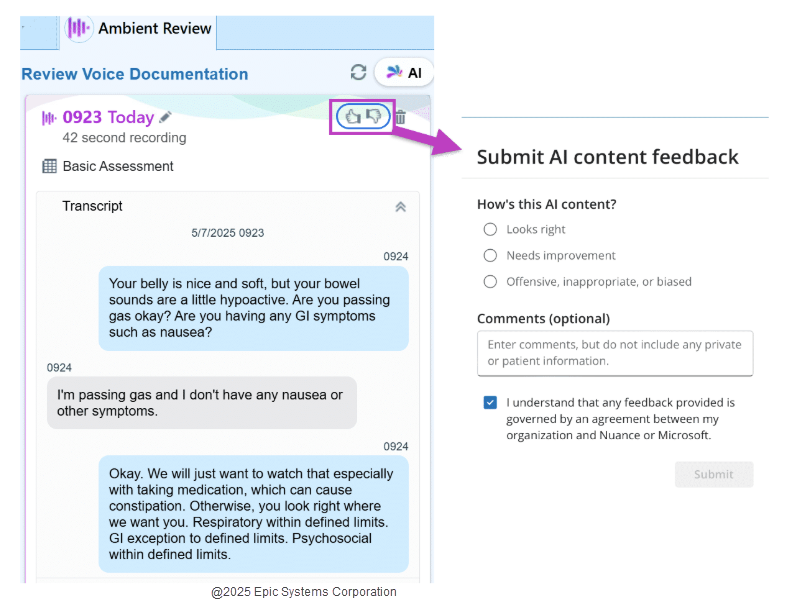
You can provide feedback on the transcript or AI values in Hyperspace.
From the Ambient Review sidebar, select the Feedback (thumbs up/thumbs down) button. A pop-up appears. Select an option, add comments (optional), and select Submit.
Share feedback from Accelerator
You can provide feedback on the transcript or AI values in Accelerator.
From the Transcript pop-up, select the Feedback (thumbs up/thumbs down) button. A pop-up appears. Select an option, add comments (optional), and select Submit.

Share feedback from Dragon Copilot (nurses) app (desktop, web, and mobile)
Give feedback on your Dragon Copilot(nurses) app product experience to share product feedback:
- Select to open the Help menu.
- Select Feedback.
- Enter a rating and comments (if applicable).
- Select Submit.

Share feedback on AI generated content
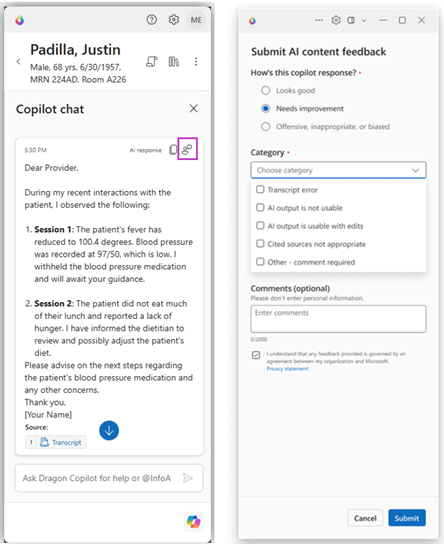
Select  to submit feedback after receiving an AI-generated response or output. Your input helps improve AI accuracy and provides valuable technical insights, making the Dragon Copilot solution more effective for you.
Related topics
Review your AI output (nursing)