
Note
Screenshots in this article show the iOS experience. Screens may look slightly different on Android, but the workflow is the same on both operating systems.
The transcript is the written record of the conversation between you and the patient, or a monologue if you recorded it solo. Use the transcript to verify what was verbalized as needed.
Transcript language
The transcript displays the language spoken. If your organization enables Spanish (US) and you select it as the ambient recording language in Dragon Copilot for Epic Rover, the transcript captures what speakers say in Spanish, English, or both during a bilingual interaction.
Note
The Dragon Copilot interface is always in English.
Dragon Copilot for Epic Rover: View transcript upon pause
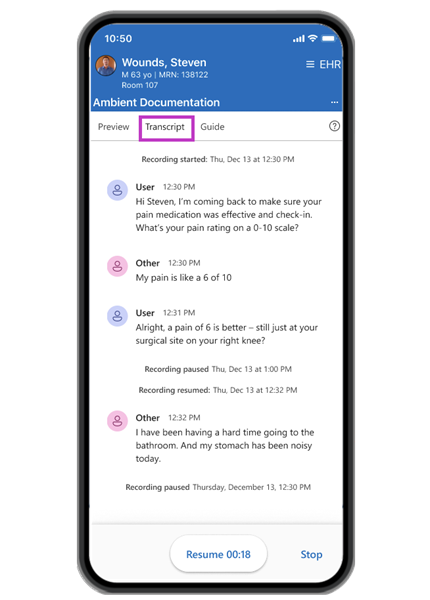
When you pause a recording in Rover, you can access the Transcript tab to review the interaction so far. This feature is ideal for catching up after an interruption.
The start and pause buttons, day, date, and time appear at the top and bottom of the transcript.
Speaker labels:
- Multiple speakers: Shows who said what. The app labels you as "user" and patients or participants as "other."
- Single speaker: Displays one entry for "user" since there's no patient dialogue to capture.
- Speaker labels remain in English even when the conversation is recorded in Spanish (US).
Note
The Transcript tab is available only when the recording is paused in Epic Rover. After you select Stop to complete the recording, retrieve the transcript through Epic Rover or Hyperspace, or with the Dragon Copilot app.
Dragon Copilot app (web, desktop, and mobile): View transcript when recording is complete
After you complete a recording, open the Dragon Copilot app and select a patient from the patient list. The patient view opens with access to all transcripts for that patient during the current shift.
Note
If you dock the app next to the EHR in a narrow view, select the ellipsis menu in the top‑right corner to access the Transcript tab.
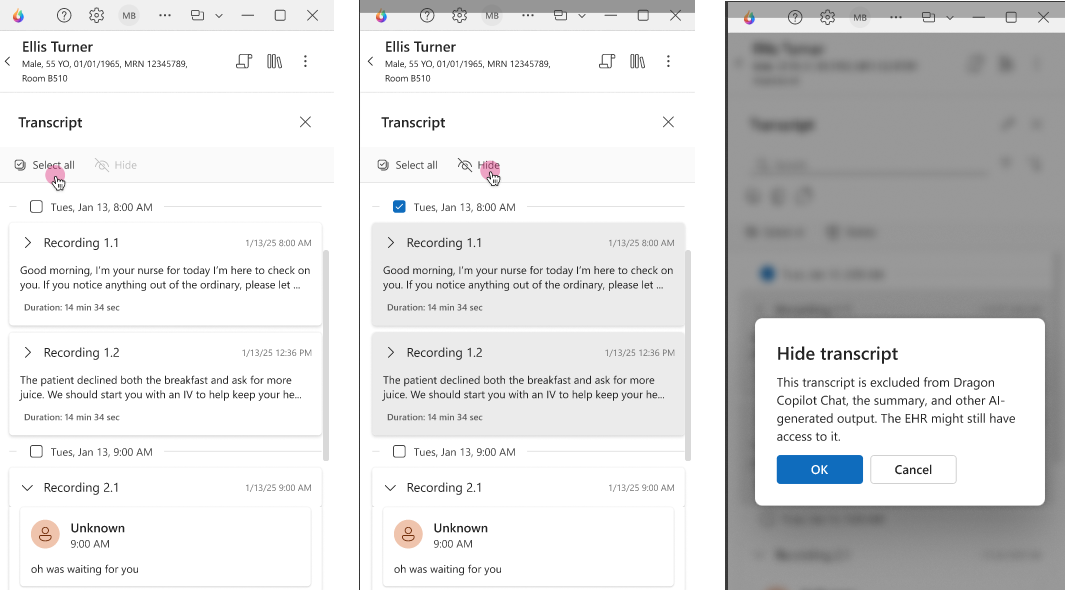
Select the Patient Transcripts icon from the patient header to view session transcripts, grouped by session and ordered from oldest to newest.
Nurses can remove transcripts they don’t want influencing AI outputs. Select a transcript and then select the Delete button. When a transcript is removed, it’s excluded from future AI-generated content, and related notes and summaries are updated automatically.
View the recording transcript in the EHR
After you complete the recording, access the transcript during your review in Rover or Hyperspace. The transcript remains available during your current shift and is visible only to you - not to other Dragon Copilot users.
View transcript in Rover
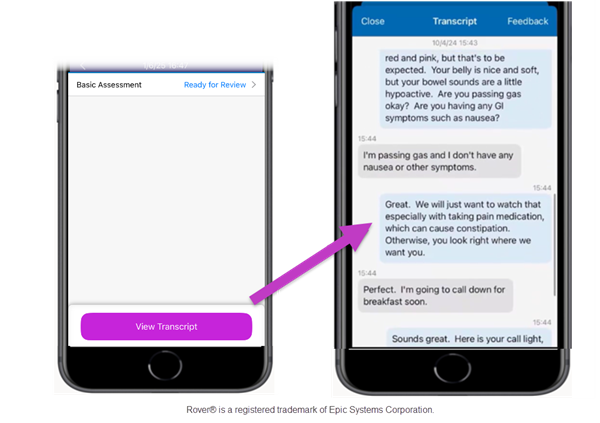
Select View Transcript to see the speech that populated flowsheet values.
- The Dragon Copilot user appears in blue, while secondary speakers (patient, family, caregivers) appear in gray.
- Both the Dragon Copilot user and secondary speaker(s) contribute content that populates the flowsheets.
View transcript in Hyperspace
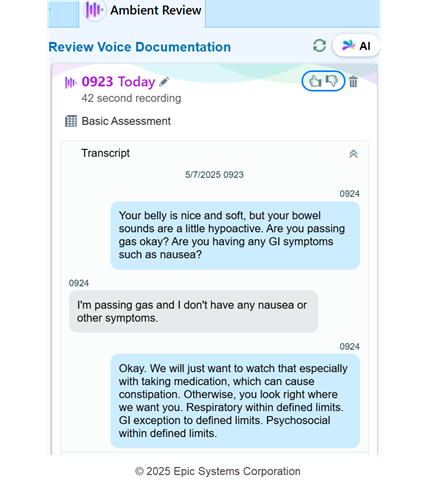
On the EHR desktop app, assessments with AI-generated values automatically display in the Ambient Review sidebar. Scroll to review the transcript.
- The Dragon Copilot user appears in blue, and the patient or secondary speakers appear in gray.
Pause and resume impact on the transcript - When you pause and resume, all segments combine into a single transcript for convenience. Each segment includes timestamps for start, pause, resume, and end times for precise tracking.
The extracted data from all recordings within that particular session contributes to the complete AI output for the patient.
Related topics
Share your feedback for the Dragon Copilot experience for nurses