
The Pre-select and lock Copilot to only use Study and Learn setting limits students' Copilot Chat to Study and Learn, an agent in the Microsoft Copilot app built for learning and grounded in learning science. Study and Learn coaches students through questions so they do the thinking, and it doesn't give away answers or do the work for them. When you turn on the lock, students start every Copilot conversation with Study and Learn and can't switch to standard Copilot Chat, use other agents, or use other Copilot capabilities. Teachers, staff, and admins in your tenant keep their usual Copilot experience.
The lock works best for schools that want students to use AI only for guided learning, such as when:
- Your school's AI policy calls for student use of AI to focus on learning.
- You've held off on turning on Copilot Chat for students ages 13-17 because you're concerned they'll use it to get answers or have their work done for them.
If you want to point students to Study and Learn but still let them use standard Copilot Chat and other agents, use the Pre-select Study and Learn setting instead.
Who it's for: Education IT admins who manage Copilot settings, and educators who need to explain what students see when the lock is on.
Requirements
- Licensing: Microsoft 365 Education A1, A3, or A5. Study and Learn is preinstalled for users ages 13 and older at no extra cost.
- Copilot Chat for students: Students need Copilot Chat turned on to use Study and Learn. The lock only works for students who have Copilot Chat enabled. Copilot Chat is on for adults in education SKUs.
- Learners ages 13-17: Use age-gating controls to turn on Copilot Chat. For details, see Enable Copilot Chat for learners and the video Microsoft Copilot Chat for Students 13+: Setup Guide for IT Admins.
- Learners under 13: Copilot Chat is blocked for users under 13.
- Tenant setup: Set your education tenant identifier and your student age group.
- App: Students use the Microsoft Copilot app on the web or on Windows desktop.
How the lock and pre-selection compare
You manage both settings in the Microsoft 365 admin center, under Study and Learn in Copilot.
| Setting | What students experience | Default |
|---|---|---|
| Pre-select Study and Learn | Each new conversation starts with Study and Learn. Students get coaching that helps them work through questions without receiving answers or completed work. They can switch to standard Copilot Chat or another agent your organization allows. | On for K-12 tenants. Off for higher education tenants. |
| Pre-select and lock Copilot to only use Study and Learn | Students can use only Study and Learn. They can't chat with standard Copilot Chat, use other agents, or use other Copilot capabilities. | Off |
Both settings apply to K-12 and higher education students who have Copilot Chat access. Teachers, staff, and admins in the same tenant aren't affected.
Note
Pre-selected doesn't mean required. By using pre-selection alone, students can switch away from Study and Learn. Use the lock when Study and Learn must be the only Copilot Chat experience for students.
Turn on the lock
- Sign in to the Microsoft 365 admin center.
- Open the Education panel (Microsoft Education - Manage Microsoft Education product settings).
- Under Study and Learn in Copilot, select Pre-select and lock Copilot to only use Study and Learn. Pre-select Study and Learn also shows as selected.
- Select Save.
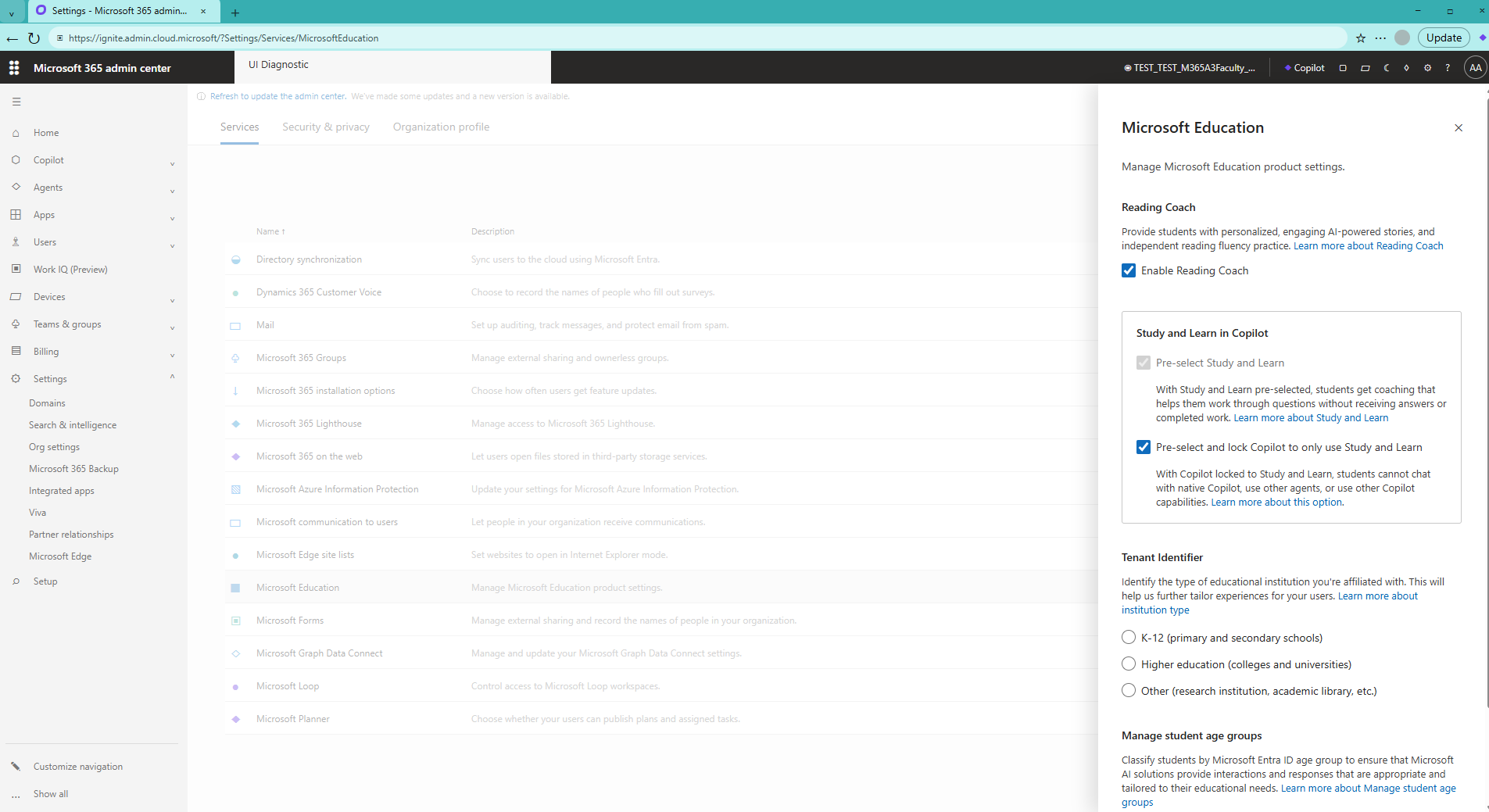
The lock applies to your whole tenant. You can't target specific groups.
Changes take time to apply after you save. Students might see the previous experience for a while.
What students see when Copilot Chat is locked
| Area | What students see |
|---|---|
| Home page | A notice tells students they're using Study and Learn, which "Guides you without doing the work for you." Students can dismiss the notice. Suggestion buttons include Get help with a question, Review a concept, Practice with flashcards, and Study with a quiz. |
| Composer | Study and Learn is selected and can't be removed. The placeholder text reads "Message Study and Learn." |
| Plus (+) menu | Students can't pick other agents or Copilot capabilities. They can still add content with Add school content, Upload image and files, and OneDrive. |
| Left navigation | Students see New chat, which starts a Study and Learn conversation, plus Search, Library, Notebooks, Study and Learn as the only pinned agent, and their chat history. Plug-ins are hidden. Students can use Library to find existing content, but they can't use it to create Word, Excel, or PowerPoint content, images, or Pages. |
| Agents and agent store | Students can't use @mention or add other agents, including from shared agent links. They can't find or add other agents from the agent store. |
| Standard Copilot Chat | Students can't chat with standard Copilot Chat. Requests outside Study and Learn are blocked. |
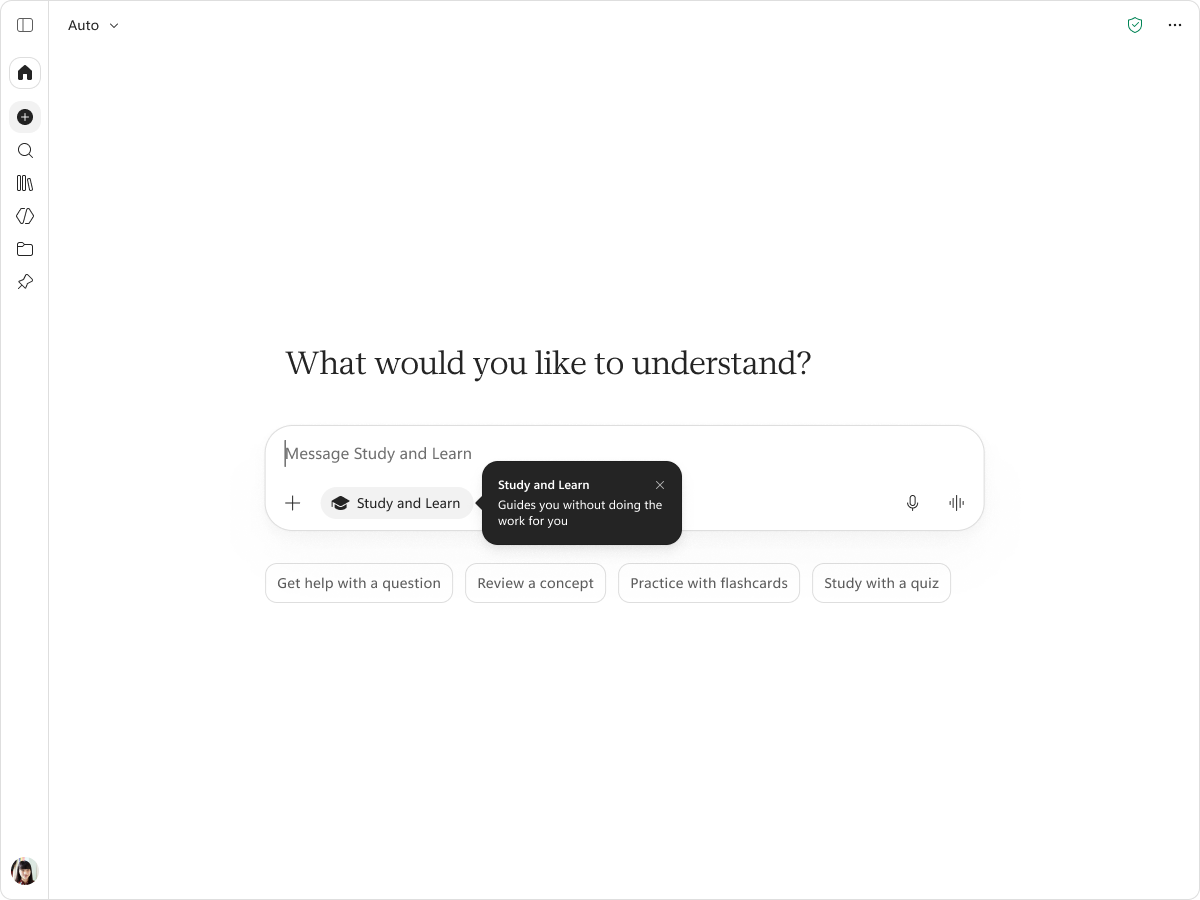
Existing chats
- Standard Copilot Chat conversations: These stay available. When a student continues one, Study and Learn responds. A notice tells the student that their institution turned on Study and Learn and that it guides them without giving away answers or doing the work for them.
- Conversations with other agents: These stay visible but are read-only. The message box is disabled.
Explain the experience to students
If you're an educator, you can tell students that Study and Learn coaches them through questions and concepts instead of handing them answers or completed work. They can still bring in school content, images, files, and OneDrive content to study with. If a student asks why other agents or standard Copilot Chat don't respond, their school turned on the lock.
Where the lock applies
| Surface | Behavior |
|---|---|
| Microsoft Copilot app on the web and Windows desktop | Locked to Study and Learn as described in this article. |
| Copilot Chat in Edge | Locked to Study and Learn, Bing search doesn't automatically provide AI overview. |
| Copilot Chat in Teams, Outlook | Copilot Chat launched from left navigation in Outlook, Teams, also the fully immersive Chat experience in Teams are locked.* *Note: "On-canvas" suggestions in Teams and Outlook to use Copilot aren't locked to Study and Learn. |
| Copilot in Word, Excel, and PowerPoint (Premium license) | Not covered by the lock. Students can still chat with Copilot and use plug-ins and skills. |
Turn off the lock
- Sign in to the Microsoft 365 admin center.
- Open the Education panel (Microsoft Education - Manage Microsoft Education product settings).
- Under Study and Learn in Copilot, clear Pre-select and lock Copilot to only use Study and Learn.
- Select Save.
After the change applies, students can use standard Copilot Chat and other agents your organization allows. Changes take time to apply. Students might see the locked experience for a while.
Limitations
- Tenant-wide only: The lock applies to all students with Copilot Chat access in your tenant. You can't target specific groups.
- Word, Excel, and PowerPoint: The lock doesn't cover Copilot in these apps. Students can still chat with Copilot and use plug-ins and skills there.
- Built-in Copilot features in Outlook and Teams: Some Copilot features outside Copilot Chat might not follow the lock yet.
- Time to apply: Turning the lock on or off takes time. Students might see the previous experience briefly before the setting propagates to students.
- Students under 13: Copilot Chat is blocked for users under 13. Turning on the lock doesn't give them access to Copilot.
- File search: Searching your files from the Plus (+) menu isn't available.