
The Learning agent in Microsoft Copilot brings CAISY: Conversation AI Simulator from Skillsoft directly into the flow of work. CAISY is an AI-powered tool that provides interactive, scenario-based simulations for employees to practice crucial business and leadership conversations - coaching, change management, customer service, sensitive feedback, executive presentations - in a safe, realistic environment. After each session, learners receive immediate feedback to build skills for the next challenging interaction.
This article shows administrators how to enable Skillsoft CAISY role plays for their organization in Learning agent and shows learners the ways the Learning agent surfaces role play.
Prerequisites
Learner/End-user license requirement
- An active Skillsoft Percipio subscription with the CAISY: Conversation AI Simulator entitlement for the end user – Skillsoft CAISY: AI Conversation.
- Microsoft Copilot licenses assigned to learners who will use the Learning Agent.
Admin license requirement
Admins require one of the following roles to complete the setup in their tenant:
- Global Administrator
- Knowledge Administrator
Admins must also have a valid Viva Learning license (Premium or Seeded).
Learner experience
Once an administrator enables CAISY: Conversation AI Simulator, learners can encounter Skillsoft role play scenarios in three different experiences in Learning Agent.
Role play scenario on the Learning Agent home page
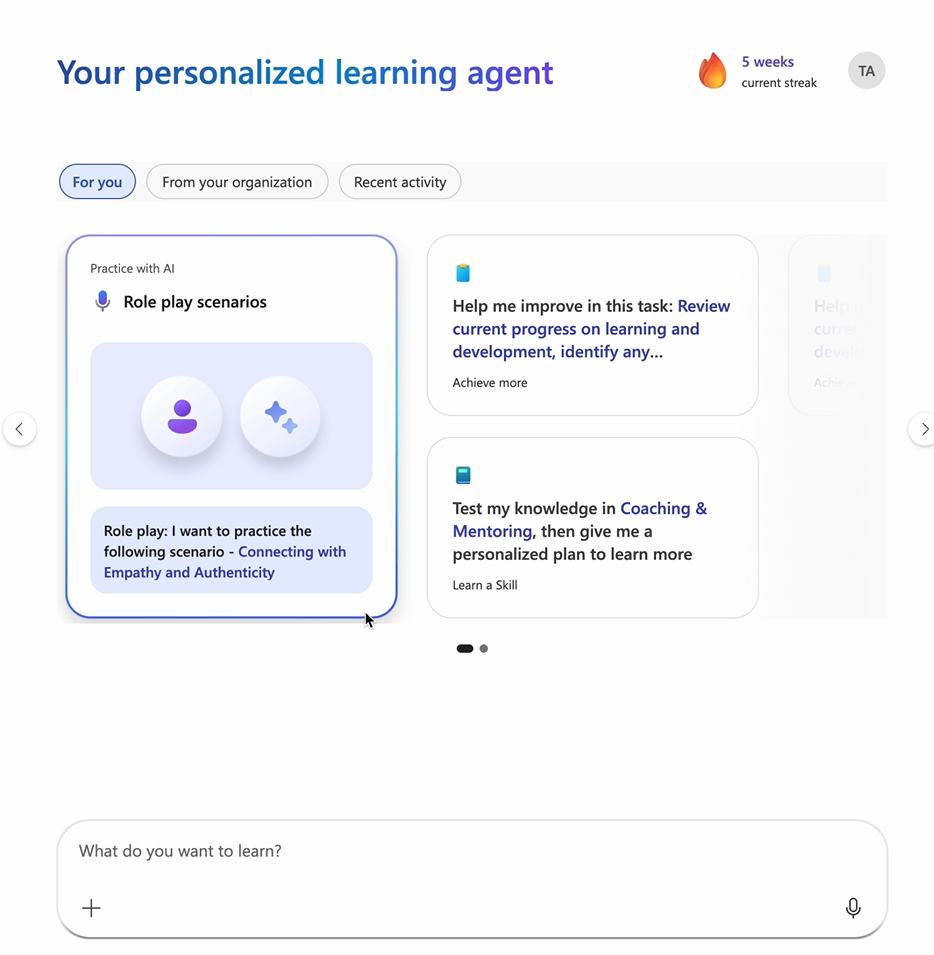
When a learner opens Learning Agent in Microsoft Copilot, the home page can show a personalized For you carousel. A Practice with AI - Role play scenarios card can appear in the carousel with a scenario tailored to the learner’s role.
- Open Microsoft Copilot and select Learning Agent.
- On the home page, in the For you tab, locate the Role play scenarios card. The card can show a featured scenario, such as Connecting with Empathy and Authenticity, sourced from CAISY.
- Select the suggested scenario link on the card to start.
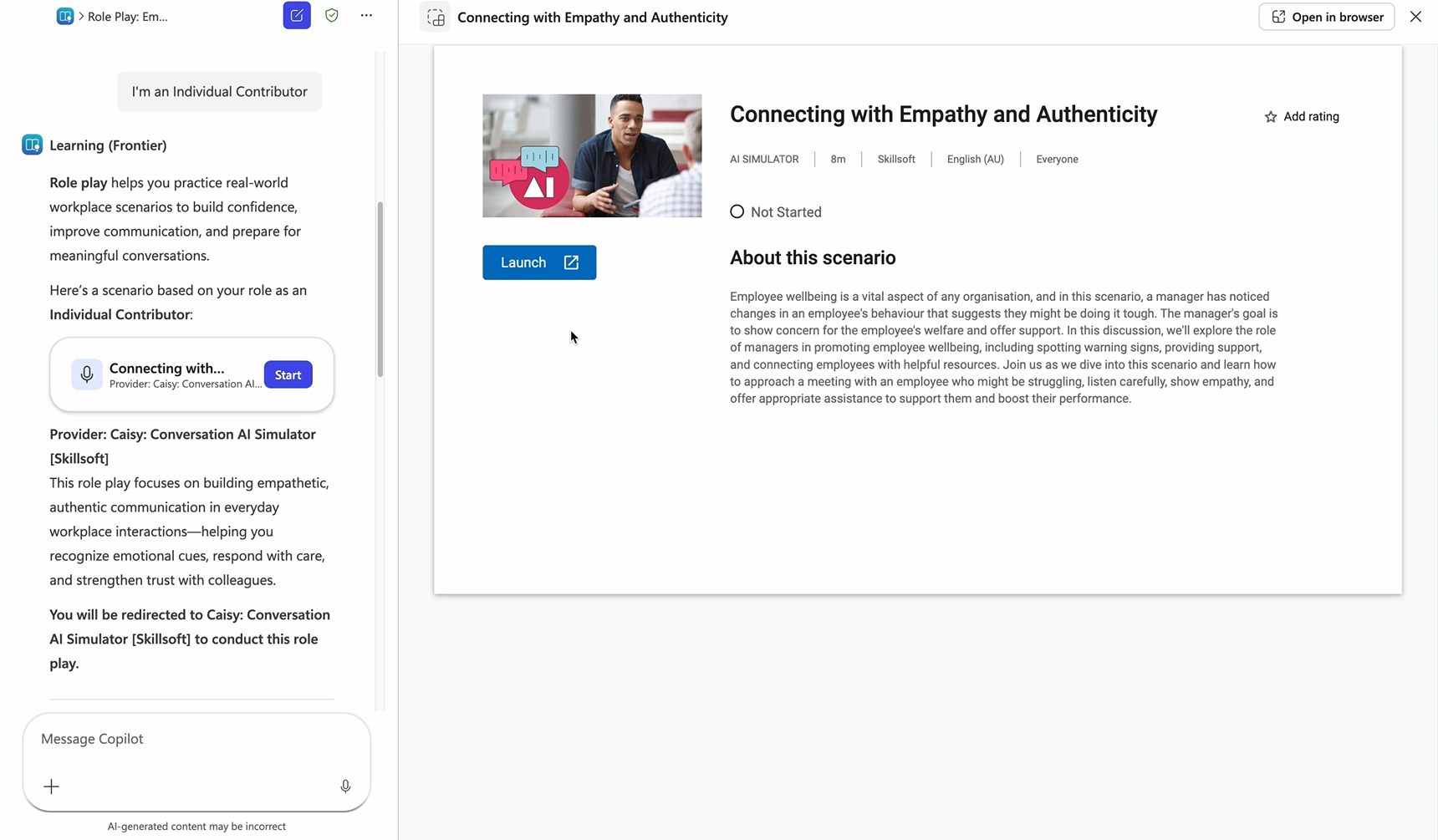
After the learner selects the scenario, Learning Agent opens a chat with a brief explanation of role play and a scenario card from CAISY: Conversation AI Simulator [Skillsoft]. The card shows the scenario title, a description of the situation, and a Start button. The example in the guide uses the scenario Connecting with Empathy and Authenticity, which focuses on recognizing changes in an employee’s behavior and responding with empathy and authenticity to support wellbeing.
Selecting Start opens the Skillsoft Percipio experience inside Learning Agent, where the learner signs in to begin.
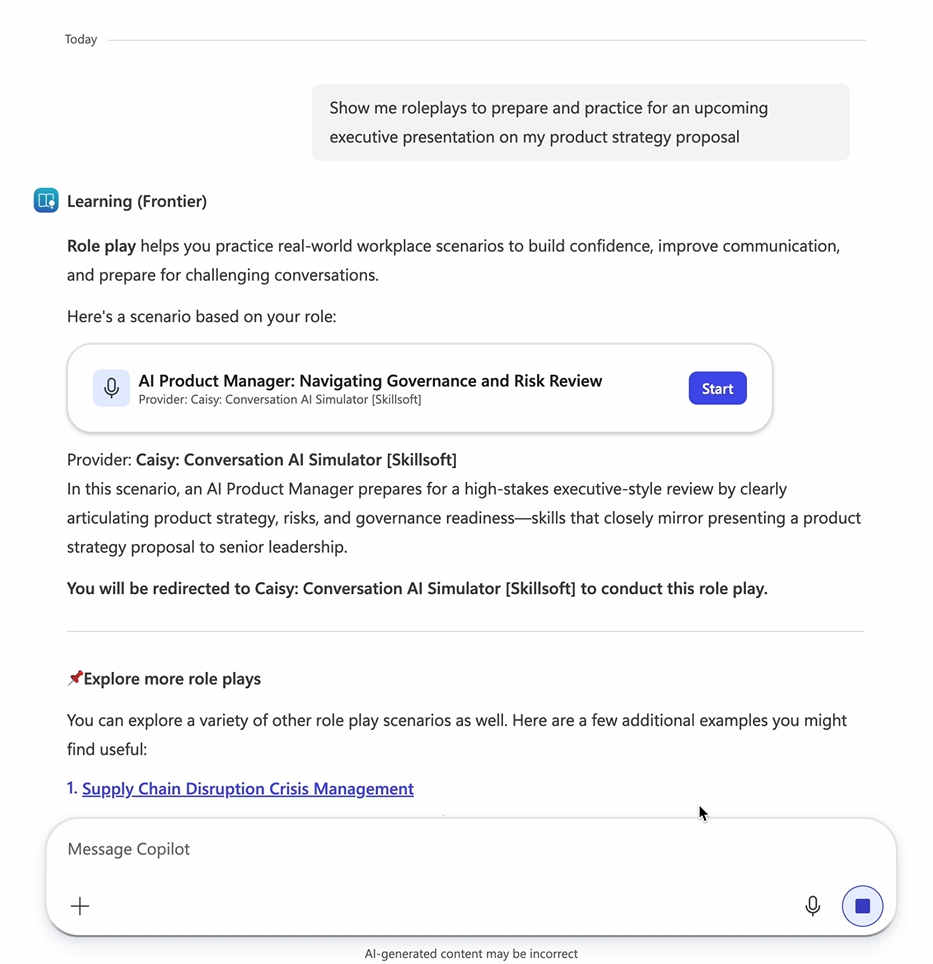
Role play recommendation in response to a learner’s query
Learners can also ask Learning Agent directly for role play practice. In this experience, Learning Agent recognizes the learner’s intent and recommends a scenario that matches the learner’s situation and role.
Example prompts that surface role play recommendations include:
- “Role play: suggest list of role plays suitable for my role.”
- “Role play: I want to practice - Presenting a Product-Led Growth Strategy.”
- “Role play a difficult feedback conversation with a peer.”
In response, Learning Agent provides:
- A short explanation of role play.
- A primary Recommended role play to start with card showing a Start button, the provider label CAISY: Conversation AI Simulator [Skillsoft], and a scenario description.
- An Explore more role plays list with additional CAISY scenarios, each linked to its full description.
Role play recommended alongside a microlearning response
When a learner asks a question that signals an intent to practice or rehearse, Learning Agent can recommend a CAISY scenario as a highly relevant resource alongside its learning response.
The example prompt in the guide is: Help me make a tough product launch decision.
In this case, Learning Agent responds with conceptual guidance and inline resource recommendations. A relevant CAISY scenario, such as Product Launch Decisions, is surfaced as a recommendation that the learner can open directly.
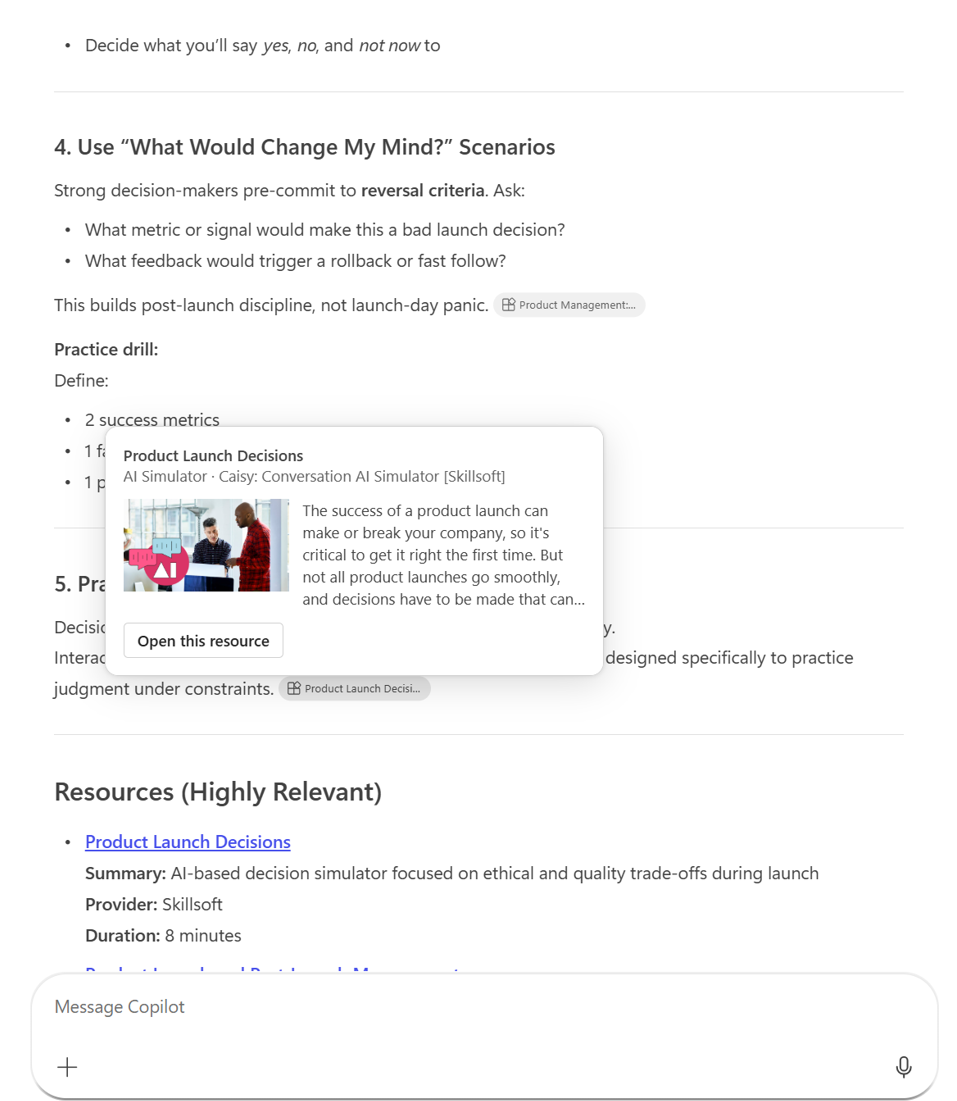
Selecting Open this resource launches the CAISY scenario inline, where the learner signs in to Skillsoft Percipio and begins the simulation.
Role play session
After a learner selects Start or Open this resource on any CAISY scenario from any of the three surfaces, the same experience follows.
- The learner is prompted to sign in to Skillsoft Percipio if they are not already signed in. The learner uses the email address or login name associated with the Skillsoft Percipio account.
- After sign-in, the CAISY: Conversation AI Simulator scenario opens within Learning Agent. The AI simulator takes the role of the other party, and the learner converses with it to practice the scenario.
- At the end of the conversation, CAISY provides immediate feedback to help the learner build skills for the interaction just practiced.
- Learners can revisit a scenario at any time by asking Learning Agent for another role play or returning to the scenario from agent recommendations.
Note: CAISY conversations and feedback are powered by Skillsoft Percipio. Conversation data and learner activity are governed by the organization’s Skillsoft agreement and privacy policy. For more information, see the Privacy policy and Terms and conditions links on the CAISY provider side panel.
Setup (admin configuration)
Admins can enable and manage AI-powered role play experiences from the Learning Agent admin settings. For detailed setup steps, including enabling the provider, managing access, and configuring role play experiences, see:
- Configure AI-powered role play in Learning Agent (LinkedIn Learning).