
The Learning agent in Microsoft Copilot brings AI-powered role play scenarios from LinkedIn Learning directly into the flow of work. Learners rehearse real workplace conversations like coaching a direct report, presenting strategy to a skeptical stakeholder, handling difficult feedback - with an AI coach interactively. After each session, learners receive personalized feedback grounded in the transcript and tailored learning recommendations.
This article shows administrators how to enable LinkedIn Learning role plays for their organization and shows learners the ways the Learning agent surfaces role play.
Prerequisites
Learners/End-user license requirement
- An active LinkedIn Learning Enterprise or Premium subscription for the end user.
- Microsoft Copilot licenses assigned to learners who will use the Learning Agent.
Admin license requirement
Admins require one of the following roles to complete the setup in their tenant:
- Global Administrator.
- Knowledge Administrator.
Admins must also have a valid Viva Learning license (Premium or Seeded).
Learner experience Linkedin Role Play
Once an administrator enables AI-powered role play, learners can access LinkedIn Learning role play scenarios directly in Learning Agent. Learning Agent can surface these role play experiences in multiple ways, including on the home page, in response to direct learner prompts, and alongside related learning responses when a learner’s intent suggests a need to practice or rehearse a real-world scenario.
Role play scenario on the Learning Agent home page
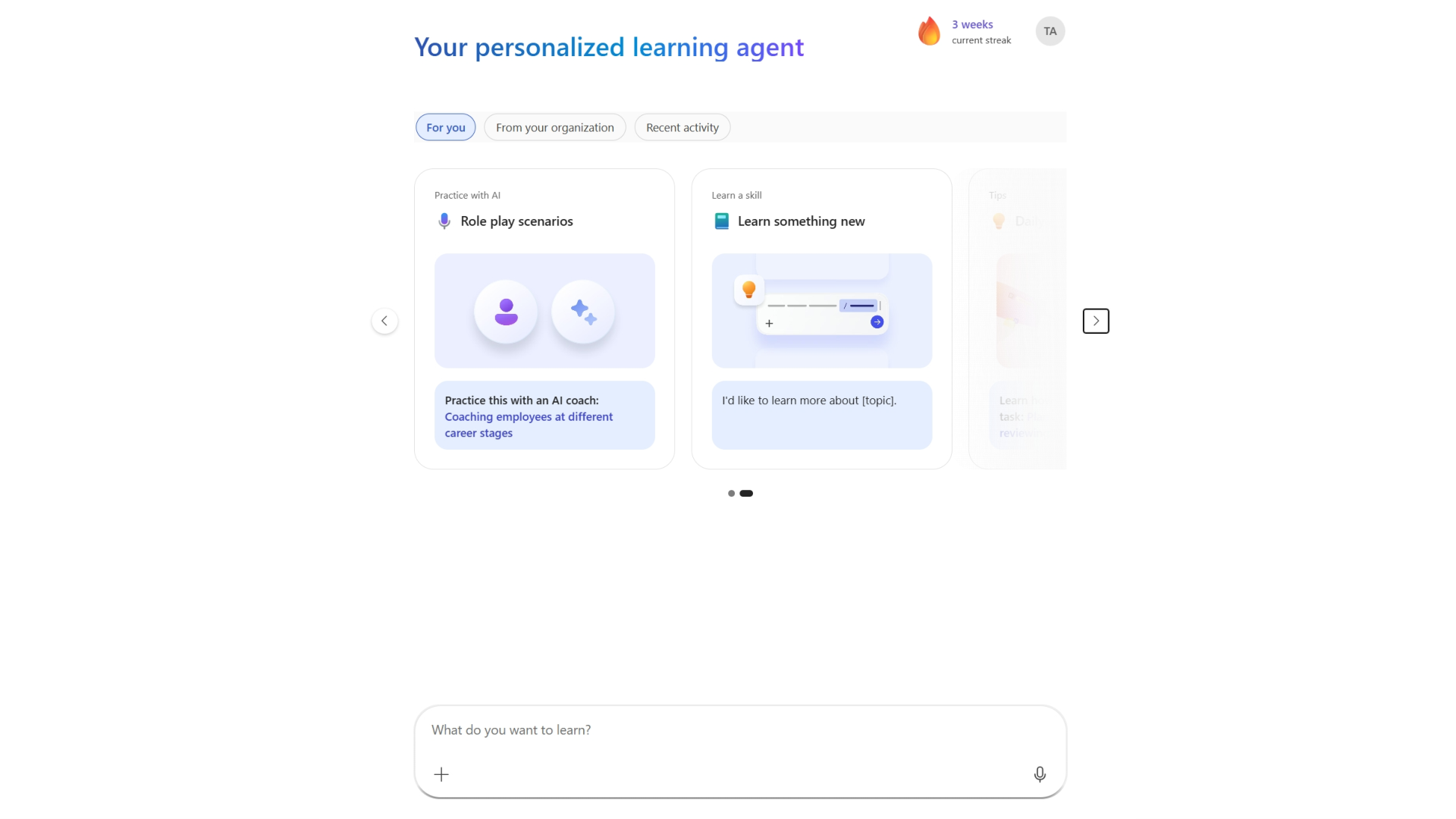
When a learner opens Learning Agent in Microsoft Copilot, the home page can show a personalized For you carousel. A Practice with AI - Role play scenario card may appear in the carousel with a suggested experience that is tailored to the learner’s role.
- Open Microsoft Copilot and select Learning Agent.
- On the home page, in the For you tab, locate the Role play scenarios card. The card can show a featured scenario such as Coaching employees at different career stages with the prompt Practice this with an AI coach.
- Select the suggested scenario link on the card to begin.
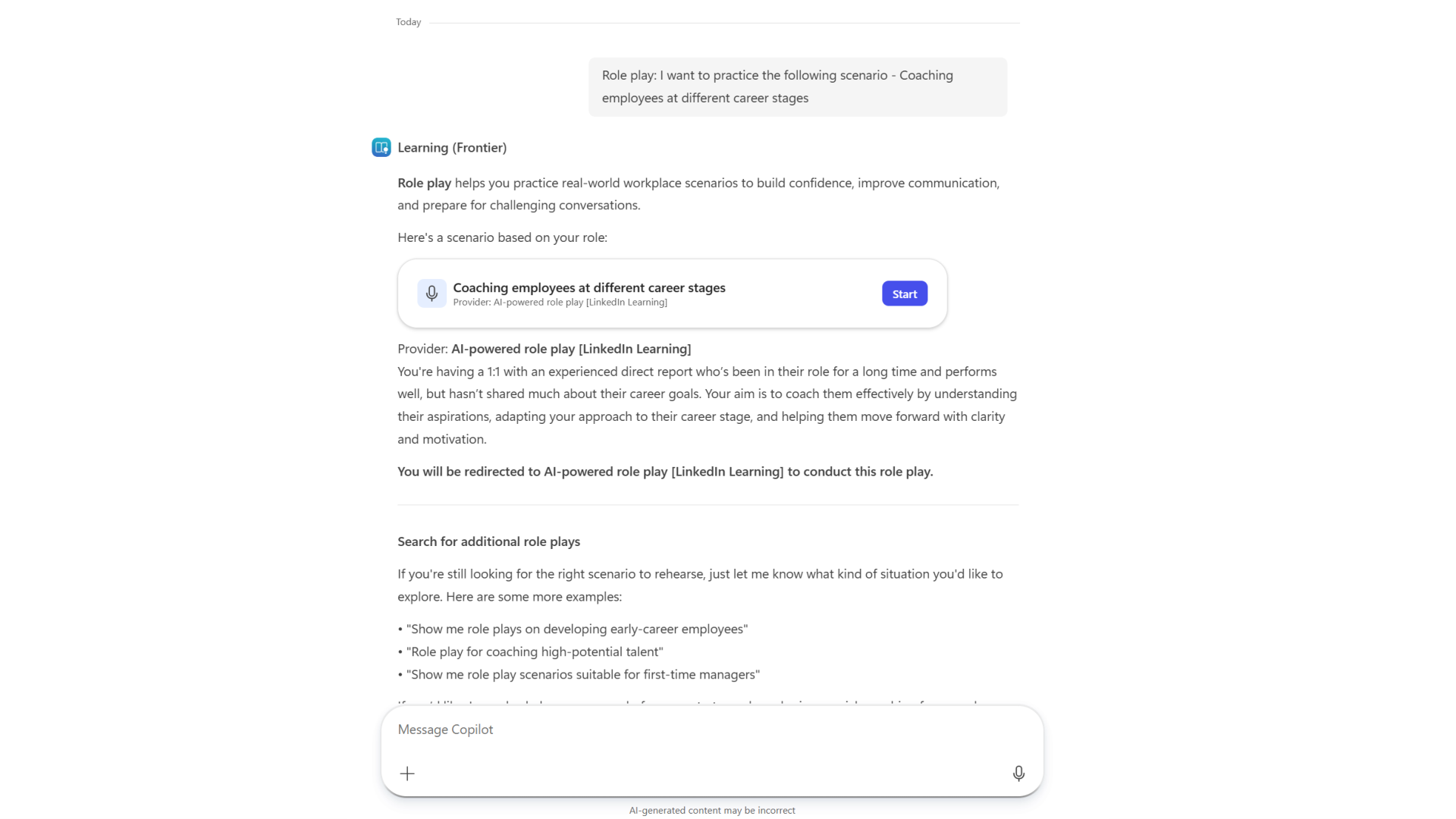
After the learner selects the scenario, Learning Agent opens a chat that introduces role play and presents a scenario card from AI-powered role play [LinkedIn Learning]. The scenario card includes the scenario title, a brief description of the situation, and a Start button.
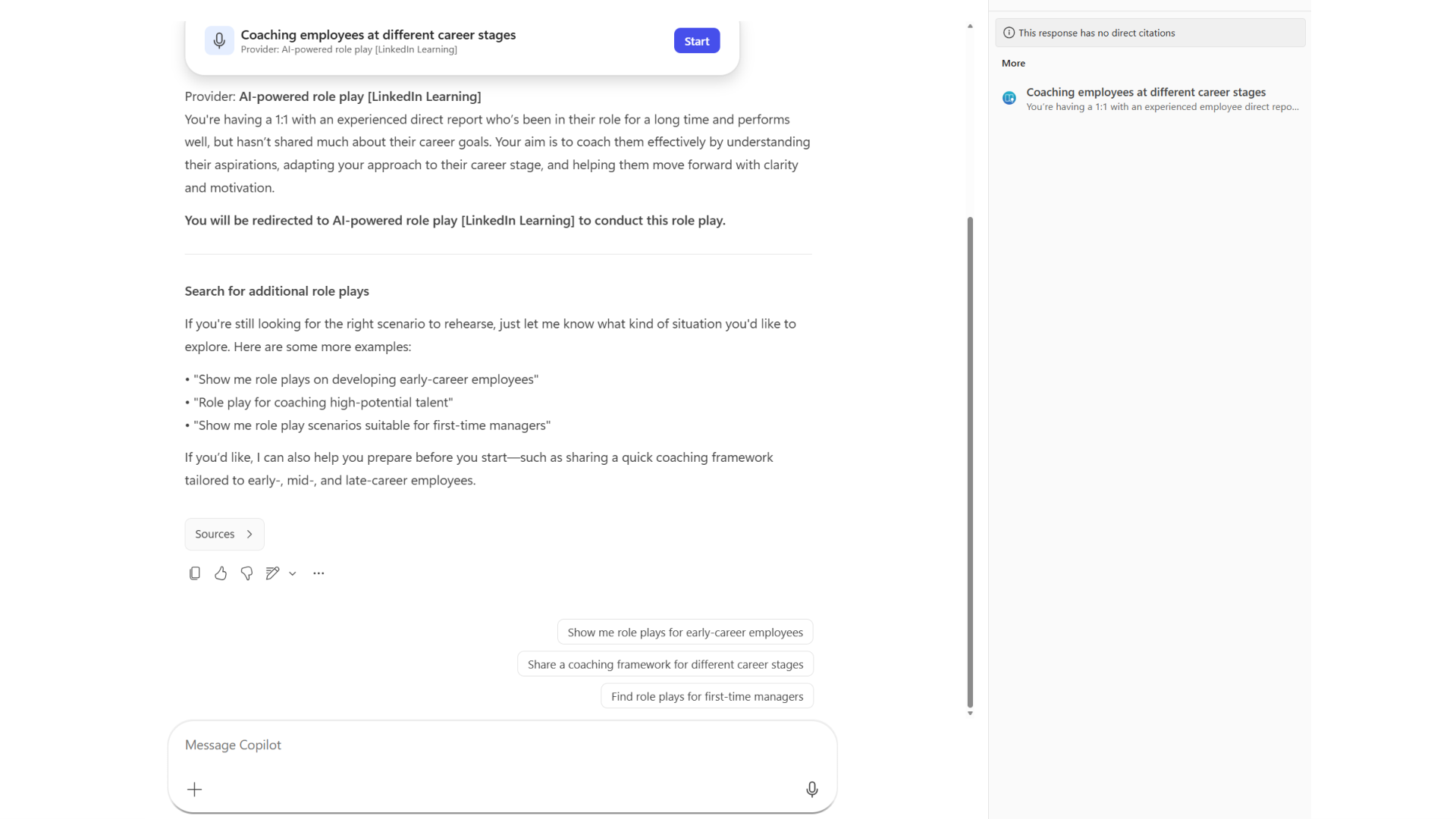
Below the scenario card, Learning Agent also suggests ways to find additional role plays and can present follow-up prompt suggestions such as Show me role plays for early-career employees or Find role plays for first-time managers.
Role play recommendation in response to a learner’s query
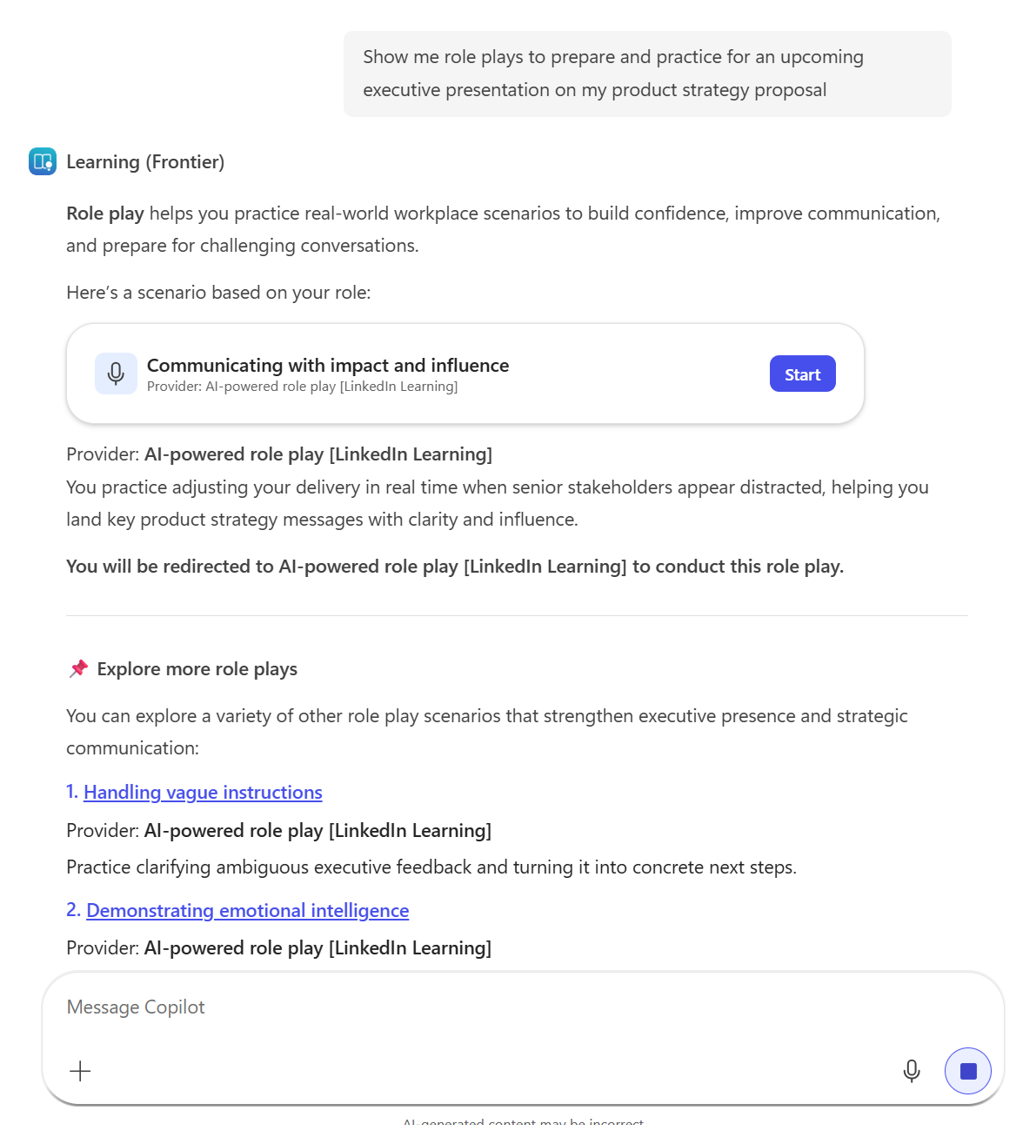
Learners can also ask Learning Agent directly for role play practice. When a learner enters a query that expresses an intent to practice a workplace scenario, Learning Agent recognizes the intent and recommends an appropriate LinkedIn Learning role play scenario.
Examples of prompts that can surface role play recommendations include:
- “Show me role plays to prepare and practice for an upcoming executive presentation on my product strategy proposal.”
- “Role play a difficult feedback conversation with a peer.”
- “I have a tough stakeholder meeting tomorrow — help me practice.”
In response, Learning Agent provides:
- A short explanation of role play.
- A primary recommended scenario card with a Start button.
- The provider label AI-powered role play [LinkedIn Learning].
- A scenario description that explains the situation.
- An Explore more role plays section with additional related recommendations.
Role play recommended alongside a learning response
Learning Agent can also recommend a role play scenario when a learner asks a question that signals an intent to practice or rehearse, even if the learner does not explicitly use the words role play.
For example, a learner might ask:
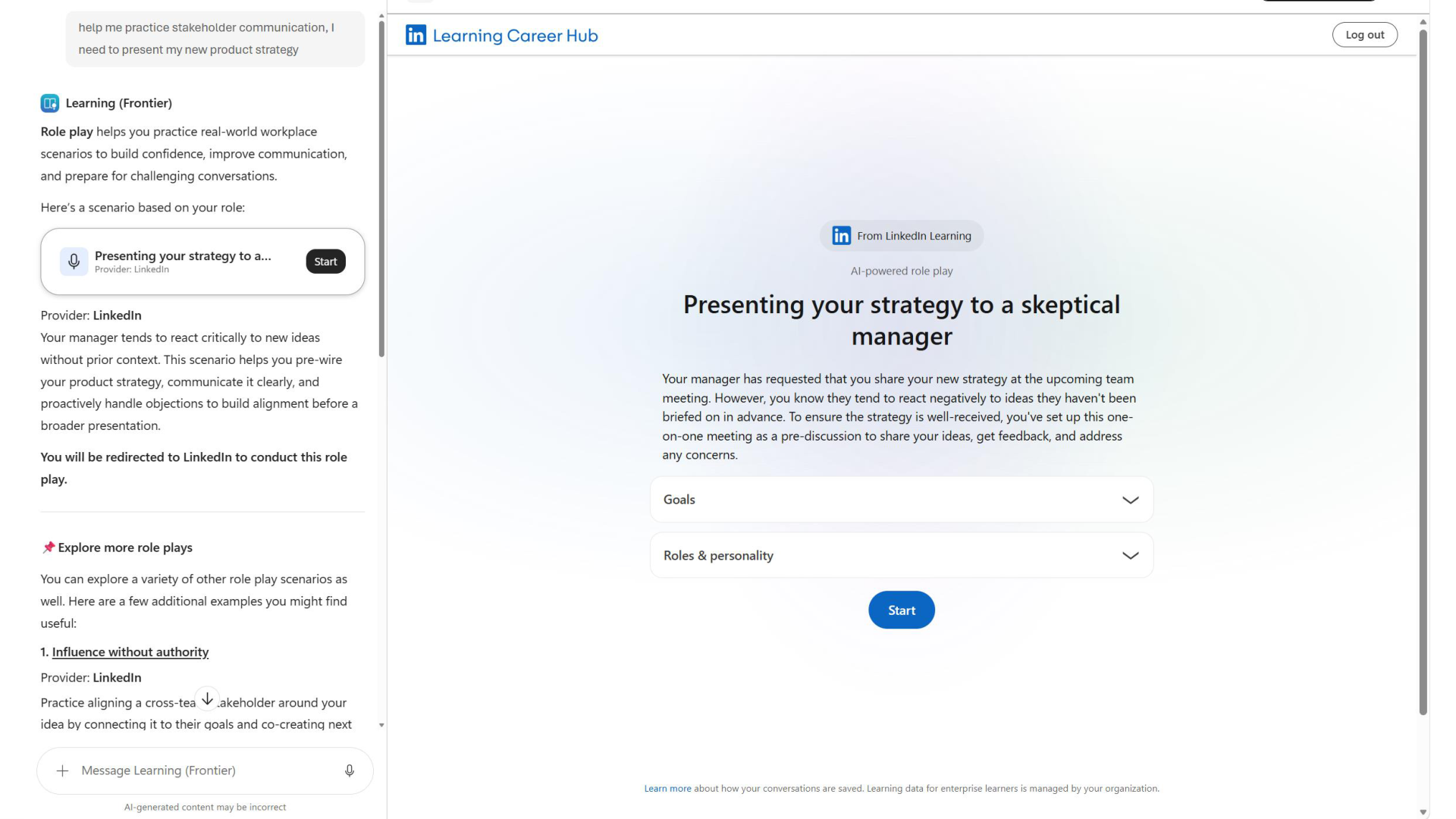
Help me practice stakeholder communication. I need to present my new product strategy.
In this case, Learning Agent can respond with a recommended scenario such as Presenting your strategy to a skeptical manager, along with the scenario description, a Start button, and additional role play suggestions under Explore more role plays.
Role play session
After a learner selects Start on any LinkedIn Learning role play scenario, the experience continues through the following stages:
Sign in to LinkedIn Learning (if required).
If the learner is not already signed in, Learning Agent prompts the learner to sign in to LinkedIn Learning. The learner should use the same email address associated with LinkedIn.com or the organization’s LinkedIn Enterprise or Premium subscription.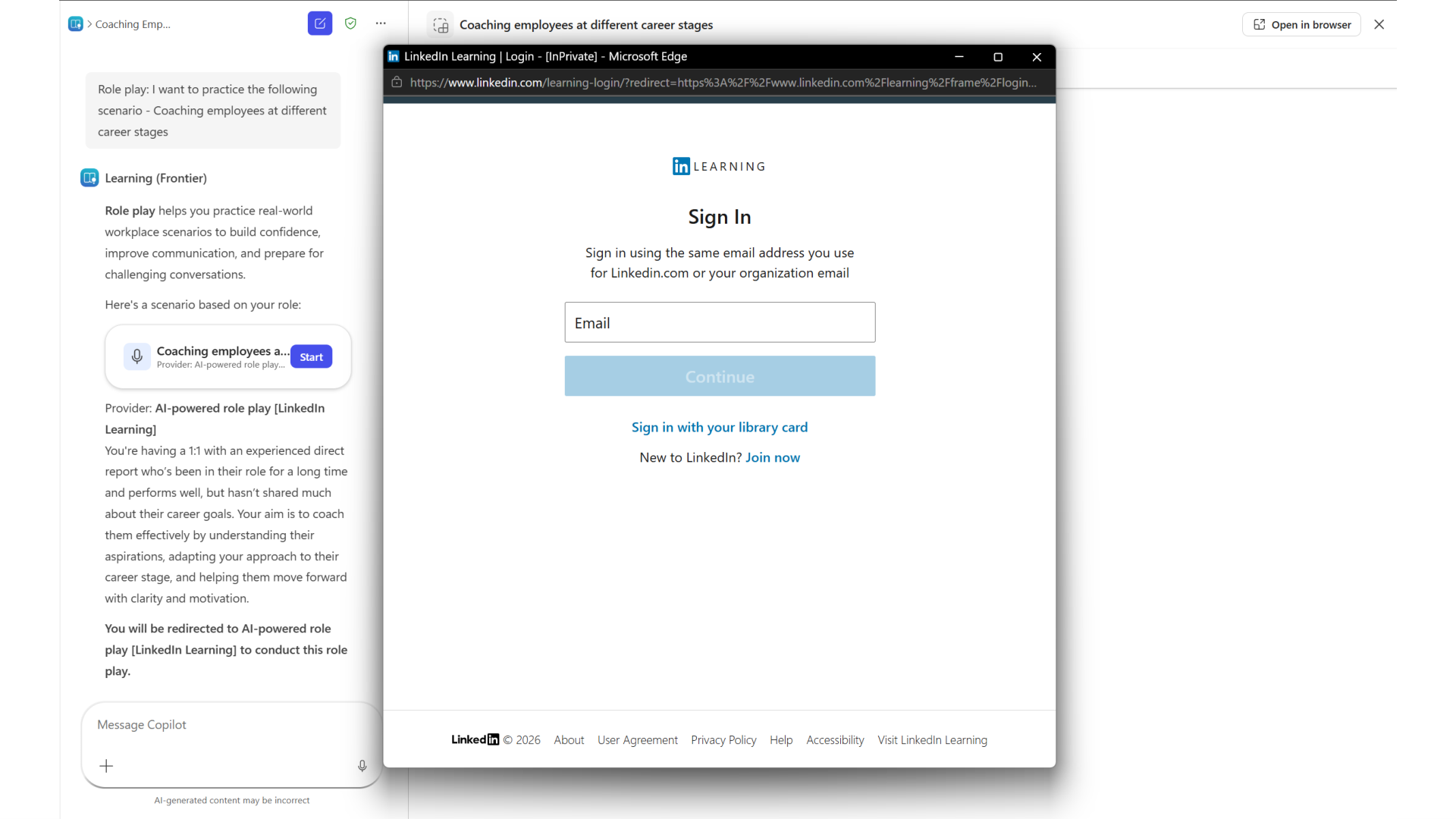
Review the scenario page.
The LinkedIn Learning AI-powered role play experience opens within the agent. The scenario page shows the scenario title, a detailed description, and expandable sections such as Goals and Roles & personality.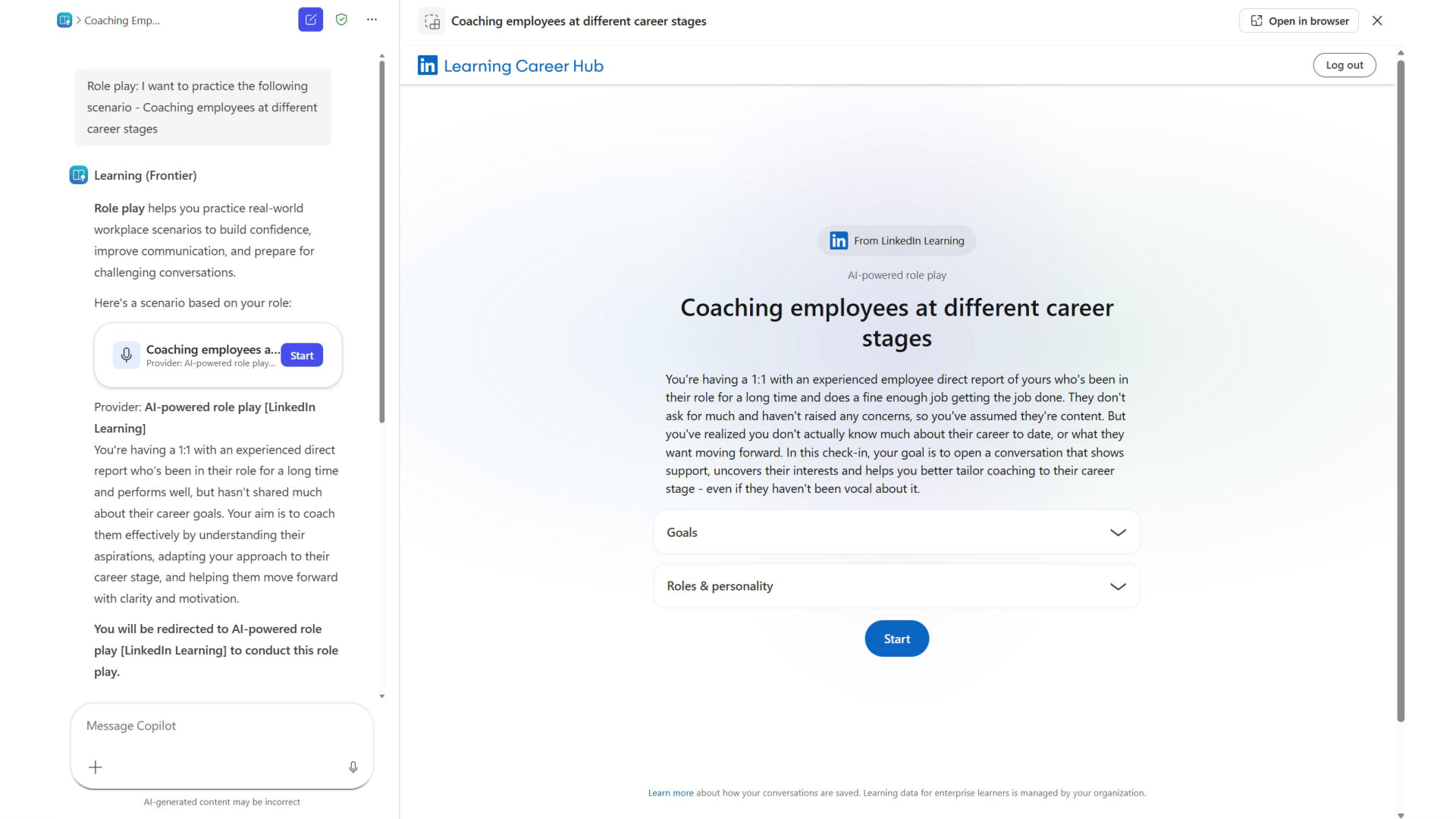
Start the role play.
The learner selects Start to begin. The AI coach takes on the other party’s role, and the learner interacts with the scenario using voice or text.Conversation analysis begins after the session ends.
When the learner ends the conversation, LinkedIn Learning analyzes the transcript and prepares post-session feedback.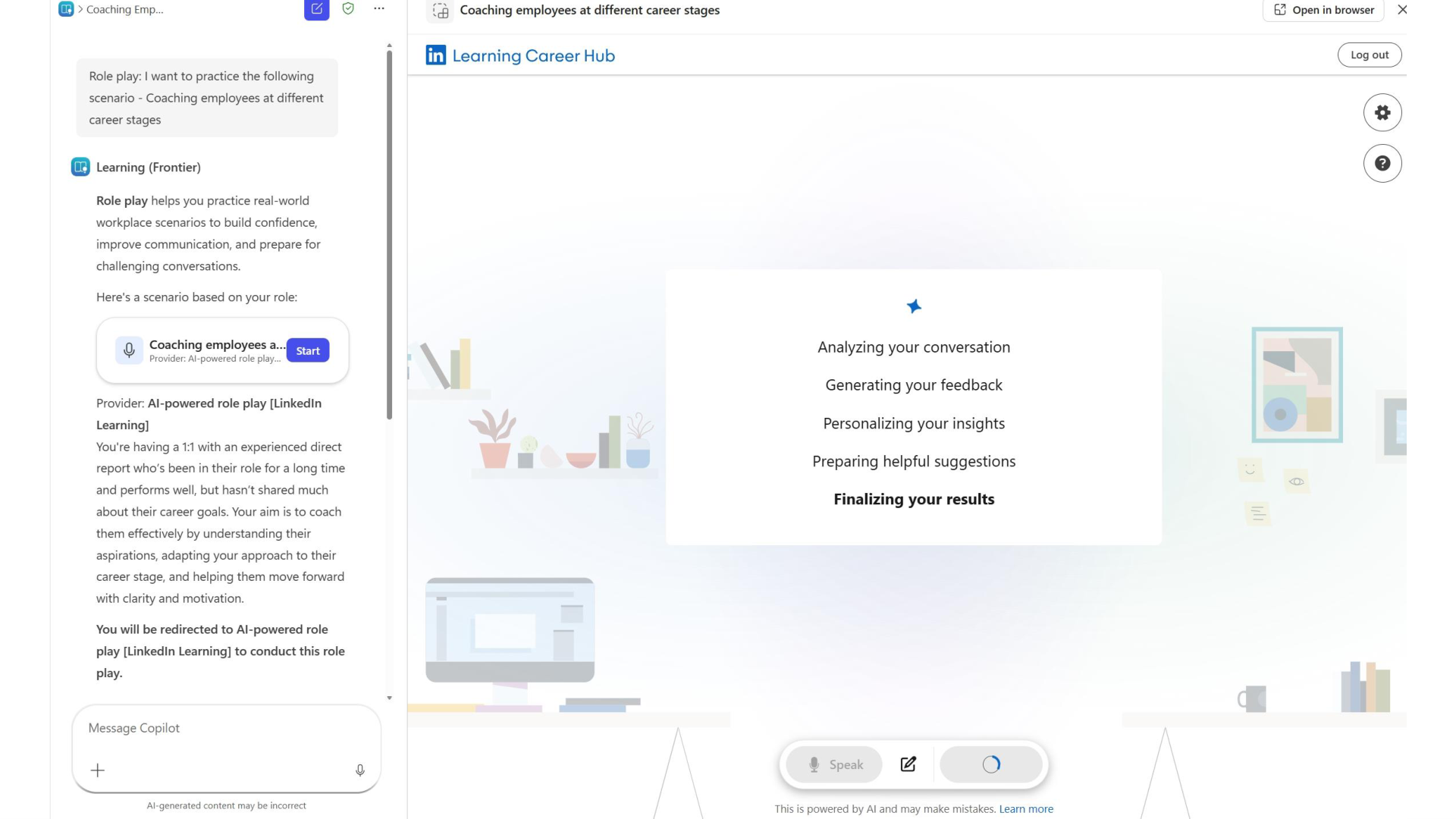
Review strengths and areas for improvement.
After analysis completes, the learner receives feedback that includes Strengths and Areas of improvement, each with observations tied to the conversation.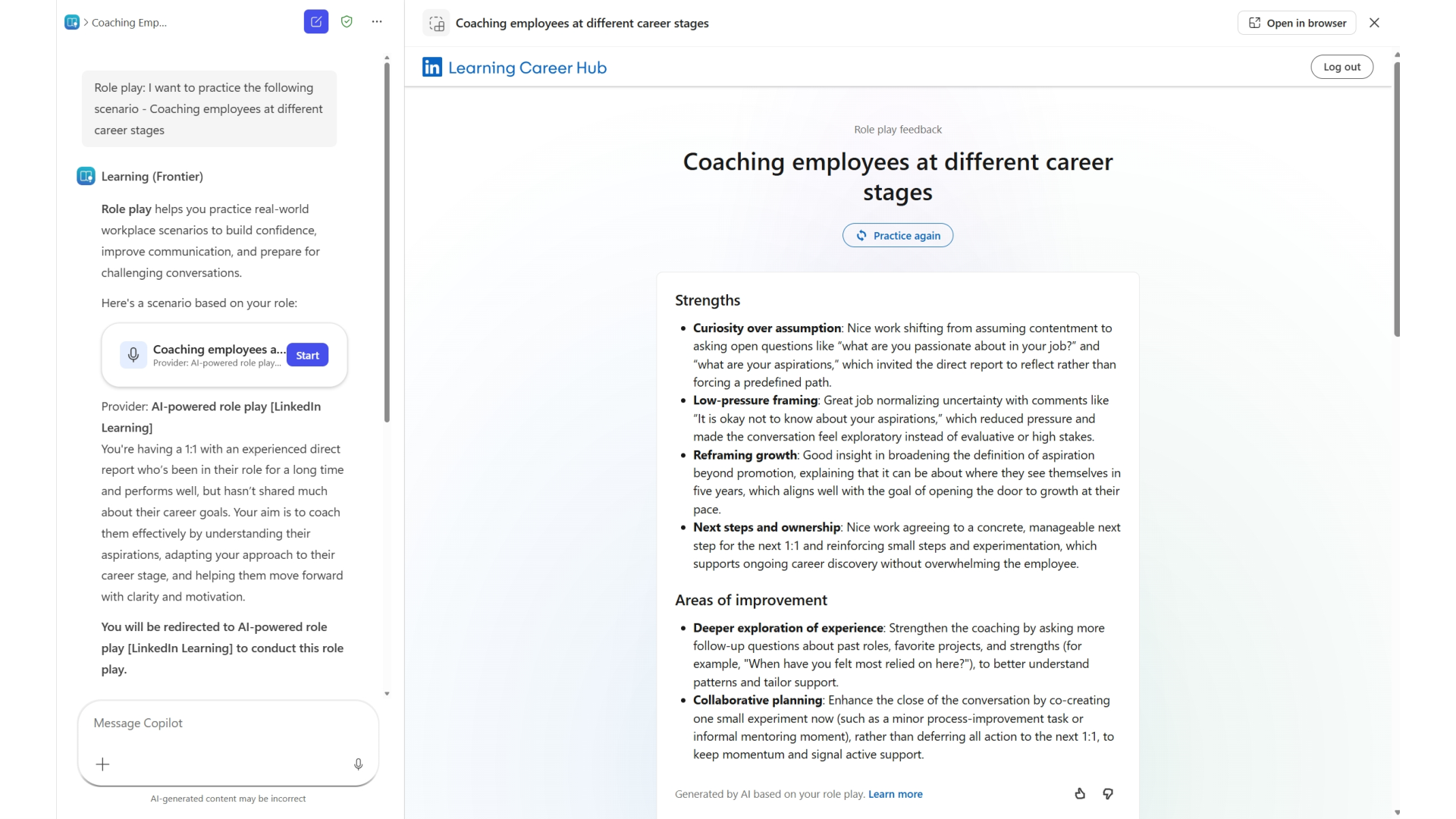
See transcript-based coaching.
The learner can review detailed coaching from the transcript, including Conversation insight commentary and suggested Example phrasing for key moments in the interaction.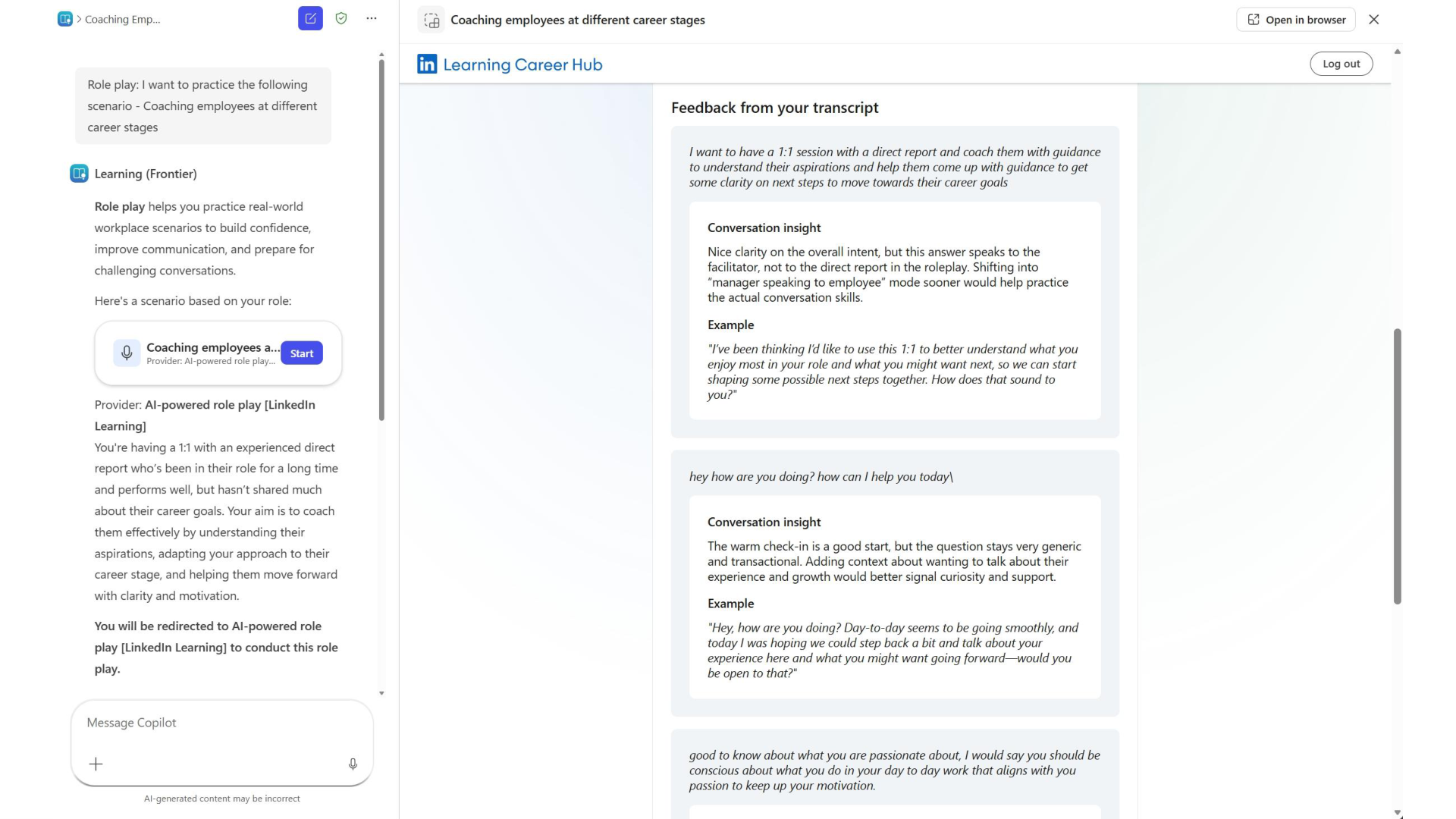
Explore tailored learning recommendations.
Based on the learner’s results, LinkedIn Learning suggests related courses that can help strengthen the skills surfaced during the session.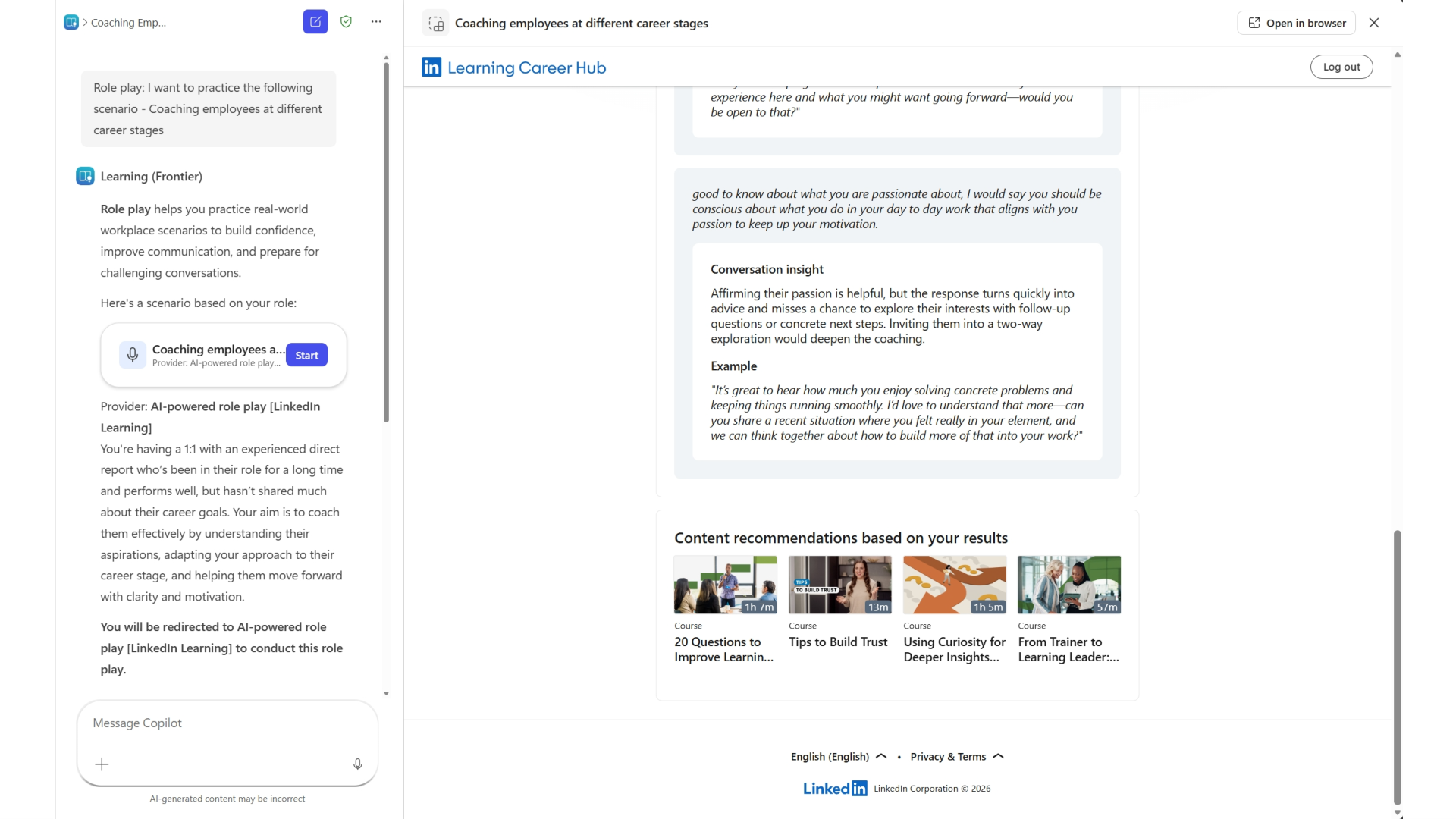
Open a recommended course directly in Learning Agent.
When the learner selects a recommendation, the LinkedIn Learning course opens directly inside Learning Agent.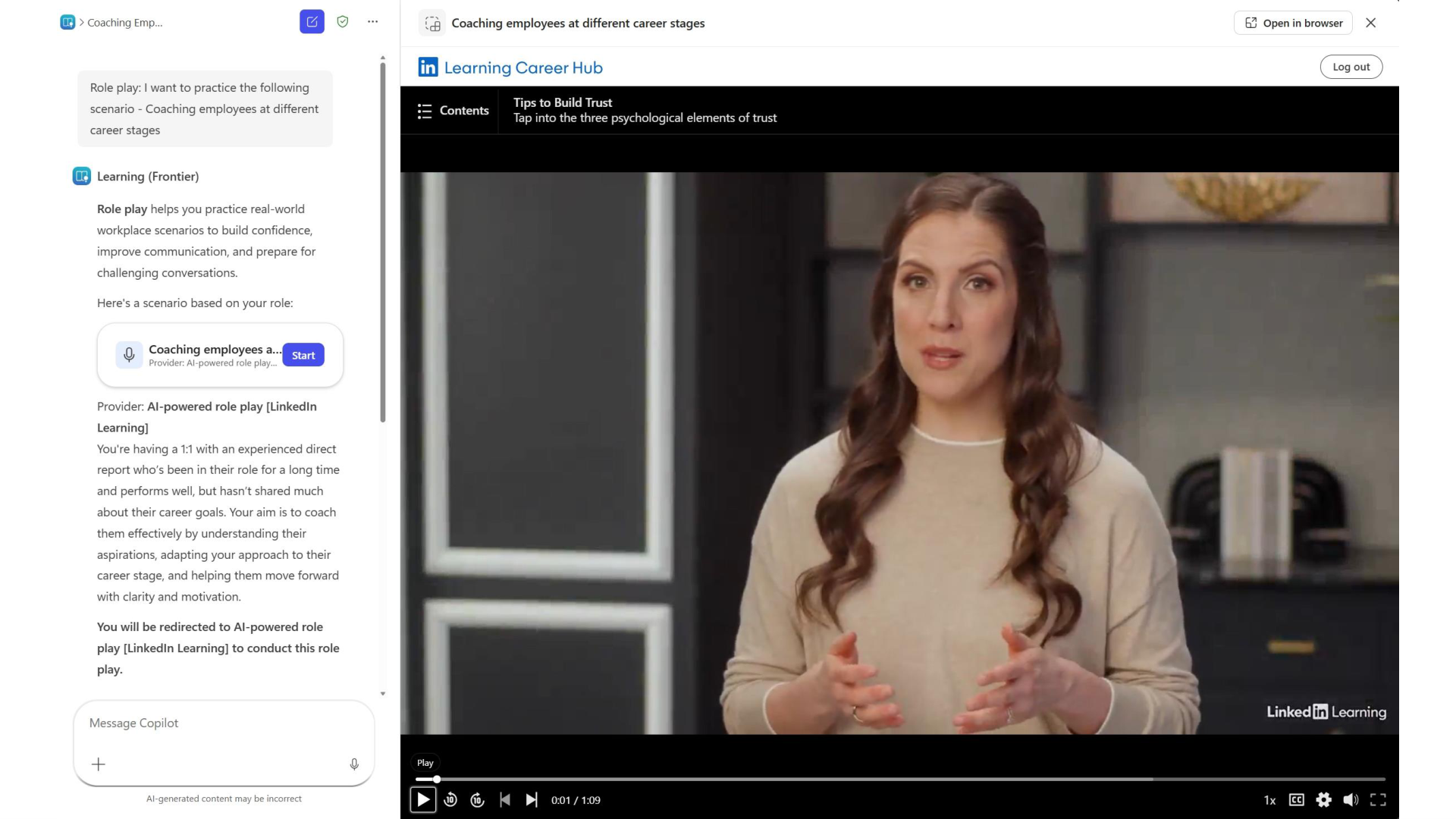
Setup (admin configuration)
Admins can enable and manage AI-powered role play experiences from the Learning Agent admin settings. For detailed setup steps, including enabling the provider, managing access, and configuring role play experiences, see:
- Configure AI-powered role play in Learning Agent (LinkedIn Learning).