
La plupart des mises à jour d’application se produisent automatiquement dans Teams, mais lorsqu’une mise à jour d’application nécessite de nouvelles autorisations, vous devez accepter manuellement la mise à jour. Lorsque vous le faites, la mise à jour est appliquée partout où vous avez le droit de modifier les choses. Il peut s’agir de conversations, de canaux, de réunions ou d’autres emplacements.
Pour mettre à jour une application manuellement :
Sélectionnez Applications
 sur le côté gauche de Teams.
En bas à gauche de votre écran, vous verrez une petite bulle rouge à côté de Gérer vos applications
 . Cette bulle indique le nombre de mises à jour d’application en attente. Sélectionnez cette bulle.
Dans la page Gérer vos applications
, les applications nécessitant des mises à jour se trouvent en haut. Sélectionnez Mettre à jour pour chaque application que vous souhaitez mettre à jour.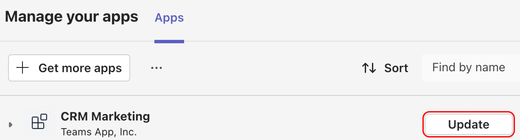
Sélectionnez Mettre à jour maintenant pour accepter les autorisations et mettre à jour l’application.
Mettre à jour des applications dans une conversation de groupe
- Sélectionnez Chat dans Teams.
- Sélectionnez une conversation de groupe.
- Sélectionnez Ouvrir les agents et les bots Gérer les
 > applications .
 - Sélectionnez Update pour l’application que vous souhaitez mettre à jour.
- Sélectionnez Mettre à jour maintenant pour accepter les nouvelles autorisations et mettre à jour l’application.
Mettre à jour les applications dans une équipe
- Sélectionnez Teams
 dans Teams.
 - Sélectionnez Ouvrir les agents et les bots Gérer les> applications .
- Sélectionnez Update pour l’application que vous souhaitez mettre à jour.
- Sélectionnez Mettre à jour maintenant pour accepter les nouvelles autorisations et mettre à jour l’application.
À partir d’une application personnelle
Sélectionnez une application sur le côté gauche de Teams.
Si l’application personnelle a besoin de nouvelles autorisations, vous verrez une bannière avec un bouton Mettre à jour .
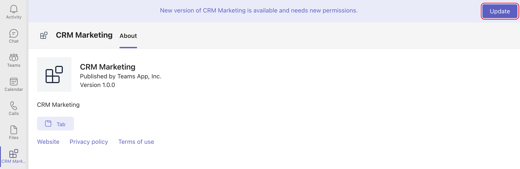
Sélectionnez Mettre à jour.
Sélectionnez Mettre à jour maintenant pour accepter les nouvelles autorisations et mettre à jour l’application.