
Explore the latest features and workflow enhancements designed to simplify nursing documentation and support patient care. This article is updated as new capabilities become available.
Note
The features available to you might vary by organization and deployment schedule.
Here's what's new in the 5.2 release
Work with the appropriate flowsheet profile
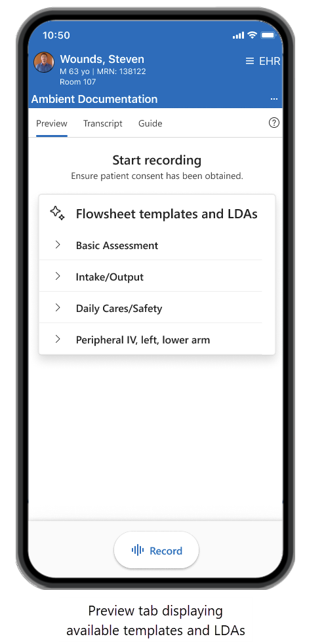
Your flowsheet profile controls which flowsheet templates and line, drain, and airway (LDA) settings you see when you record. Your organization configures profiles to match documentation needs for different clinical roles, care settings, and workflows.
What you need to know
- You can use only one flowsheet profile at a time.
- Your active profile determines which templates and LDA rows appear on the Preview tab.
- Your Epic profile doesn't change. The flowsheet profile uses templates already available in Epic.
- You still need to review, edit, and file your documentation.
You'll see one of two behaviors, depending on how your organization configures Dragon Copilot.
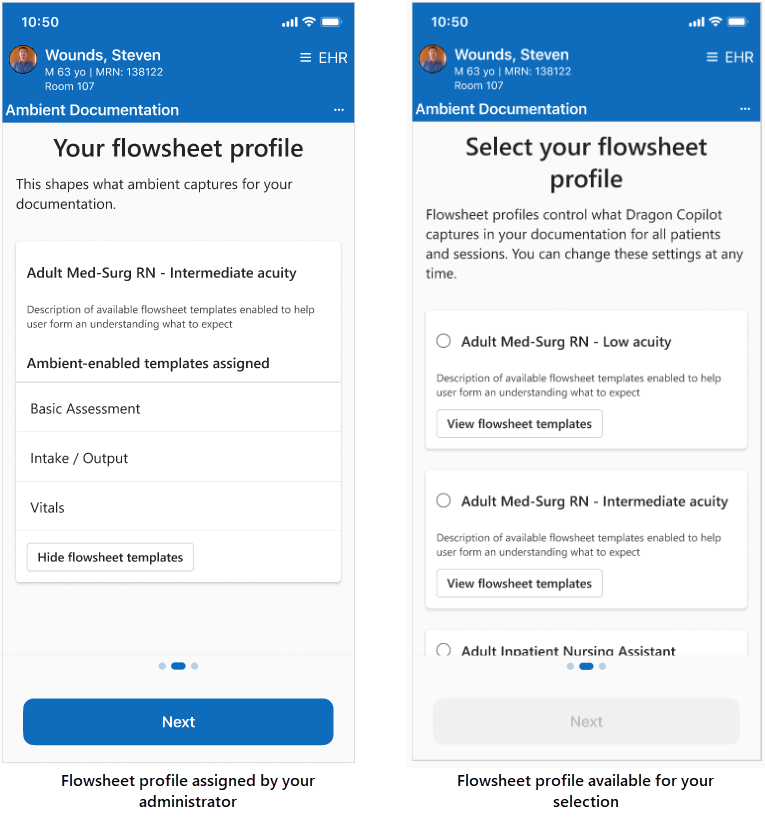
- Assigned by your administrator: You see a one-time introduction to your assigned profile. You can view the profile in Settings, but you can't change it.
- Selected by you: If your organization enables profile selection, you choose from the profiles available to you during first-time setup. You can change your selection later in Settings.
Tip
Check your active profile before your first recording. If it doesn't match your unit, care setting, or workflow, contact your organization administrator.
When your profile changes
A profile change updates the templates and LDA settings available for your next recording. It doesn’t change the documentation you already filed.
Note
If your organization hasn't created flowsheet profiles, you can continue using Dragon Copilot without selecting one.
Document active LDAs dating back up to five years
Dragon Copilot now supports documentation for eligible active LDAs dating back up to five years, expanding the previous 120-day window. LDAs must remain active and available in the EHR.
Record in Dragon Copilot for Epic Rover on Android
You can now use Dragon Copilot for Epic Rover on supported Android devices. Use the same ambient documentation workflow to record patient interactions and review draft flowsheet observations.
What you can do on Android
- Start, pause, resume, and stop an ambient recording in Epic Rover.
- See the flowsheet templates and LDAs in your active profile.
- Review draft flowsheet observations before filing them in the EHR.
Before you record
- Use an Android device and Epic Rover version approved by your organization.
- Follow your organization's patient consent policy.
- Review AI-generated documentation for accuracy and clinical intent before filing it in the EHR.
Note
Screens might look slightly different on Android and iOS, but the workflow is the same on both operating systems.
Record conversations in Spanish (US)
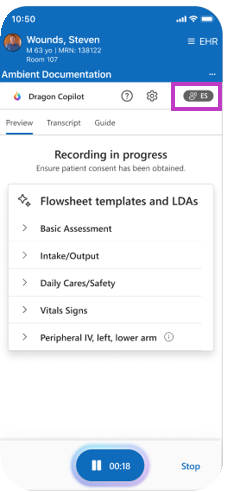
You can record patient conversations in Spanish (US), English, or both during the same Dragon Copilot session. Dragon Copilot recognizes when you switch between Spanish and English, so you can use your usual recording workflow.
Note
The ES symbol beside the gear icon indicates that Spanish recording is on.
What you need to know
- Your organization must enable Spanish (US) recording before the language setting appears.
- Turn on Spanish (US) in Dragon Copilot Settings. Your selection stays on for future recordings until you change it.
- You can speak in Spanish, English, or switch between both languages during the same recording.
- The transcript can include Spanish text. Dragon Copilot generates flowsheet observations and other AI-generated output in English.
- Spanish (US) recording is supported in Dragon Copilot for Epic Rover on iOS and Android.
Important
Dragon Copilot doesn't automatically select Spanish (US). Turn on the language in Settings before you start recording.
Before recording in Spanish
- Confirm that Spanish (US) is turned on in Settings.
- Follow your organization's patient consent policy.
- Review the transcript and AI-generated documentation for accuracy and clinical intent before filing it in the EHR.