
Build excitement and an audience for a Microsoft Teams event after you create it by publishing and sharing the event details and site. After you publish an event, invites will be sent to attendees automatically. You’ll also generate an active event link that can be shared via social media, websites, email, and chat.
Important
If you created your event in the Teams calendar, these experiences may look different. For help publicizing events scheduled from your Teams calendar, see Publicize a webinar in Microsoft Teams and Schedule a town hall in Microsoft Teams.
Publish an event
After you publish an event, attendees will be invited automatically and be able to view the event details, register, and join the event. You can still invite attendees after an event is published and modify some event settings. You can’t change the access level or turn registration on or off after the event is published.
After your event is published, you’ll see a screen with a view of your event card and options to publicize your event:
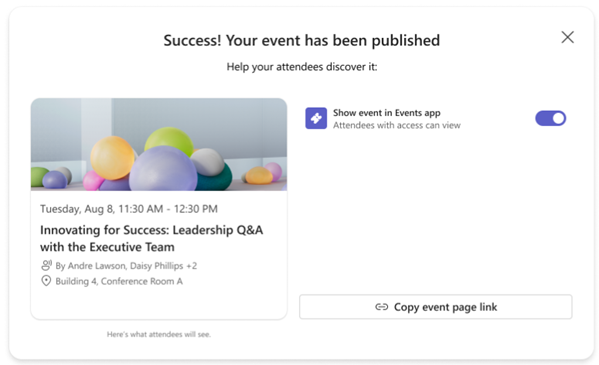
Turn on the Allow attendees to discover the event toggle to surface your event in the Events app Discover feed. This allows attendees to see the event in their Discover feeds and maximizes the reach of your event.
Select Copy join details
 to copy the meeting join link, meeting ID and passcode, and meeting options link to your clipboard.
Select Copy event page link
 to copy the URL of your meeting page to your clipboard.
Select Copy embed code
 to copy the embed code to your clipboard.
Promote an event
Build an audience for events by surfacing them in the Events app Discover feed. This is beneficial for public events where there is no restriction on attendance, like social or volunteering events. Share links to various event assets or embed the event into SharePoint or other Microsoft 365 sites. Shareable event assets include the join details and event page link.
Make your event discoverable
Increase awareness around your event without directly sharing the event link or details by making it discoverable in the Events app Discover feed.
For public and in-org events, people can find your event there, view its details, and register or add it to their calendars if registration isn’t required.
To surface your event in the Events app Discover feed:
Select Events
 on the left side of Teams.
Select Manage.
Under Published, select the event you want to share event join details for.
Select Share
 .
.Turn on the Allow attendees to discover the event toggle.
You can also turn on the Allow attendees to discover the event toggle when you publish the event.
Note
For events accessible to specific people or groups only, only invited people will see the event in their Discover feeds, regardless of whether the Allow attendees to discover the event toggle is turned on. Organizers, co-organizers, presenters, and invited attendees will always see the event details in their Discover feeds, regardless of whether the Allow attendees to discover the event toggle is turned on.
Share event join details
Event join details include the meeting join link, meeting ID and passcode, and meeting options link.
Select Events
on the left side of Teams.Select Manage.
Under Published, select the event you want to share event join details for.
Select Share
.Select Copy join details
.
Share an event page link
The event page link is a URL that can be shared anywhere and will allow anyone within your event access level to view the event page and details.
Select Events
on the left side of Teams.Select Manage.
Under Published, select the event you want to share an event page link to.
Select Share
.Select Copy event page link
.
Embed an event
Embed an event to give attendees a single place to stream the event live, engage, and later watch the event recording. To embed an event, the event access settings must have been set to Your organization or Public before the event was published.
Select Events
on the left side of Teams.Select Manage.
Under Published, select the event you want to embed.
Select Share
.Select Copy embed code
.