

Filter out background noise during Teams calls and meetings with voice isolation. Voice isolation uses AI to block surrounding noise so others can hear you clearly.
How it works
When you add a voice profile, Teams will know which sounds to keep (your voice) and which ones to filter out. Voice isolation also filters out sound from other speakers to prevent echoes. Voice isolation is powered by AI within Teams.
Add your voice profile
Add a voice profile to start using voice isolation in your meetings and calls. A voice profile takes about 30 seconds to make and can be deleted anytime. For more information, visit Create your Microsoft Teams recognition profile.
To set up your voice profile:
- Select Settings and more
 > Settings
  in Teams.
 - Select Recognition
 .
. - Select Start voice capture.
- After opting in, Teams will begin generating your voice profile at the next eligible meeting.
- After Teams finishes generating your voice profile, you will see a Voice profile complete indicator underneath the Voice recognition section.
If you do not want to wait for Teams to generate this voice profile, you can manually enroll your voice. This functionality is also available if you want to update your voice profile after it’s been generated.
To manually enroll, select Create or Update.
You’ll be asked to read a passage into your microphone. Make sure your mic is selected from the device dropdown menu.
Select Start voice capture and read the text aloud.
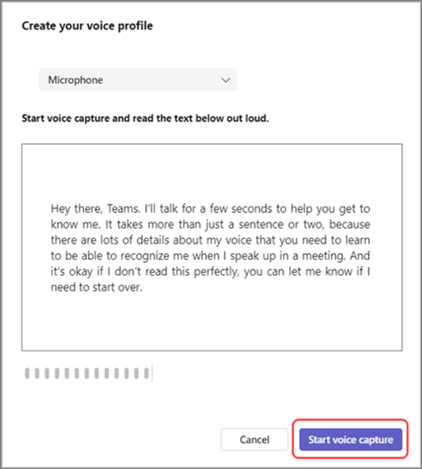
Tip
Record your voice profile in a quiet location, using a high-quality microphone for best results.
Select End voice capture when you're done.
You can start face recognition setup right after you're done creating your voice profile, or select Close to do this a different day.
Note
If you don't see Recognition
in your settings, contact your IT admin.
Turn off voice isolation
Voice isolation will be active in your calls and meetings after you add your voice profile.
To turn off voice isolation in a Teams meeting:
- Select the dropdown arrow next to Mic
 in your meeting controls.
 - You can either switch to Background noise only or turn off Noise suppression using the toggle.
You can also access these settings by selecting the dropdown arrow next to Mic
and selecting More audio settings.
How it looks
After you add your voice profile, indicators will tell you when and how voice isolation is working in your meeting or call.
| Indicator | What it means |
|---|---|

|
Voice isolation is turned on and active. |

|
You entered the meeting with your mic muted. |

|
Only your name is displayed. Unwanted audio isn't detected and voice isolation is active. |

|
Voice isolation is active and filtering out unwanted audio. |
|
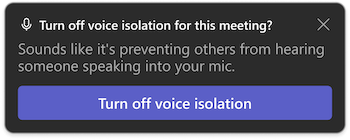
Someone nearby is detected (e.g., you and a colleague are sharing your device for the meeting). If you want them to be heard, select Turn off voice isolation. |
Troubleshooting
If you're having issues adding a voice profile:
- Make sure you're in a relatively quiet environment.
- Connect your microphone again or use a different one to improve your audio.
- Restart Teams.
- Check Teams for updates.
- Delete and recreate your voice profile.
You might receive one of these alerts in Teams. Learn what they mean and how to resolve them:
| Alert | What this means |
|---|---|
|
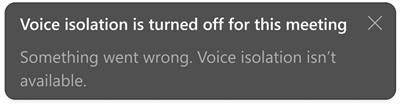
There's an issue with turning on voice isolation in your meeting or call. Restart Teams to reload voice isolation. |
|
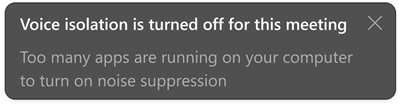
Your device is running too many apps and can't support voice isolation. Try closing other apps on your device. Then, turn voice isolation off, then back on. |
Related articles
Reduce background noise in Microsoft Teams meetings
Use Microsoft Teams Intelligent Speakers to identify in-room participants in a meeting transcription