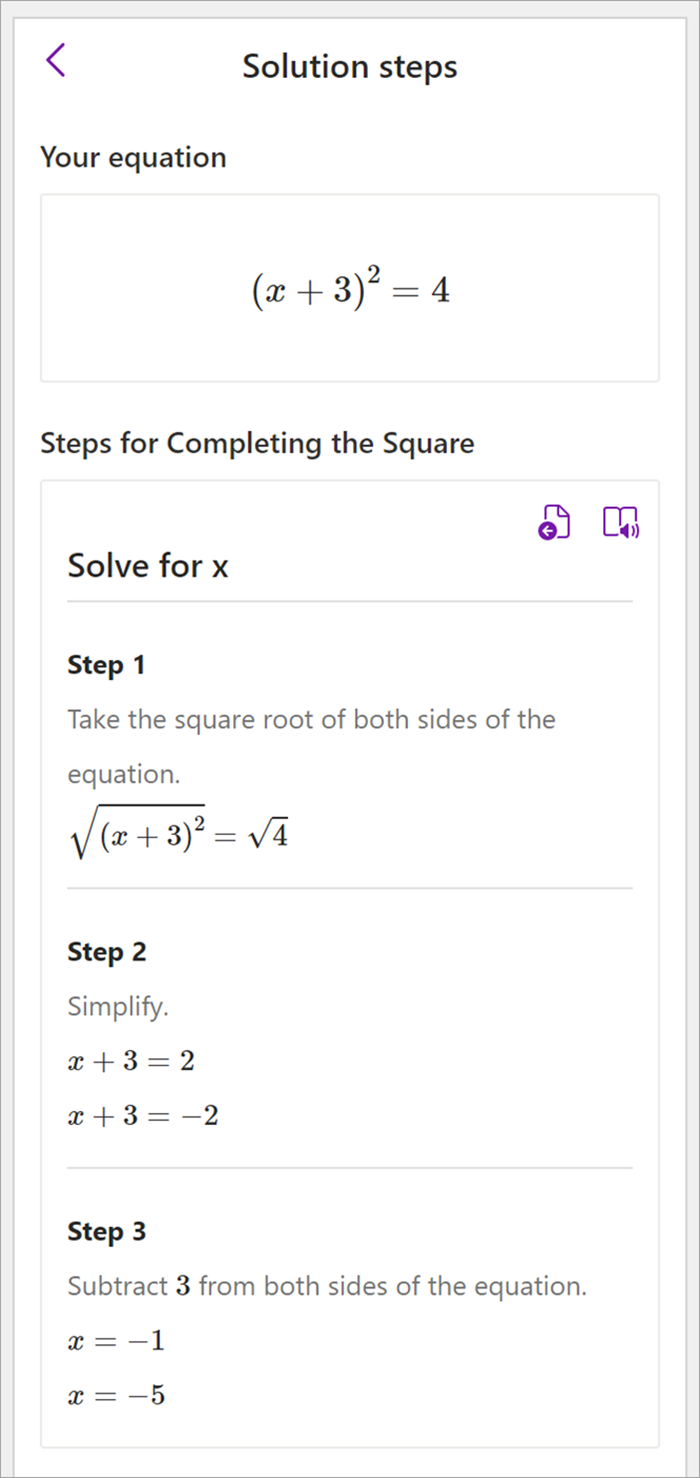
Schrijf of typ een wiskundig probleem en Wiskunde-assistent in OneNote lost dit voor u op door u te helpen snel de oplossing te vinden of u stapsgewijs te leren om zelf tot de oplossing te komen. Na het oplossen van de vergelijking zijn er vele opties om meer wiskundekennis op te doen met Wiskunde-assistent.
Opmerking
Deze functie is alleen beschikbaar als u een Microsoft 365-abonnement hebt voor Enterprise of Education.
Stap 1: Voer de vergelijking in
Schrijf of typ de vergelijking in het tabblad Tekenen. Gebruik het hulpmiddel Lassoselectie om de vergelijking te omcirkelen.

Selecteer vervolgens op het tabblad Tekenen de optie Wiskunde. Hiermee opent u het deelvenster Wiskunde-assistent.
Meer informatie:
Stap 2: Los de vergelijking op.
Op basis van uw vergelijking worden opties voor acties opgegeven. Selecteer de gewenste actie.
Uw vergelijking en de oplossing worden weergegeven in het deelvenster Wiskunde.
Tip
Selecteer Wiskunde invoegen op pagina om de resultaten over te brengen naar de OneNote-pagina waaraan u werkt.
Meer informatie: Controleer het tabblad Ondersteunde vergelijkingen van deze pagina.
Stap 3: Leren van wiskundeassistent
Als u wilt weten hoe het probleem in OneNote is opgelost, selecteert u de methode die u wilt leren in de opgegeven opties.
- Stappen voor verschillende methoden worden gegeven op basis van uw vergelijking.
:::column-end::: ::row-end:::
Stap 1: Voer de vergelijking in
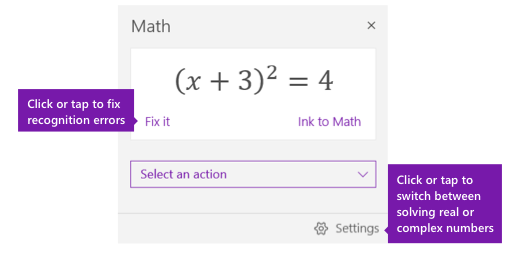
Schrijf of typ de vergelijking in het tabblad Tekenen. Gebruik het hulpmiddel Lassoselectie om de vergelijking te omcirkelen. Selecteer vervolgens Wiskunde. Hiermee opent u het deelvenster Wiskunde-assistent.
Meer informatie:De vergelijking aanmaken met inkt of tekst.
Stap 2: Los de vergelijking op.
Ga op een van de volgende manieren te werk om de huidige vergelijking op te lossen:
Klik of tik het vakje Selecteer een actie aan en kies vervolgens de gewenste actie van Wiskunde-assistent. De beschikbare keuzen in de vervolgkeuzelijst zijn afhankelijk van de geselecteerde vergelijking.
Meer informatie: controleer het tabblad Ondersteunde vergelijkingen van deze pagina.
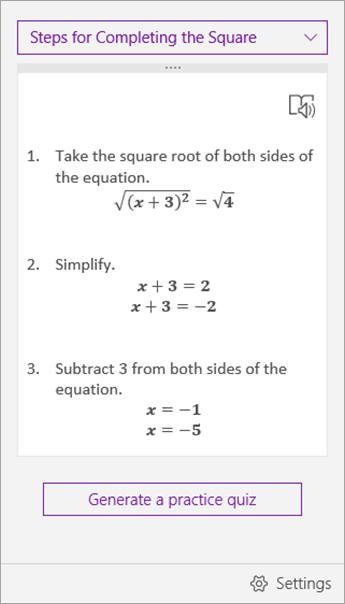
U kunt de oplossing bekijken die door OneNote wordt weergegeven onder de actie die u hebt geselecteerd. In het onderstaande voorbeeld wordt voor de geselecteerde optie Oplossen voor x de oplossing weergegeven.

- Als u wilt zien hoe OneNote het probleem heeft opgelost, klikt of tikt u op Stappen weergeven en selecteert de details van wat u wilt bekijken. De beschikbare keuzen in de vervolgkeuzelijst zijn afhankelijk van de geselecteerde vergelijking.
- Als u de oplossingsstappen hardop wilt voorlezen, selecteert u Insluitende lezer
 om deze te starten vanuit OneNote.
-
Genereer een oefentoets om dit type vergelijking te blijven oefenen.
Waarschuwing
De oefentoets genereren is momenteel niet beschikbaar omdat we werken aan het optimaliseren van de ervaring. De mogelijkheid om oefenvragen te genereren, komt later dit jaar terug.
Tip
U kunt de oplossingsstappen naar elke gewenste plek op de pagina slepen.
Stap 1: Voer de vergelijking in
Schrijf of typ de vergelijking in het tabblad Tekenen. Gebruik het hulpmiddel Lassoselectie om de vergelijking te omcirkelen. Selecteer vervolgens Wiskunde. Hiermee opent u het deelvenster Wiskunde-assistent.
Meer informatie:De vergelijking aanmaken met inkt of tekst.
Stap 2: Los de vergelijking op.
Ga op een van de volgende manieren te werk om de huidige vergelijking op te lossen:
Klik of tik het vakje Selecteer een actie aan en kies vervolgens de gewenste actie van Wiskunde-assistent. De beschikbare keuzen in de vervolgkeuzelijst zijn afhankelijk van de geselecteerde vergelijking.
Meer informatie: controleer het tabblad Ondersteunde vergelijkingen van deze pagina.
U kunt de oplossing bekijken die door OneNote wordt weergegeven onder de actie die u hebt geselecteerd. In het onderstaande voorbeeld wordt voor de geselecteerde optie Oplossen voor x de oplossing weergegeven.
- Als u wilt zien hoe OneNote het probleem heeft opgelost, klikt of tikt u op Stappen weergeven en selecteert de details van wat u wilt bekijken. De beschikbare keuzen in de vervolgkeuzelijst zijn afhankelijk van de geselecteerde vergelijking.
- Als u de oplossingsstappen hardop wilt voorlezen, selecteert u Insluitende lezer om deze te starten vanuit OneNote.
-
Genereer een oefentoets om dit type vergelijking te blijven oefenen.
Waarschuwing
De oefentoets genereren is momenteel niet beschikbaar omdat we werken aan het optimaliseren van de ervaring. De mogelijkheid om oefenvragen te genereren, komt later dit jaar terug.
Tip
U kunt de oplossingsstappen naar elke gewenste plek op de pagina slepen.
Stap 1: Voer de vergelijking in
Schrijf of typ de vergelijking in het tabblad Tekenen. Gebruik het hulpmiddel Lassoselectie om de vergelijking te omcirkelen.
Selecteer vervolgens op het tabblad Tekenen de optie Wiskunde. Hiermee opent u het deelvenster Wiskunde-assistent.
Meer informatie:
Stap 2: Los de vergelijking op.
Op basis van uw vergelijking worden opties voor acties opgegeven. Selecteer de gewenste actie.
Uw vergelijking en de oplossing worden weergegeven in het deelvenster Wiskunde.
Tip
Selecteer Wiskunde invoegen op pagina om de resultaten over te brengen naar de OneNote-pagina waaraan u werkt.
Meer informatie: Controleer het tabblad Ondersteunde vergelijkingen van deze pagina.
Stap 3: Leren van wiskundeassistent
Als u wilt weten hoe het probleem in OneNote is opgelost, selecteert u de methode die u wilt leren in de opgegeven opties.
- Stappen voor verschillende methoden worden gegeven op basis van uw vergelijking.
:::column-end::: ::row-end:::
Probleemtypen die worden ondersteund door wiskundeassistent
Wanneer u Wiskundige assistent gebruikt in OneNote, ziet u dat de vervolgkeuzelijst Een actie selecteren onder de vergelijking verandert, afhankelijk van de geselecteerde vergelijking. Hier volgen enkele van de ondersteunde probleemtypen, afhankelijk van de vergelijking die u probeert op te lossen.
|
Matrices |
Voor een lijst met reële getallen worden alle onderstaande waarden ondersteund.
- Evalueren
- Sorteren
- gemiddelde
- Mediaan
- modus
- Som
- Product
- Grootste algemene factor
- Least Common Multiple
- Variantie
- Standaarddeviatie
- Minima
- Maxima

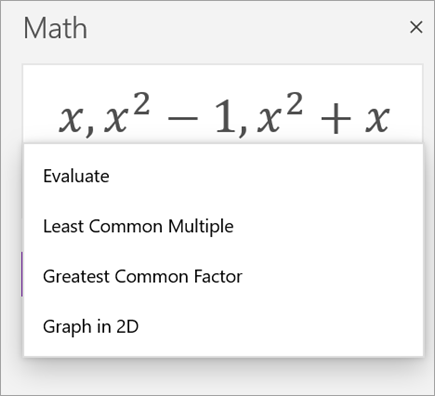
Voor polynomen zijn de ondersteunde acties Greatest Common Factor en Least Common Multiple. U kunt ook Grafiek in 2D kiezen om de grafieken van al uw functies weer te geven.
|
|
Expressies |
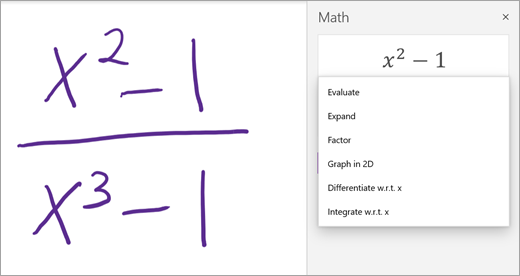
Voor elke expressie zijn de beschikbare acties:
- Evalueren
- Controleren
- Uitvouwen (indien van toepassing)
- Factor (indien van toepassing)
- Grafiek in 2D (alleen beschikbaar als er een variabele is)
- Differentiëren (alleen beschikbaar als er een variabele is)
- Integreren (alleen beschikbaar als er een variabele is)
|
|
Vergelijkingen en ongelijkheden |
Voor vergelijkingen en ongelijkheden zijn de volgende acties beschikbaar:
- Oplossen voor {uw variabele}
- Grafiek Beide zijden in 2D: elk van de zijden van de gelijkheid of ongelijkheid wordt als een afzonderlijke functie weergegeven.
- Grafiek in 2D: een grafiek van de vergelijking of ongelijkheidsoplossingen
- Grafiekongelijkheid: markeert het oplossingsgebied in de grafiek

|
|
Systemen |
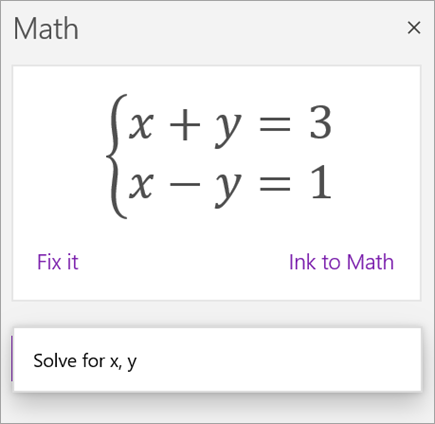
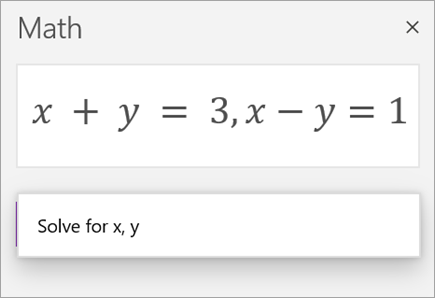
Het is belangrijk om een gelijk aantal vergelijkingen en variabelen te hebben om ervoor te zorgen dat de juiste functies beschikbaar zijn. Systemen kunnen op twee verschillende manieren worden geschreven:
- Een onder elkaar, met of zonder een grote accolade voor hen
- In één regel gedeeld door een komma
|
|
Derivaten en integralen |
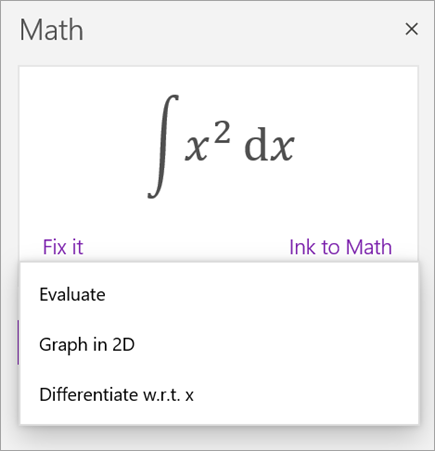
Derivaten kunnen worden geschreven met d/dx vóór de functie of met een priemteken.

De beschikbare acties voor derivaten en integralen zijn:
- Evalueren
- Grafiek in 2D
- Onderscheiden
- Integreren (alleen voor derivaten)
|
|
Matrices |
Matrices kunnen worden geschreven met vierkante of ronde haken. De volgende acties worden ondersteund voor matrices:
- Evalueren
- Determinant berekenen
- Matrix omkeren
- Tracering berekenen
- Matrix transponeren
- Matrixgrootte
- Reductiematrix

Matrixvergelijkingen worden momenteel niet ondersteund. |
|
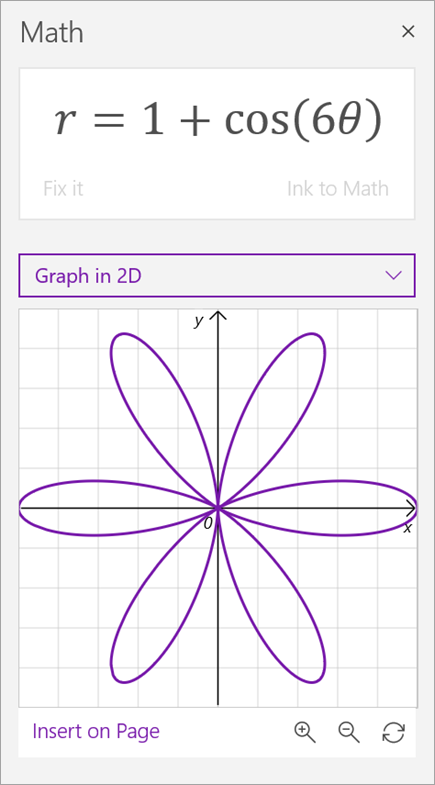
Grafiek in polaire coördinaten |
Als u een functie in polaire coördinaten wilt weergeven, moet r worden uitgedrukt als een functie van theta.
|
|
Complexe modus |
Opmerking: Selecteer Instellingen om te schakelen tussen reële getallen en complexe getallen.
Voor complexe expressies en getallen die imaginaire eenheid i bevatten, zijn de volgende acties beschikbaar.
- Evalueren
- Echt deel
- Imaginair onderdeel
- Conjugate
- Modulus
- Argument
- Differentiëren (alleen als er een variabele is)
- Integreren (alleen als er een variabele is)

|
Meer informatie
Een wiskundetoets maken in Microsoft Forms
Een wiskundetoets genereren met de wiskunde assistent in OneNote
Wiskundige vergelijkingen oplossen met de wiskunde-assistent in OneNote