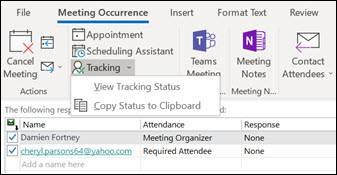
Sử dụng Outlook, bạn có thể chụp vào bảng tạm, rồi in danh sách tất cả người dự sự kiện, địa chỉ email liên kết của họ và trạng thái phản hồi của họ (tham dự, từ chối hoặc không trả lời).
Chọn tùy chọn tab bên dưới cho phiên bản Outlook bạn đang sử dụng. Tôi có phiên bản Outlook nào?
Lưu ý
Nếu các bước bên dưới tab Outlook Mới này không hoạt động, có thể bạn chưa sử dụng Outlook for Windows mới. Chọn Outlook Cổ điển và làm theo các bước đó thay vào đó.
Sao chép danh sách người dự trong Outlook mới
Trong Lịch Outlook, hãy mở Sự kiện cuộc họp chứa danh sách người dự mà bạn muốn chụp.
Ngăn Theo dõi chứa một danh sách tất cả người được mời.
Lưu ý
Người tổ chức sự kiện có thể cần chọn Theo dõi trong menu dải băng để mở ngăn Theo dõi.
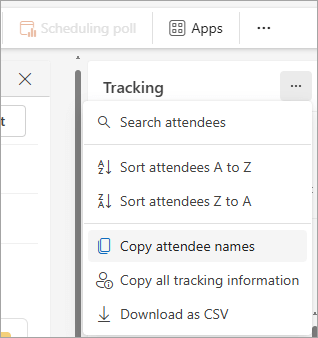
Từ ngăn Theo dõi , chọn Nút Xem thêm tùy chọn
 .
.Từ danh sách thả xuống, bạn có thể chọn chỉ sao chép tên người dự hoặc tất cả các chi tiết như tên người dự hoặc tùy chọn, cũng như cách họ phản hồi yêu cầu họp.
-
Sao chép tên người dự
Tùy chọn này sẽ ghi lại tất cả các tên được mời cùng với địa chỉ email của họ vào bảng tạm. Các chi tiết được lưu trữ theo định dạng mà bạn có thể dán vào Word, Notepad, trường địa chỉ email, lời mời lịch khác hoặc danh sách địa chỉ Microsoft. -
Sao chép tất cả thông tin theo dõi
Ngoài thông tin email và tên cơ bản, tùy chọn này còn ghi lại xem cá nhân đó là người dự Bắt buộc hay Tùy chọn cùng với trạng thái phản hồi của họ. Thông tin được lưu trữ ở định dạng được phân cách bằng dấu tab. -
Tải xuống dưới dạng CSV
Tùy chọn này sẽ cho phép bạn tải xuống và lưu các chi tiết dưới dạng .csv tệp.
-
Sao chép tên người dự
Giờ đây, khi đặt thông tin đã chọn vào bảng tạm, bạn có thể dán thông tin vào một ứng dụng phù hợp chẳng hạn như Word hoặc OneNote hay đích lưu trữ khác theo nhu cầu của mình.