

Customize recap summaries to decide exactly what your summaries include. Choose a ready-made template or create your own by giving AI clear instructions or sharing an example that worked well before. Let AI do the heavy lifting, so every recap fits your style and workflow.
Create a custom recap summary
To create a custom recap summary:
Open a meeting chat in Teams.
Select Recap.
Select Custom summary.
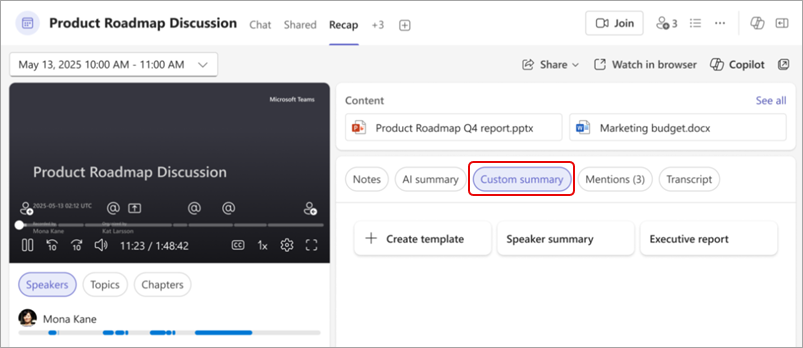
Choose from existing templates or create a new one.
Note
AI summaries are only available for meetings that were transcribed. To learn more, see View live transcription in Microsoft Teams meetings.
Custom summary templates
Whether you want something quick and ready-made or prefer to build your own from scratch, custom summary templates give you the flexibility to choose.
Choose from ready-made templates
Want a quick start? Select one of these built-in options:
- Speaker summary: Organize the contents of a meeting based on who said what.
- Executive report: Get high-level takeaways that capture the key discussions.
Create a template
Create and save custom summary templates to easily reformat recap summaries to suit your preferences. Remove specific sections, adjust the tone, and more.
To customize a recap summary template:
Open a meeting chat in Teams.
Select Recap.
Select Custom summary.
Select Create template
 .
.Describe your summary format in the text box or choose a prompt under Suggestions
 .
.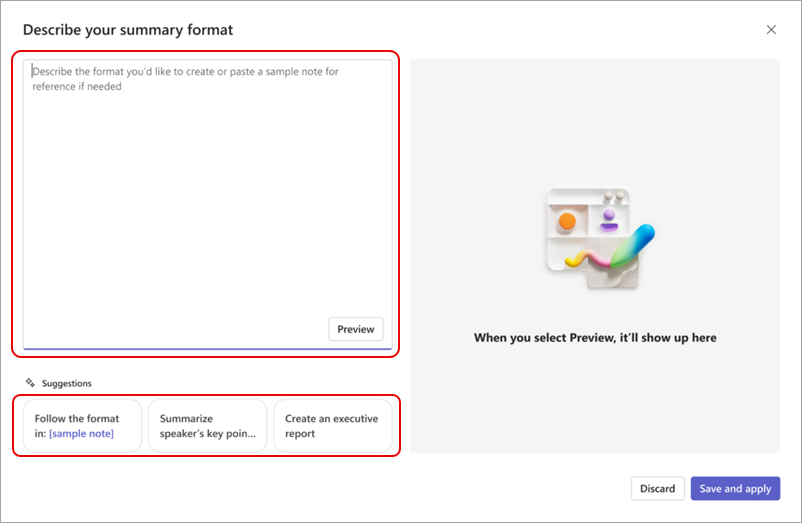
Select Preview to see what your custom recap summary will look like with your format applied. To clear the generated content and try a new template or format, select Discard.
To keep your format and save it to use later, select Save and Apply.
Name your template and select Save.
If a meeting is part of a series, your recap summary template will be remembered for future occurrences, and summaries will automatically appear in that format.
Your saved templates will appear above your customized recap summaries, such as "Daily sync" below.
Tip
In the summary format text box, paste an example of your favorite format to generate summaries just like it.
Edit or delete a template
To edit or delete a recap summary template:
Open a meeting chat in Teams.
Select Recap.
Select Custom summary.
Hover over the template you want to edit or delete and select More options
 .
.Select Edit
 to open and make changes to the summary format. Select:
- Preview to test the updated instructions.
- Discard to clear your changes.
- Save and Apply to save your changes and update the template name if desired.
Select Delete
 to delete the template. This action can’t be undone.
