
Catch up on all your past meeting recaps in one place with the Meeting Recaps app in Microsoft Teams. Explore and choose from different types of recaps, including intelligence recaps, video recaps, and audio recaps.
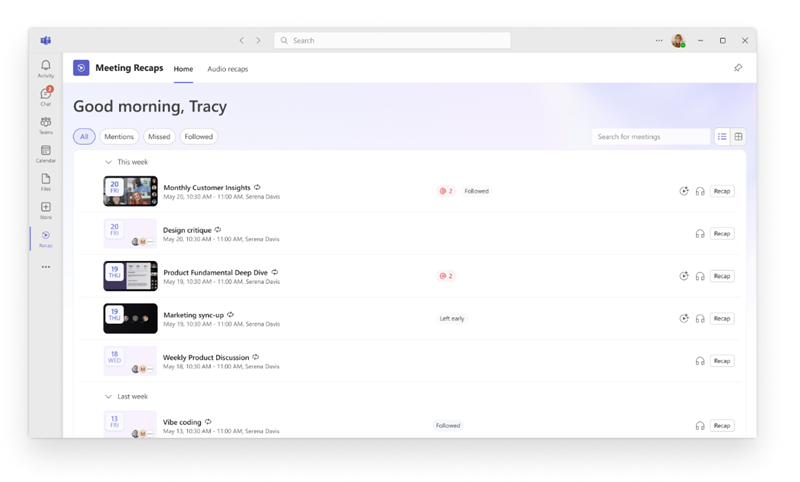
Add the Meeting Recaps app
Add the app to Teams so your recaps are always available.
Select View more apps
 on the left side of Teams.
Search "Meeting recaps".
Select Meeting recaps
 in the search results.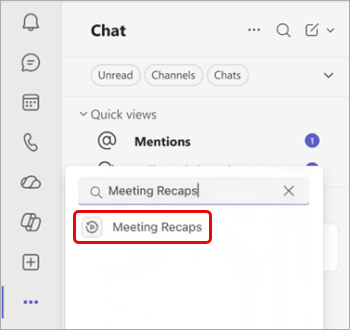
To pin the app for easy access, right-click Meeting recaps
on the left side of Teams and select Pin
 .
.
To access the Meeting Recaps app from a recap page, select Go to Meeting Recaps
 in the top-left corner.
Note
The Meeting Recaps app isn't supported on Teams for mobile.
Browse and find meetings
The Meeting Recaps app homepage lists scheduled meetings from the past 30 days that were recorded or transcribed. Switch between List and Grid views to browse meetings the way you prefer.
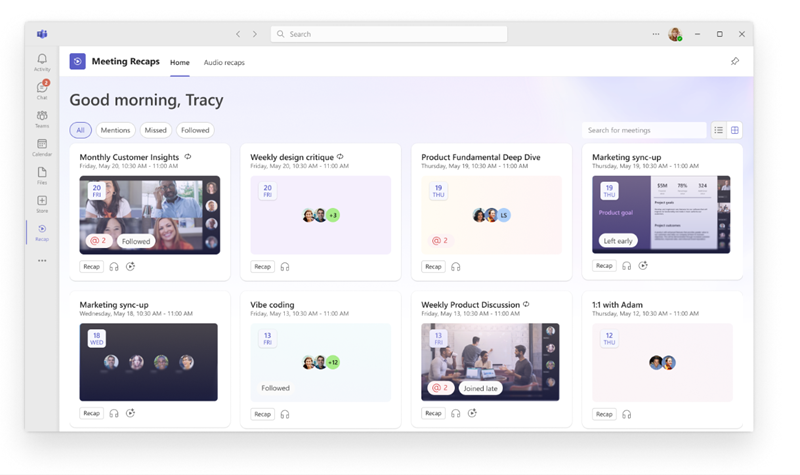
Choose a filter, such as Meetings, Missed, and Followed, to narrow down the meetings you see. To find a specific meeting, search for the meeting title, organizer, or other related keywords.
The homepage doesn't include:
- Meet Now, or instant, meetings and calls.
- Meetings that only use temporary transcription.
- Meetings without a recording or transcript.
If your mailbox is hosted on an on-premises Exchange server, the homepage won't be accessible.
Note
The accuracy of a meeting's Missed status depends on the availability and completeness of the Teams attendance report for that meeting. If attendance reporting was turned off due to policy or meeting settings, the status may be inaccurate.
Open a recap
To open a meeting recap, select a meeting in the Meeting Recaps app. Depending on what's available for the meeting, review the recap, watch the video recap, or listen to the audio recap.
To preview details before opening a recap, select Mentions @ or Tasks on the meeting item.
Types of recaps
Note
Intelligent recaps require either a Microsoft Copilot license or a Teams Premium license. Audio and video recaps require a Microsoft Copilot license. If you don't have a Microsoft Copilot license, you can still access meeting transcripts or recordings that you have permission to view.
Choose from various types of recaps to read, watch, or listen to key highlights from a meeting.
Intelligence recaps
Intelligent recaps are text-based recaps that include AI summaries, tasks, mentions, and more.
To learn more, see Recap in Microsoft Teams
Video recaps
Video recaps are narrated highlight videos that capture presented content, real video clips, and meeting discussions.
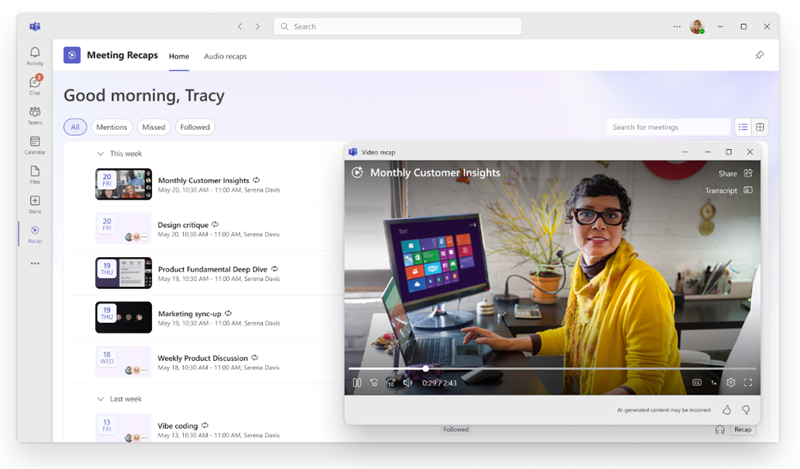
To learn more, see Video recap in Microsoft Teams.
Audio recaps
Audio recaps are podcast-style recaps that compile multiple meetings into one, helping you efficiently catch up on a busy week while on the go.
To generate an audio recap:
Open the Meeting Recaps
app in Teams.Select one or multiple meetings you want to include in an audio recap.
Select Generate audio recap
 .
.In the Style dropdown menu, choose the style you want to hear your recap in.
In the Language dropdown menu, select the language you want to hear your recap in.
Select up to eight meetings to include in your audio recap.
Select Generate.
Your recap will start playing automatically as it generates. Return to the Audio recaps tab in the Meeting Recaps app anytime to listen to recaps you previously generated.