

There are a lot of ways to customize your video experience—and the video you share with others—when you join a Teams meeting or call.
Turn your video on or off
Before a meeting
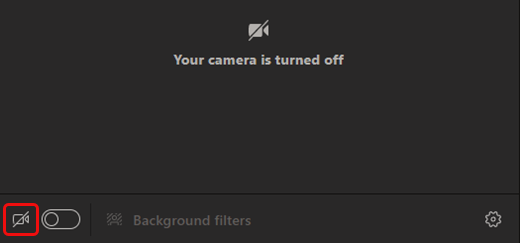
To turn on your video before a meeting, turn the Camera
 toggle on before you join.
During a meeting
To turn your video on and off during a meeting, select Camera
 in the meeting controls.
Note
To enable your camera to turn off when your screen locks during a meeting, go to Settings and more
 > Settings
 > Privacy
 in Teams. Then, turn the Turn off my camera and mic when my screen locks toggle on. Restart Teams to activate this setting.
Apply video effects and filters
Change your background
Before a meeting, select Effects and avatars
 to open background options.
During a meeting, select the dropdown arrow next to Camera
to view backgrounds.
To learn more, see Change your background for a Teams meeting.
Use video filters
Customize your video feed with video filters like:
- Soft focus to create a smoothing effect for your face over video.
- Adjust brightness to enhance your video quality when lighting is poor.
To apply a video filter before your meeting:
- Select Open device settings
 on the pre-join screen.
 - In Video Settings, turn on the toggle next to your desired filter.
To learn more about video filters, see Apply video filters in Teams meetings.
Change your view
Gallery
Gallery is the default view during a Teams meeting. On Teams for desktop, customize how you see people in your meeting.
Note
- Gallery view of up to 49 participant videos is only supported in the Teams desktop app.
- When opened in a new window, Gallery view will show up to nine video participants on any device.
- Supported devices: Windows devices with the Intel 11th generation processor (or newer) with four or more cores and Mac devices with Apple Silicon (M1 and M2 chipsets or newer).
- To provide the best possible audio and video quality, we might decrease the number of videos you're seeing at once if you're running low on bandwidth or device memory.

For people who haven't turned on their videos, Teams shows their profile pic instead (or their initials if they haven't added one).
Change gallery size
In Teams for desktop, you can choose to view 4, 9, 16, or 49 people at a time, depending on how many people are in your meeting. In Teams for web, you can see 4 or 9 people at a time.
Devices might show fewer participant videos based on hardware capabilities.
To change gallery size:
- Select View
 in the meeting controls.
 - Hover over Gallery size
 .
. - Choose how many people you want to see.
Note
To change gallery size, make sure Gallery
is selected under View
.
Prioritize videos
Gallery
view will show participants equally in the meeting window, whether their cameras are turned on or off. Prioritize video to see more people who have their cameras on.
To prioritize video:
- Select View
in the meeting window.
- Select Show videos first
 .
.
Note
To prioritize videos, make sure Gallery
is selected under View
.
Reposition your video
See more video feeds during your meeting by repositioning your video feed in the meeting window. You can place your video outside the meeting window or hide it altogether.
To hide your video:
- Select View
in your meeting controls.
- Select More options > Hide me
 .
.
This option only hides your video from your view. Other people in your meeting will still be able to see your video unless you turn your camera off.
To unhide your video:
- Select View
in your meeting controls.
- Select More options > Unhide me
 .
.
Note
To reposition your video, make sure Gallery
is selected under View
.
Large gallery
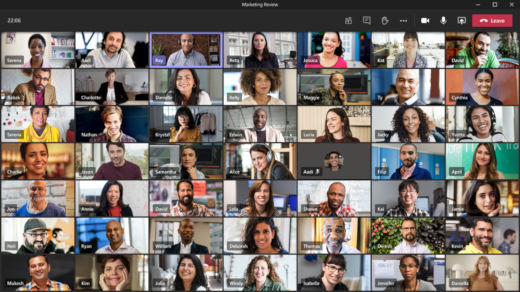
In large meetings, Teams' Large gallery view shows up to 49 participant videos in the meeting window at once.
Note
If no one is sharing video, Large gallery won't be available.
When more than 49 participants join a Teams meetings, select the navigation controls < > at the bottom of the gallery to view or engage with more participants.

Focus on content
Pay close attention and eliminate distractions while someone is presenting content.
To focus on content:
- Join your meeting.
- In the meeting controls, select View
> Focus on content.
Pin a video
Pin your own video
To pin your own video:
- Hover over your video feed.
- Select More options
 next to your name.
 - Select Pin for me
 . This will pin your video for your own view, others won't see you pinned.
 - To unpin yourself, hover over your video feed and select More options
> Unpin for me
 .
.
Pin someone's video
Pin someone's video to see it regardless of who's talking.
To pin someone's video:
- Hover over their video feed.
- Select More options
next to their name.
- Select Pin for me
.
- To unpin someone, hover over their video feed and select More options
> Unpin for me
.
Spotlight a video
Spotlight someone's video feed to highlight it for everyone in the meeting. Organizers and presenters can spotlight anyone's video feed, including their own.
To spotlight a video feed:
- Hover over the video feed and select More options
.
- Select Spotlight for everyone
 .
. - To remove a video feed from the spotlight, hover over it and select More options
> Stop spotlighting
 .
.
People can also exit the spotlight themselves by selecting Exit spotlight
in their meeting controls.
For more details, see Spotlight someone's video in a Teams meeting.
Reframe a video
Teams crops some videos to make them fit your screen better. If you want a different view of a particular video—for example, if someone’s cropped out of the video or it only shows part of their face—select More options
in their video feed then Fit to frame to see the entire video.
Select Fill frame to see a closer, cropped view.


 . For example, in a large meeting, you may want to see as many video feeds as you can at one time.

