
Configure your settings
Note
The availability of the features described in this document depends on your license and the configuration of your system. For more information, contact your administrator.
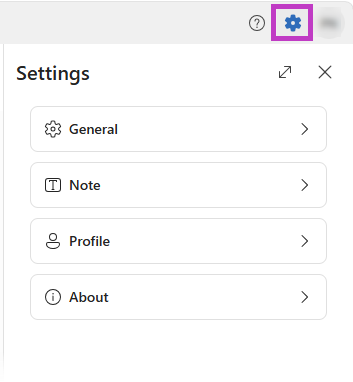
To customize your settings, select the Settings icon in the upper-right corner. Then select one of the setting buttons.
General settings
Select Settings > General. Here you can select a light or dark theme and toggle the ability to sync and view your patient schedule in DAX Copilot.
Configure your profile
Select Settings > Profile. DAX Copilot collects profile information the first time you sign in. You can update it here. Your Primary specialty generates specialty-specific summaries for your note. If you modify your Primary specialty, the new output applies the next time a summary generates.
Personalize your note output
Select Settings > Note. DAX Copilot includes built-in options to customize how information appears in your notes. You can also customize individual note sections. Depending on the section, you can:
- Select different formatting options.
- Modify section-specific settings.
- Add additional text or instructions.
- Select a note section template for one of the four supported SmartSections.
Changes are saved automatically and apply to future note generation.
Note
Available options vary by note section.
Apply your style preferences automatically or on demand
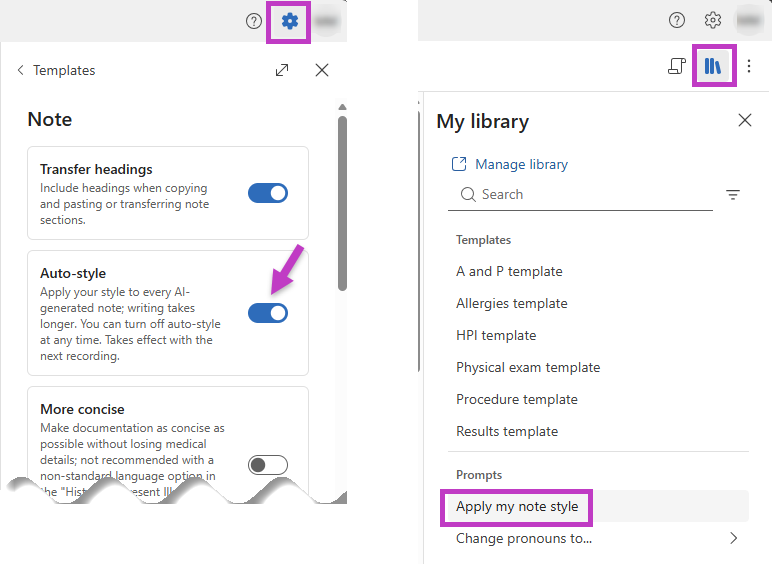
Auto-style: Select Settings > Note and toggle the Auto-style setting to "on" to apply your style preferences automatically whenever a new note generates.
Apply manually: Go to the Library
 and select Apply my note style from the list of prompts to apply your note settings and selected templates on demand. This option is useful when you want to test the impact of different style settings or apply formatting as an exception for specific circumstances.
Tip
Revert to a previous version of the note before testing new style settings.
Important
DAX Copilot can generate up to 11 clinical summary sections. Depending on the content of the recording and your note style preferences, each of the four SmartSections might contain extra subheadings and related information.