
Follow these steps to use the default templates for the three supported note sections.
Access note section templates
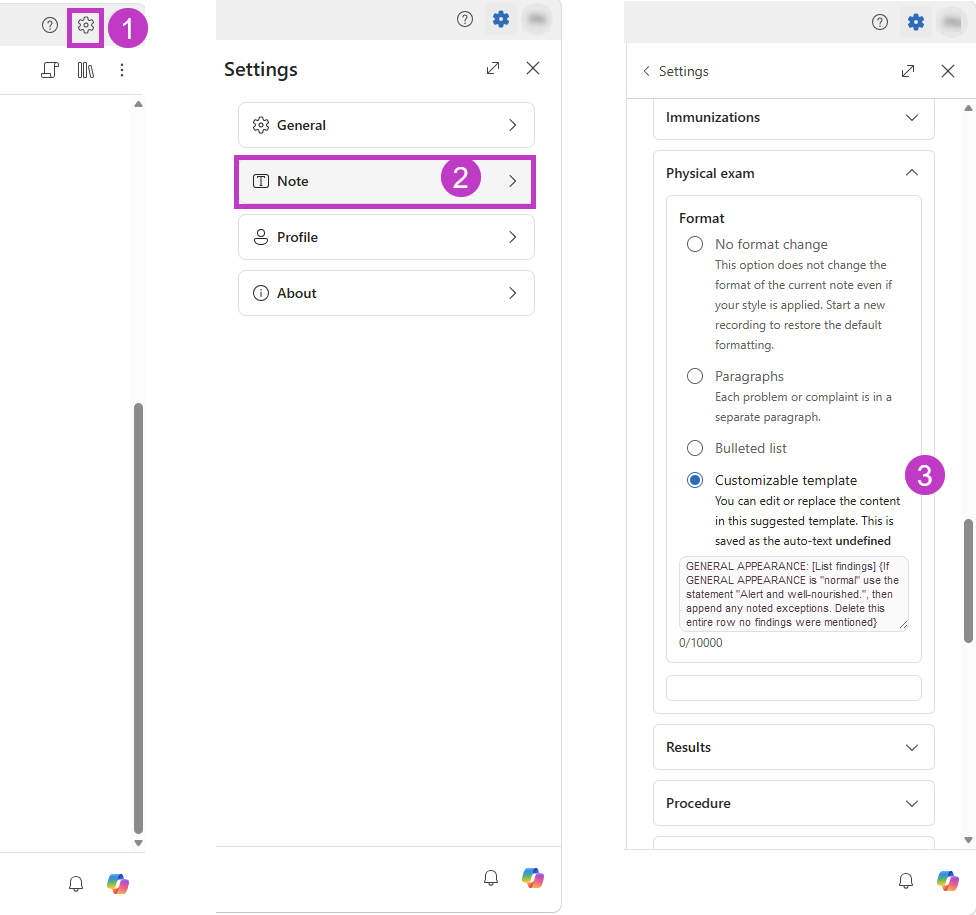
Follow these steps to open the list of available templates:
- Select the Settings
 icon.
icon. - Select Note to open the Note panel.
- Scroll to Note sections.
Expand the note style panel for ease of use
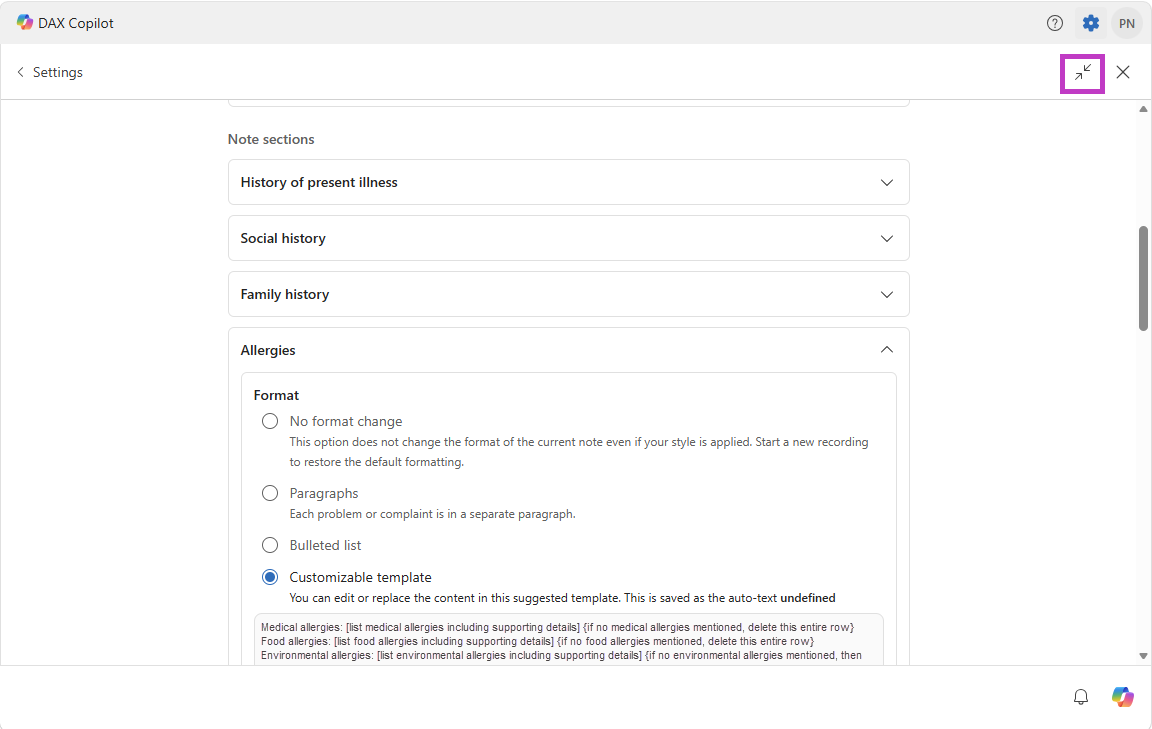
Select the expand icon  to expand the note style panel and work with settings in a larger view. Select the icon
  again to make the view smaller.
Select a note section template
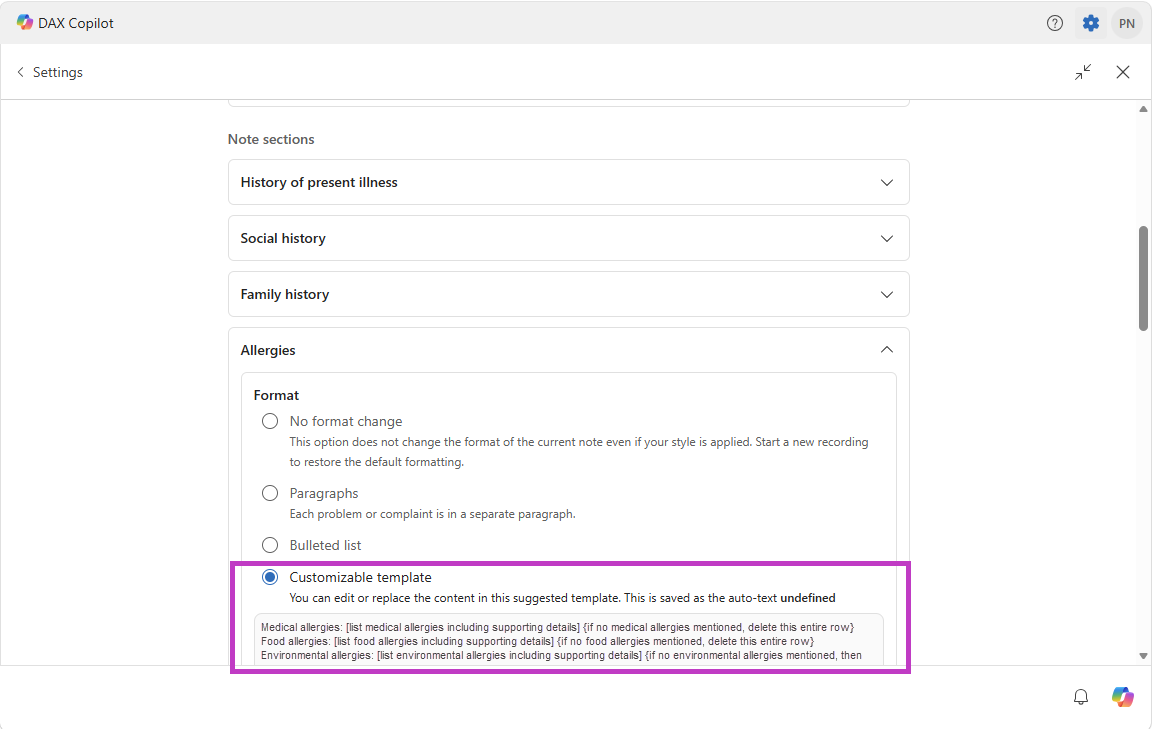
Scroll to one of the three supported note sections: Allergies, Physical Exam, or Assessment and Plan. Select the customizable template for that section. A default template appears automatically. Try it before making changes, as it might already provide the output you want when used with your selected primary medical specialty.
Note
- Templates apply only to the section in which you assign them. For example, a Physical Exam template affects only the Physical Exam section.
- You can't apply templates to an entire note.
- If you don't see a template option in a supported section, contact your administrator.
Note section template components
A template includes four key elements:
Labels and headers: Fixed text that appears in the note exactly as written. Don't use brackets. Use quotation marks for canned text.
- Example: GENERAL APPEARANCE:
- Canned text example: "Risks and benefits have been discussed with the patient."
Placeholders: Sections the AI fills in with information extracted from the note and transcript. Use [square brackets].
- Example: Treatment: [Briefly describe treatments.]
Instructions: Guidance for how the AI updates content. Often phrased as if/then statements, placed near the relevant content. Use {curly brackets}.
- Example: {If none specified, delete this row.}
Looping commands: Instructions to repeat content for multiple items. Use {curly brackets}.
- Example: {Repeat for each diagnosis}
Shown in the following example is a sample Assessment and Plan template. Select each tab to explore how labels and headers, placeholders, instructions, and looping commands are used.
{Repeat for each diagnosis}
[Diagnosis] {Do not number the diagnoses}
- Monitoring: [Briefly describe symptoms, signs, or testing to be followed as evidence of disease progression or disease regression.] {If none specified, then delete this entire row and its header.}
- Evaluation: [Briefly describe any analysis and interpretation regarding the patient's condition to determine how well the current treatment plan is working and to identify any necessary adjustments. This could include reviewing medical test results or describing the patient's response to treatment.] {If none specified, then delete this entire row and its header.}
- Assessment: [Briefly describe any clinical judgments and decisions based on the evaluation to address the patient's needs by planning and implementing appropriate interventions. This could include ordering new tests or procedures, discussing the patient's treatment options, or reviewing previous treatments.] {If none specified, then delete this entire row and its header.}
- Treatment: [Briefly describe any related treatments like lifestyle counseling, medications, or referrals. Do not include the name or location of the pharmacy.] {If none specified, then delete this entire row and its header.}
How to apply note section templates
You can apply templates automatically as part of your note settings or manually to individual note sections.
Include note section templates when applying your style
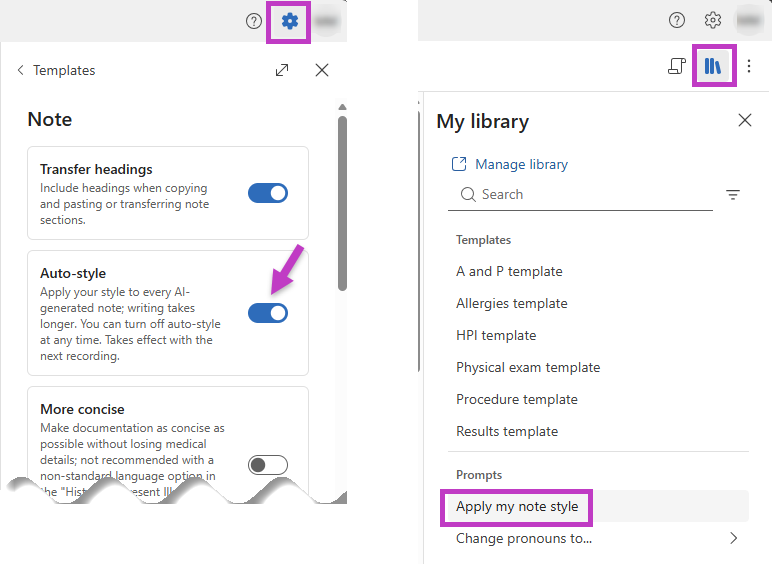
- Apply automatically: Go to Settings > Note and turn on Auto‑style to apply your style preferences, including note section templates, to every note generated by DAX Copilot.
- Apply manually: Go to the Library
 and select Apply my note style to apply your note settings and selected templates on demand.
Tip
If the default template doesn't meet your needs, you can modify it or replace it with your own. See related topics links in the following section.