
DAX Copilot for Epic helps you document patient encounters, review clinical information, and complete follow-up tasks. This article introduces the DAX Copilot experience and explains where to find the tools and information you use every day.
DAX Copilot terms
Before you get started, familiarize yourself with a few common DAX Copilot terms.
- Library: A collection of saved texts, prompts, vocabulary, templates, and workflows.
- Note: Clinical summary of your patient visit.
- Transcript: Written version of the conversation between you and the patient.
Tip
DAX Copilot organizes information around the patient, making it easier to review patient interactions, notes, transcripts, and supporting information.
Overview of the homepage
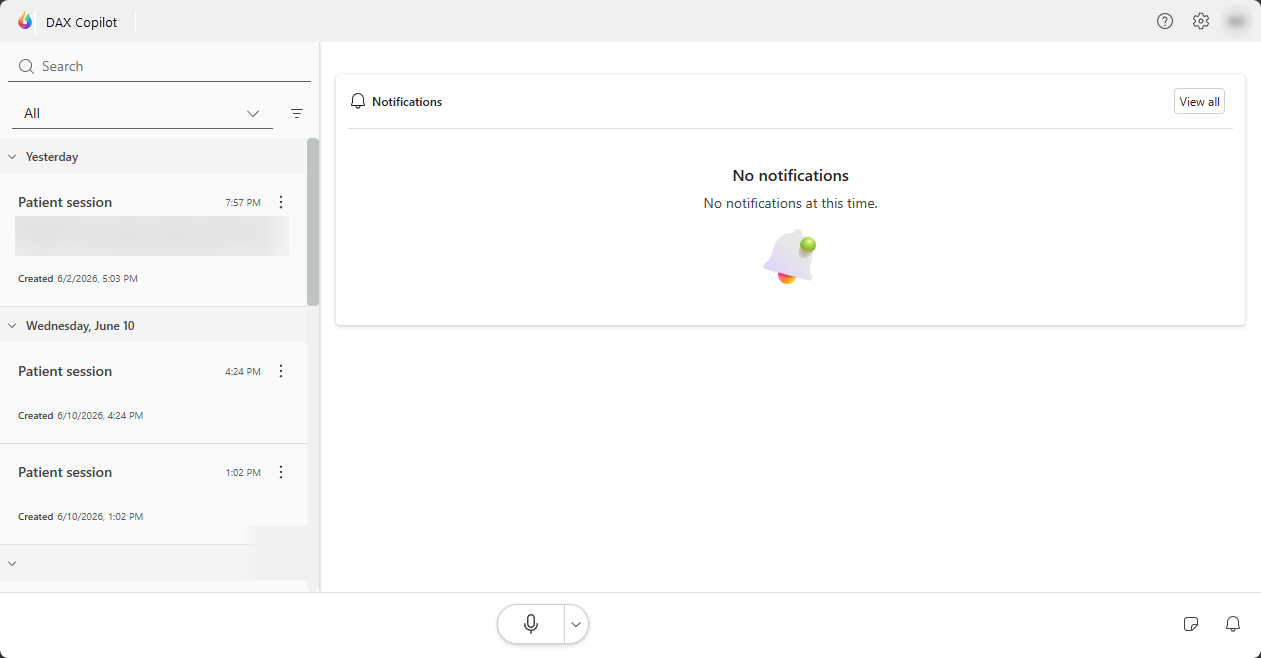
When you open DAX Copilot, the homepage helps you find patients, review activity, and quickly access your work.
The homepage includes:
- A list of patients.
- Search and filtering tools to help you find patients.
- Notifications.
- A way to create or open a patient session.
- Access to settings, resources, feedback, and other workspace tools.
Note
The notifications only show up on the homepage if you access DAX Copilot through the web or desktop app with a medium or large screen.
Filter and organize your patient list
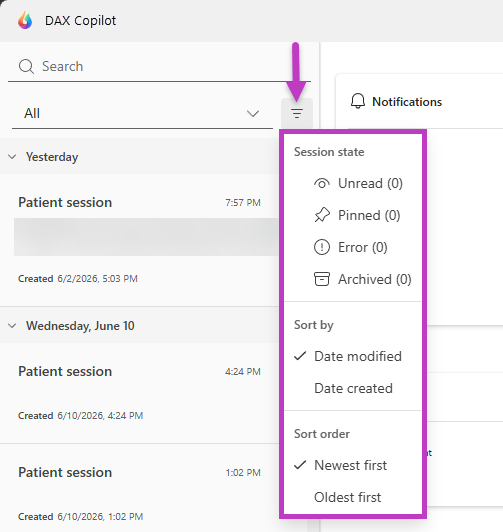
Each patient visit generates a unique session. You can search for a specific session, filter or sort the patient list, or delete a session within the patient list. Filters help you control the number of items displayed in lists. Throughout DAX Copilot, you can use filters to customize your view.
To filter in DAX Copilot:
- Select the Filter icon
 .
. - Check or uncheck options to adjust your view.
Workspace icons
The DAX Copilot toolbar provides access to commonly used tools and settings.
Depending on your environment and permissions, you might see icons similar to the following icons:
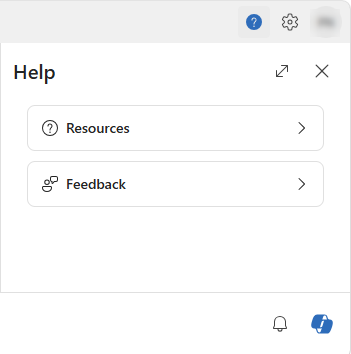
 Help: Access resources, training materials, and support information. Provide feedback.
 Settings: Access settings for ambient recording language, general, microphone, dictation formatting, templates, library, profile, and more.
 Notifications: Review important updates and alerts.

Resources and feedback
The Help menu provides access to learning resources, product support information, and feedback options. Use it to find helpful content and share feedback about your DAX Copilot experience.
Overview of the patient session
Select a patient to open the patient session or select Create patient session to start a new patient session.
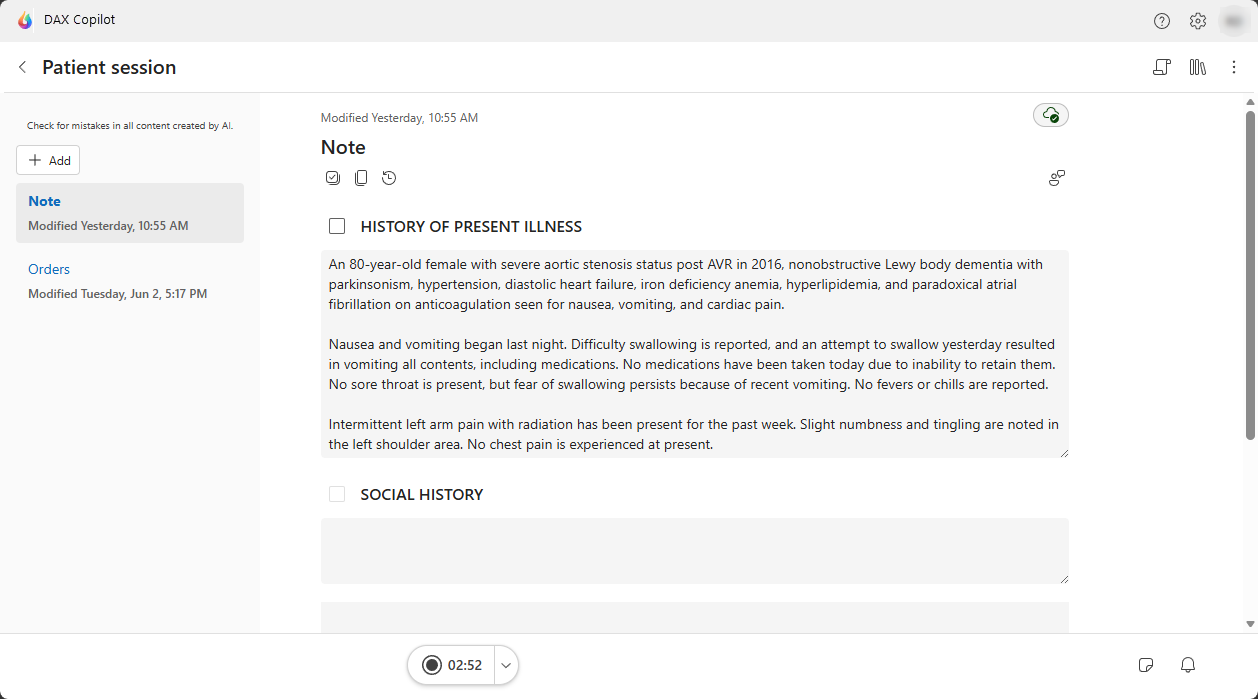
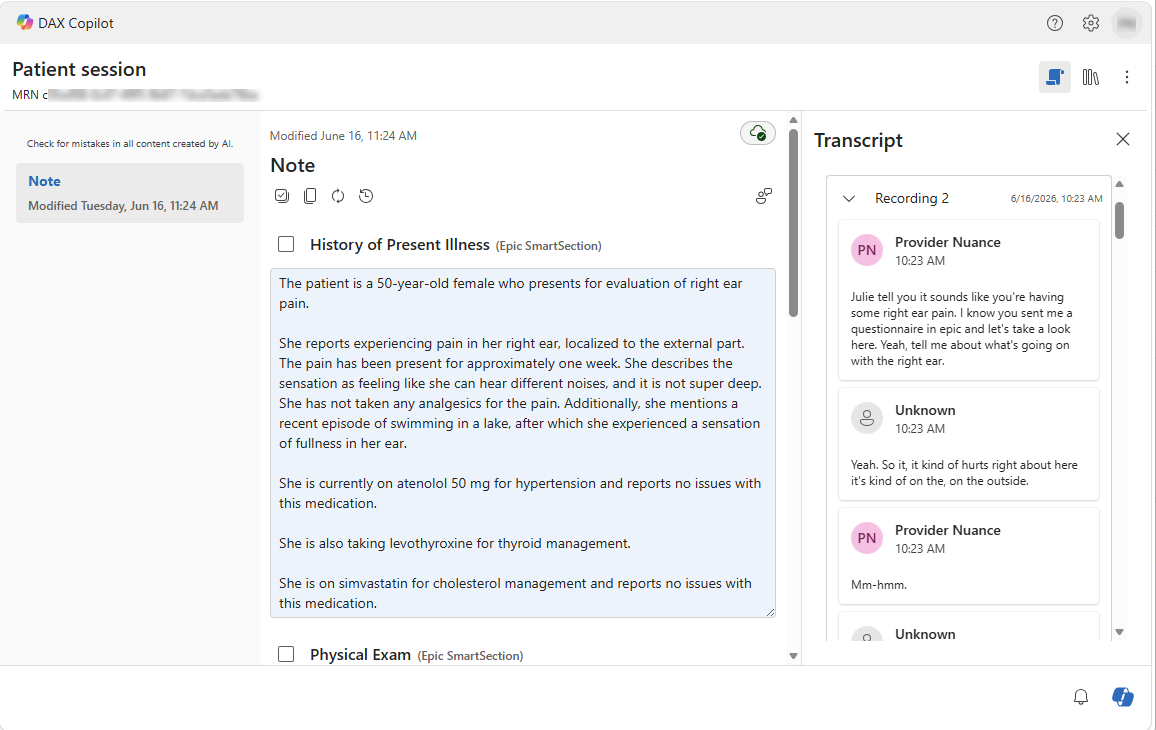
The patient session brings together information related to a patient in a single workspace, making it easier to review documentation, recordings, transcripts, and other patient-specific information.
Patient header and footer
The patient header displays the name of the patient session, which includes any patient details that you fill in the Session details. The header and footer provide quick access to commonly used tools and actions.
The following icons are available in the patient header and footer:
 Transcript: Show or hide the patient transcript.
 Library: Access saved texts, prompts, vocabulary, templates, and workflows.
 Session options: Access the Session details to add patient details, such as the patient name, date of birth, unique identifier, and more. This information displays in the patient header.

Note
The Note is one of the main types of documents that generates in your session. The content it contains is comprised of AI-generated clinical documentation as well as any updates you make to it.
Transcript
The Transcript contains a written version of the recorded conversation. Each ambient recording generates its own transcript, so you can select and review each transcript individually.
Review the transcript to verify information and better understand how note content was generated.
My library
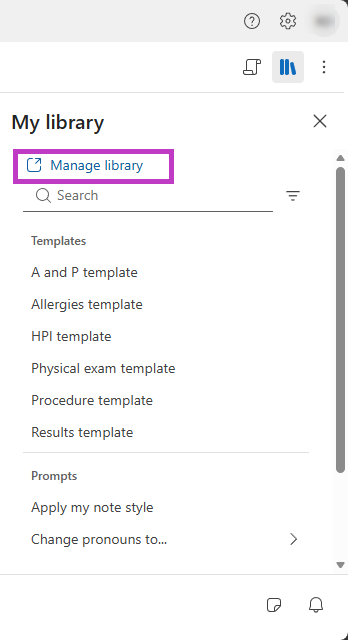
Access saved texts, prompts, and templates that you save in your library without leaving the patient workspace. Access My library within a patient session by selecting the Library icon
, located near the top of the session.
To see a full list of your library items, select Manage library.
Notifications
View important updates and alerts within a session or outside of it by using Notifications
.
- Within a session: View notifications related to the current patient session.
- Outside of a session: View all notifications, including session, app, and system notifications.