
Why edit in DAX Copilot?
Use DAX Copilot to refine your note before finalizing it in Epic. AI-powered tools help you add information, revise content, and improve note quality while saving time.
You can update your note in one of two ways:
Add another recording to capture new or revised information.
When you add a recording, DAX Copilot automatically generates updated clinical summaries and sends them to Epic.Edit directly in the Note section.
While reviewing clinical summaries, use DAX Copilot's AI tools to generate insights, access guidance, or reference recording transcripts as you edit your note.
Add a recording before you edit
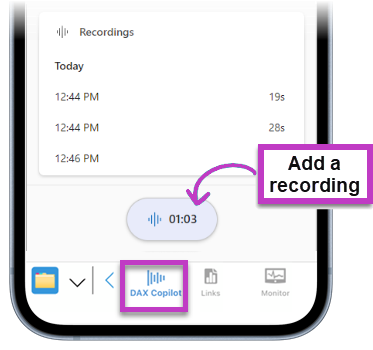
The easiest way to add or clarify information in your note is to create another recording in the DAX Copilot activity in Epic Haiku or Canto.
When you add a recording, you can speak naturally instead of dictating exact wording. DAX Copilot updates the relevant clinical summary sections and automatically transfers the changes to Epic, helping you save time and reduce manual editing.
Important
Complete all recordings before making manual edits in DAX Copilot. Adding a new recording regenerates the clinical summaries. If needed, you can restore previous edits from Version history  after the recording is processed.
How to edit your note in DAX Copilot
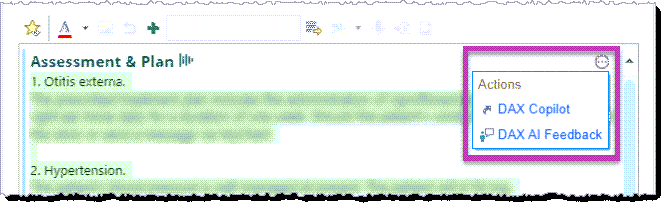
Launch DAX Copilot in Epic
- Locate a DAX Copilot SmartSection in your Epic note.
- Select the ellipsis
 icon to display the Actions menu, then select DAX Copilot.
Note
You must create an ambient recording before the Actions menu icon appears.
Edit the summary sections
In the Note section, type, copy, paste, or dictate your edits in any summary section. Your edits are automatically saved in DAX Copilot.
Important
After editing your note in DAX Copilot, select the Sync to EHR icon  to transfer your changes to Epic. Any edits made in DAX Copilot won't appear in your Epic note until you sync them.
Quick manual edits
Use your keyboard and mouse to directly edit note content by typing, selecting text, and navigating between note sections. Each manual edit or AI-generated change creates a new note version.
Library menu
Select the Library icon  to apply a note section template, use an AI prompt, or insert saved text into any note section.
Apply your style
Apply your style preferences to generate your SmartSections in the format you prefer, either automatically or manually.
Auto-style
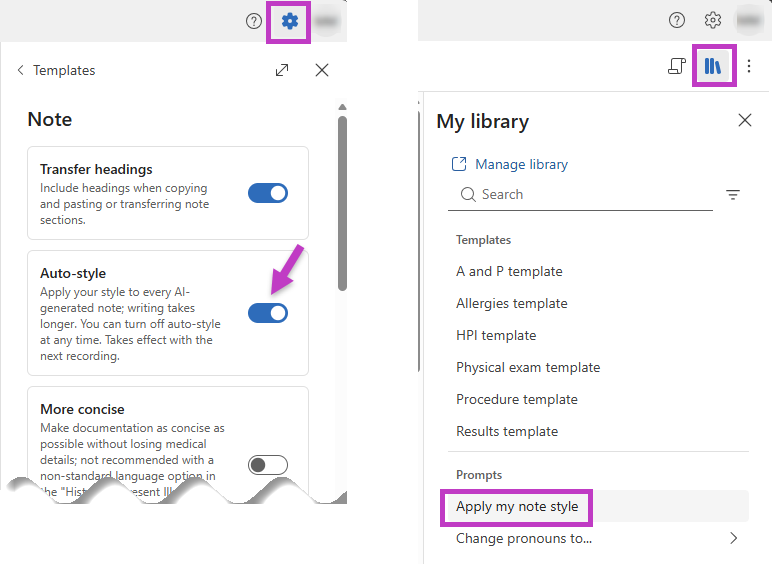
- Go to Settings
 > Templates > Note.
 - Select the toggle button next to Auto-style. Changes are saved automatically and apply to future note generation.
Manually apply style
If Auto-style is not toggled on, you can apply your style preferences manually, which will regenerate your SmartSections.
- Go to the Library icon
located near the top of the session.
- Select Apply my note style from the list of prompts.
Compare note versions and make additional edits
When you're satisfied with the SmartSection content and formatting, select the Sync to EHR icon
and return to Epic and finalize your note.
If needed, select the Version history icon
to restore a previous version of the note. You can then adjust your style settings, regenerate the note, make additional edits, and select Sync to EHR.
Important
- Restoring a previous note version overwrites any manual edits in the current note. To preserve those edits, copy them into the restored version before selecting Sync to EHR.
- If you edit DAX Copilot SmartSections directly in Epic, future updates from recordings or edits made in DAX Copilot won't sync to the EHR unless you remove and reinsert the SmartSection.
Related topics
Get started with DAX Copilot for Epic