
Generate an AI summary after a scheduled Microsoft Teams meeting without saving a meeting recording or transcript. Instead of using a transcript, Teams uses meeting audio to generate an AI summary.
Note
AI summaries without transcription in Teams are available as part of Microsoft 365 Copilot, an add-on license that provides additional features to make Teams meetings more personalized, intelligent, and secure. Availability also depends on policies configured by your IT admin. For access, contact your IT admin.
Start recap without transcription
Intelligent recap without transcription will start in scheduled meetings where the organizer has manually started Copilot or intelligent recap.
To change whether intelligent recap starts automatically in a meeting with Copilot:
- Select Calendar
 in Teams.
 - Select a meeting.
- Select Options
 .
. - Select Copilot
 .
. - Turn the Start Intelligent Recap when Copilot is turned on toggle on or off.
- Select Apply.
Regardless of this setting state, organizers, co-organizers, and presenters can turn intelligent recap on or off anytime during a meeting.
To turn intelligent recap on or off during a Teams meeting:
- Select Meeting AI at the top of your meeting window.
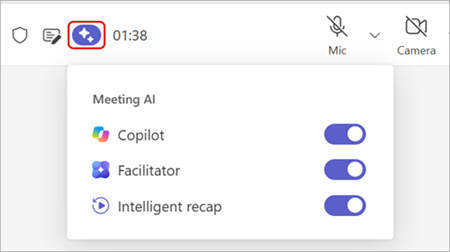
- Turn the Intelligent recap toggle on or off.
Note
If the Copilot toggle is turned off, all Meeting AI toggles will be turned off, including Intelligent Recap.
Participants receive a banner notification when intelligent recap is turned on or off. Attendees can see its status but can’t change it.
To generate an AI summary, the Intelligent recap toggle must be turned on at the conclusion of the meeting. The AI summary will only cover the details captured while it’s turned on during the meeting.
Access an AI summary
An AI summary without transcription is available for all attendees with Copilot licenses after a scheduled meeting ends for everyone.
Note
AI summaries without transcription aren't currently supported for instant meetings.
To access an AI summary after a Teams meeting:
- Select Chat
 in Teams.
 - Open the meeting chat.
- Select Recap.
AI summary storage
Intelligent recaps use live data to generate AI summaries for meetings without transcription. The live data is stored in the cache, which can't be accessed by anyone and will be deleted automatically after a meeting ends.
When an AI summary is generated, a word document containing the summary is stored in the "Meetings" folder of the organizer's OneDrive. AI summary documents are read-only and expire automatically after a timeframe specified by your IT admin.
Delete a summary
Meeting organizers can delete AI summaries in either Teams or OneDrive. When an AI summary is deleted in Teams, the copy in OneDrive will also be deleted and vice versa.
To delete an AI summary in Teams:
- Select Chat
in Teams.
- Open the meeting chat.
- Select Recap.
- Select More options
 > Delete
 .
.
Deleting AI summaries is a permanent action and can’t be undone.
FAQ
Before a meeting starts, what happens when an organizer turns the Start Intelligent Recap when Copilot is turned on toggle on or off?
When this toggle is on, intelligent recap and Copilot will be paired together and will turn on when the meeting starts.
When this toggle is off, intelligent recap and Copilot won't be paired together and will need to be manually turned on during the meeting.
What happens if I select Meeting AI during a meeting and turn the Intelligent recap toggle on or off?
If the Intelligent recap toggle is turned on at the end of the meeting, an intelligent recap will be generated.
If the Intelligent recap toggle is turned off at the end of the meeting, an intelligent recap won't be generated.