
Завдяки Markdown ви можете одразу переглядати форматований текст в області створення Microsoft Teams у міру введення тексту та завжди можете скасувати форматування, натиснувши клавіші Ctrl+Z. Ці дії також доступні, якщо розгорнути поле створення.
Примітка.
У Teams використовується синтаксис у стилі Markdown. Хоча ми називаємо її Markdown, вона не повністю відповідає стандартній розцінці, і деяке форматування може працювати по-іншому.
Доступні дії з Markdown у Teams
| Ім’я | Дія | Приклад |
|---|---|---|
| Жирний текст | *жирний текст* | жирний текст |
| Курсивний текст | _курсивний текст_ | курсивний текст |
| Закреслений | ~закреслений текст~ |

|
| Нумерований список | <число> Перший елемент | 1. Перший елемент 2. Другий елемент |
| Невпорядкований список | * Перший елемент АБО - Перший елемент |
· Перший елемент · Другий елемент |
| Гіперпосилання | [Текст](URL-адреса) | Ось посилання. |
| Багаторядковий блок коду | ```[блок коду] | |
| Вбудований блок коду | `[текст коду]` | |
| Заголовок 1 | # Текст верхнього колонтитула | |
| Заголовок 2 | ## Текст верхнього колонтитула | |
| Заголовок 3 | ### Текст верхнього колонтитула | |
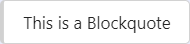
| Цитата | > |
|
Використання Markdown для надання спільного доступу до вбудованого коду
Вбудований код Markdown дає змогу виділяти певні фрагменти коду в абзаці. Так буде простіше знайти й зрозуміти код в абзаці.

Щоб додати вбудований блок коду (моноширинний), почніть і завершіть текст символом зворотної галочки ('). Він розташований поруч із цифрою 1 на клавіатурі, а потім – пробілом. Ви також можете скористатися однією з наведених нижче альтернативних клавіш, щоб почати вбудований блок коду:
- Shift+`+ПРОБІЛ
- Shift+Alt+´
- Диспетчер клавіатури, Ukelele.
Після вибору однієї з цих клавіш введіть код і натисніть ту саму клавішу знову, щоб завершити блок коду.
Використання Markdown для надання спільного доступу до блоку коду
Щоб додати багаторядковий блок коду, перед текстом введіть ```, а потім вставте його в область створення. Ви отримаєте динамічний попередній перегляд коду та можете скасувати форматування, натиснувши клавіші Ctrl+Z. Докладні відомості див. у статті "Використання блоків коду в Microsoft Teams".