Bạn có thể chia sẻ email, bao gồm các tệp đính kèm, từ Outlook đến bất kỳ cuộc trò chuyện hoặc kênh nào trong Teams.
Lưu ý
Tính năng này chỉ khả dụng nếu bạn đang sử dụng tài khoản cơ quan hoặc trường học có đăng ký Microsoft 365 đủ điều kiện.
Chọn tùy chọn tab bên dưới cho phiên bản Outlook bạn đang sử dụng. Tôi có phiên bản Outlook nào?
Lưu ý
Nếu các bước bên dưới tab Outlook Mới này không hoạt động, có thể bạn chưa sử dụng Outlook for Windows mới. Chọn Outlook Cổ điển và làm theo các bước đó thay vào đó.
Tìm email bạn muốn chia sẻ và chọn email đó để mở trong ngăn đọc.
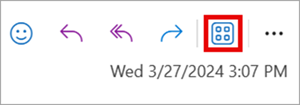
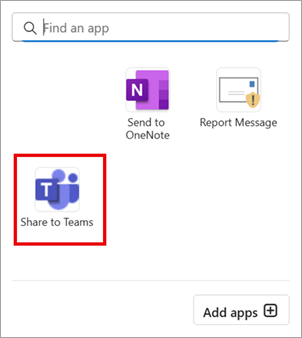
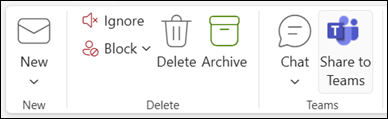
Trên tab Trang đầu , chọn Chia sẻ với Teams.
Nhập tên của một người, nhóm hoặc kênh. Bạn cũng có thể nhập thông điệp.
Bản xem trước của email sẽ xuất hiện dưới dạng thư trong Teams. Chọn hộp kiểm để bao gồm mọi tệp đính kèm, rồi chọn Chia sẻ.
Trong Teams, chọn Tùy chọn khác
 thêm để xem toàn bộ tin nhắn hoặc để tải xuống.