
Copy your entire Content Library, or just sections of it, and transfer content from one Class Notebook to another. This is useful when you start a new quarter or semester and want to reuse materials from a previous class.
Educators can also keep a master Class Notebook and distribute its Content Library each time they prepare to teach the same course again.
Distribute Content Library
Open a Class Notebook and select the Class Notebook tab.
Select Copy to Content Library.
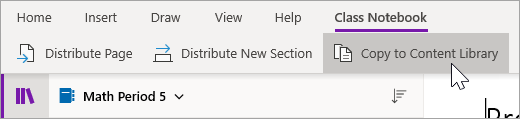
Choose the sections from this Content Library you want to copy, then select Next.

Choose the destination Class Notebooks for this content and select Copy.
Tip
Select View copied sections to view status updates on sections you’ve distributed to other Class Notebooks. You can close the distribution window at any time and sections will continue distributing in the background.

Learn more
Distribute Class Notebook pages and sections