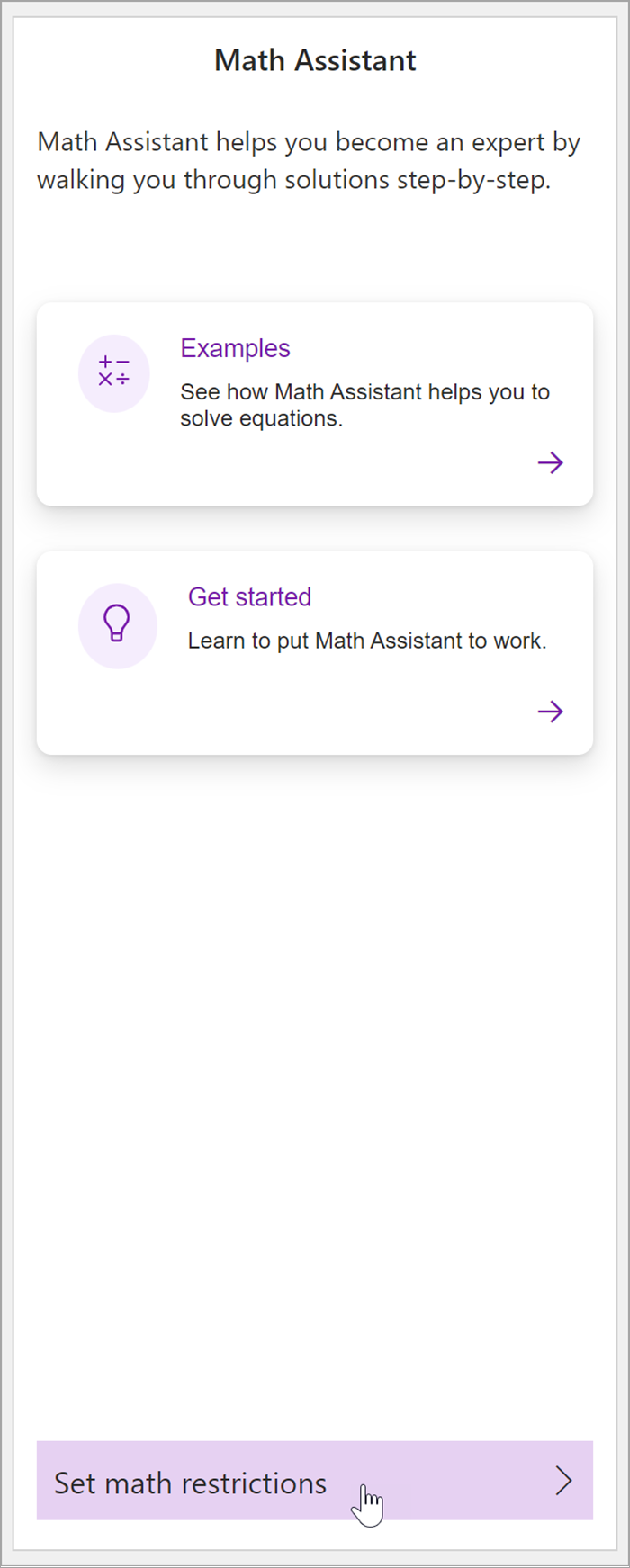
If you're using OneNote Class Notebook in your classroom, your students will have access to all of Math Assistant's features. To turn off math equation solving and graphing for your students during times they're working on tests or homework, follow the instructions below. Temporarily restricting Math Assistant during assessments lets students demonstrate their own problem-solving skills.
Note
The ability to turn Math Assistant features on or off is only available for OneNote Class Notebook owners.
Turn Math Assistant on or off in OneNote Class Notebook
OneNote for the web
Navigate to the Class Notebook.
In the Draw tab, select Math > Turn Math On or Off.

In the Math Options pane that opens, type in how many minutes you'd like math features to be turned off for students. Clear the checkboxes next to the features you'd like turned off.
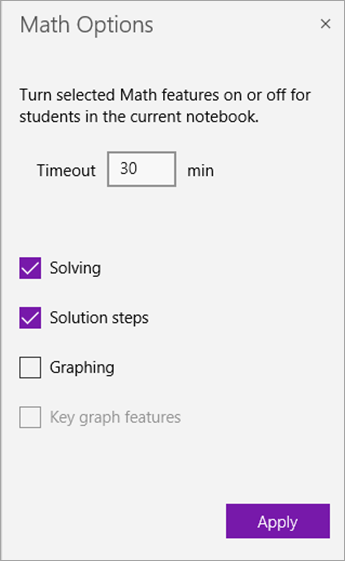
Select Apply.
The math features you turned off will be disabled for students during the timeout period. To edit the timeout period or which features are turned off, return to the Math Options pane, make your changes, and select Apply.
Note
During the timeout period, students will not be able to access Math functions in any notebook while their Class Notebook is open. They will see a notification when they attempt to use Math Assistant. However, they can still convert ink or text to math.