
Add or remove co-educators in a Class Notebook you created with the Class Notebook Wizard. Co-educators can open and manage the Class Notebook from OneNote.
Important
These steps apply to Class Notebooks created with the Class Notebook Wizard. If the Class Notebook was created in Microsoft Teams, add or remove educators in the class team instead. If the Class Notebook was created through Microsoft 365 LTI in your LMS, manage educators from the LMS course roster or connected Microsoft 365 class team.
Add an educator in the Class Notebook Wizard
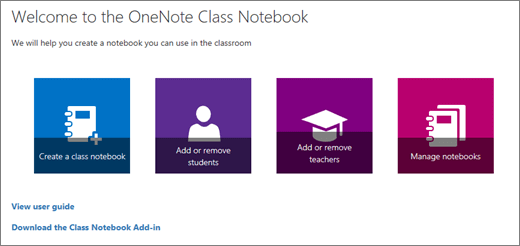
- Go to aka.ms/classnotebook and sign in with your school account.
- Select Add or remove teachers.
- Select the Class Notebook you want to update.
- Enter the educator name or email address, then select Next.
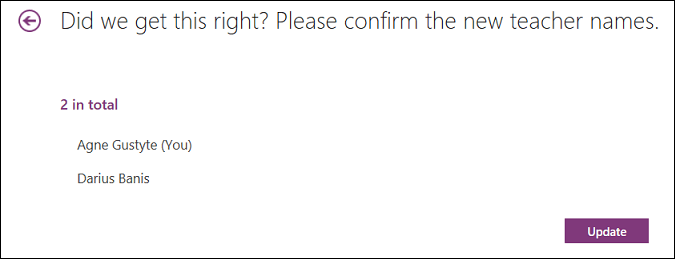
- Review the educator list, then select Update.
Remove an educator
- Go to aka.ms/classnotebook and sign in with your school account.
- Select Add or remove teachers.
- Select the Class Notebook you want to update.
- Remove the educator from the list, then select Next.
- Review the change, then select Update.
Manage educators in Teams or Microsoft 365 LTI
For Class Notebooks created in Teams, add or remove educators from the class team. For Class Notebooks created through Microsoft 365 LTI, update educator access from the LMS course roster or connected Microsoft 365 class team.
Set up Class Notebook in Microsoft 365 LTI
Learn more
Create a Class Notebook in OneNote
Add students to a Class Notebook in OneNote
OneNote Class Notebook training