
Use page locking in Class Notebook
Applies To
Lock a student page to prevent edits while you review it or after a due date passes. While a student page is locked, you can view and make comments, but students can only view the page.
Page locking is available in supported versions of OneNote for Windows, OneNote for the web, OneNote for Mac, OneNote for iPad, iPhone, and Android.
Lock Class Notebook Pages in OneNote
Open OneNote and navigate to the Class Notebook you need to edit.
Find and select Class Notebook in the ribbon at the top of the window, then select Review Student Work.
Choose the notebook section and page you're reviewing, then select Next.
Select Page Locking.
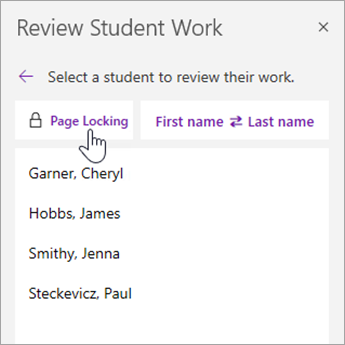
Choose Select All to lock all pages, or choose the checkbox next to a student's name to lock individual pages.
Tip
Select First name or Last name to sort the student list.
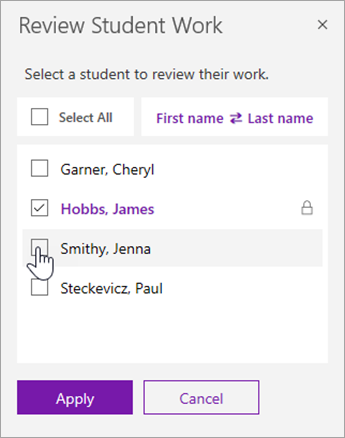
Select Apply.
To unlock pages, return to the Review Student Work pane and select Page Locking again. Clear the checkboxes, then select Apply.
Supported OneNote versions
| Product | Version | How to check |
|---|---|---|
| OneNote for Windows with Microsoft 365 | Current Microsoft 365 update | Select File > Account, then look for the version and build number under About OneNote. |
| OneNote for the web | N/A | Open the notebook link in a web browser and sign in with your school account. |
| OneNote for Mac | Version 16.10 or higher | Select OneNote from the menu bar, then select About OneNote. |
| OneNote for iPad and iPhone | Version 16.10 or higher | Open OneNote settings and scroll to the bottom of the screen. |
| OneNote for Android | Version 9001.1000 or higher | Select the ... menu, then select Settings > About. |
Learn more
Review student work in Class Notebook