
Lock the Collaboration Space to temporarily prevent students from editing content in that section. This is useful during presentations or class discussions when you want everyone focused on the same content. They will still be able to view content.
To lock or unlock a Collaboration Space in your Class Notebook:
Sign in to microsoft365.com with the log-in provided by your school, then navigate to Apps > All apps.
Note
- If you don't see the Class Notebook app right away, navigate to aka.ms/classnotebook instead.
- If your Class Notebook was created in Microsoft Teams, manage it directly in Teams.
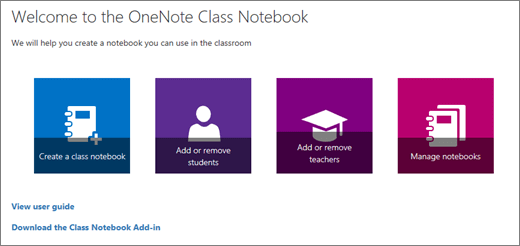
Select Class Notebook > Manage notebooks.
Choose the Class Notebook you'd like to adjust and switch the Lock Collaboration Space toggle to Locked.

To unlock the Collaboration Space, repeat the steps above and switch the Lock Collaboration Space toggle to Unlocked.
Learn more
Find and share Class Notebook URL
Create student groups in Class Notebook
Additional resources for educators
OneNote Class Notebook training