チャットでメッセージを送信するがタイミングが合わない場合は、場所と勤務時間間でのコラボレーションを尊重する日時にメッセージをスケジュールします。 チャット メッセージをスケジュールすると、制御できる日時に確実に送信されます。
後で送信されるチャット メッセージをスケジュールする
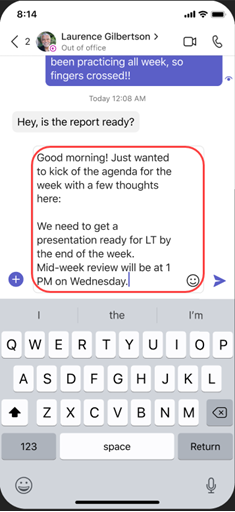
- メッセージCompose、[アクションとアプリ] を選択します 画面
 。
。 - [メッセージのスケジュール]
![を選択する [偏着送信] アイコン](../media/scheduled-send.png) 。
。 - ポップアップ メニューから送信する日時を選択します。
- [ 続行 ] ボタンをクリックします。
- [
![送信] ボタン](../media/send-button.png) を選択します。
を選択します。
設定した時刻にチャット メッセージが自動的に送信されます。
注
メッセージをスケジュールする前に、チャットする相手と会話している必要があります。
スケジュールされたチャット メッセージを編集する
- メッセージにカーソルを合わせて、[ 編集
![] [編集] メニューを選択します 鉛筆アイコン](../media/teams-edit-pencil-icon.png) 。
。 - チャット メッセージを編集し、[完了]
 を選択して更新を保存します。
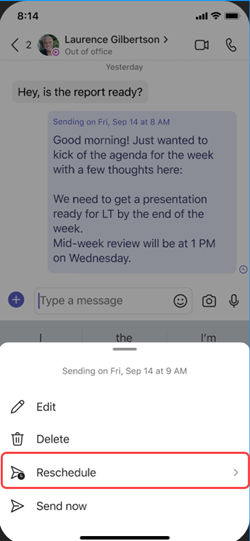
チャット メッセージの配信スケジュールを変更する
- メッセージにカーソルを合わせて、[ 編集 。
- スケジュールされた日時の横にある下矢印を選択して、メッセージを送信する新しい日時を選択します。
- 日付または時刻を変更します。
- [続行] を選択し、[を選択して、更新プログラムを保存します。
スケジュールされたチャット メッセージを削除する
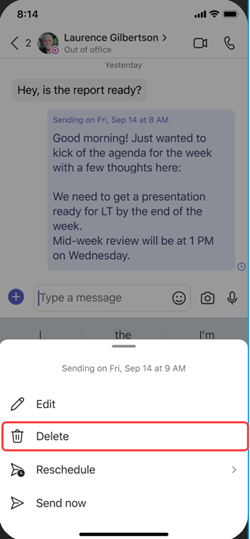
- メッセージに移動し、[ その他のオプション]
 > [削除
> [削除![] [このステータス メッセージを削除する] アイコン](../media/teams-delete-this-status-message-icon.png) を選択します。
を選択します。 - 後で送信されるようにチャット メッセージをスケジュールします。