Change the font or font size in the message list

적용 대상
Microsoft 365용 Outlook Outlook 2024 Outlook 2021 Outlook 2019 Outlook 2016 새 Windows용 Outlook

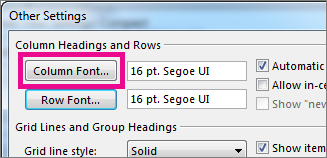
To quickly navigate your Inbox, consider enlarging the text of the subject lines and column headers, or altering their font for better readability.

Select a tab option below for the version of Outlook you're using. What version of Outlook do I have?

Note

If the steps under this New Outlook tab don't work, you may not be using new Outlook for Windows yet. Select the Classic Outlook tab and follow those steps instead.

Change the font size in your new Outlook message list

  1. From the menu, select View > View settings.
  2. Select Mail > Layout.
  3. Under Text size and spacing, select desired text size (Small, Medium, or Large).
  4. Select Save to apply the changes.

Temporarily enlarge an email in the Reading Pane in new Outlook

In the Reading Pane, you can also make the contents of an email larger so it’s easier to read. 

  1. From the menu, select View.

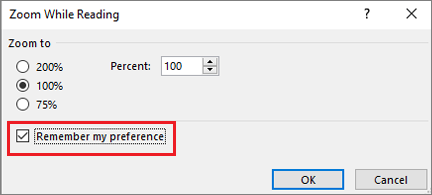
  2. Select Zoom. Use the ⁠+⁠ or ⁠-⁠ to select your desired size between 50% - 200%. (If Zoom is greyed out, select a message to view it in the Reading Pane.) You can Reset the size at anytime.

    Tip

    Increasing the size of the text in the Reading Pane only works on the email you are currently looking at. When you select another email, the body text will return to the default font size.