폴더를 만들면 Outlook에서 전자 메일 메시지, 일정, 연락처 및 작업을 구성할 수 있습니다.
아래에서 사용 중인 Outlook 버전의 탭 옵션을 선택합니다.
내가 사용 중인 Outlook 버전은 무엇인가요?
참고
이 새 Outlook 탭 아래의 단계가 작동하지 않으면 새 Windows용 Outlook을 아직 사용하지 않을 수 있습니다.
클래식 Outlook을 선택하고 대신 해당 단계를 수행합니다.
새 Outlook에서 최상위 폴더 만들기
- 왼쪽의 폴더 창에서 전자 메일 주소를 마우스 오른쪽 단추로 클릭하거나 마우스로 가리키고 추가 옵션 추가
 >만들기 새 폴더를 선택합니다.

- 새 폴더의 이름을 입력한 다음 Enter 키를 누릅니 다.
새 Outlook에서 하위 폴더 만들기
- 하위 폴더를 만들 폴더를 선택합니다.
- 폴더를 마우스 오른쪽 단추로 클릭하거나 마우스로 가리키고 추가 옵션 추가>만들기 새 하위 폴더를 선택합니다.
- 새 폴더의 이름을 입력한 다음 Enter 키를 누릅니 다.
클래식 Outlook의 폴더 창에 폴더를 추가하려면 다음을 수행합니다.
메일, 연락처, 작업 또는 Calendar 왼쪽 창에서 폴더를 추가할 위치를 마우스 오른쪽 단추로 클릭한 다음 새 폴더를 클릭합니다.

참고
일정에서새 폴더 명령이 새 일정으로 바뀝니다.
이름 상자에 폴더의 이름을 입력하고 Enter 키를 누릅니다.
참고
웹용 Outlook은 회사 또는 학교 계정을 사용하는 비즈니스용 Outlook의 웹 버전입니다.
웹용 Outlook 최상위 폴더 만들기
- 왼쪽의 폴더 창에서 폴더를 마우스 오른쪽 단추로 클릭하거나 마우스로 가리키고 기타 옵션 추가>만들기 새 폴더를 선택합니다.
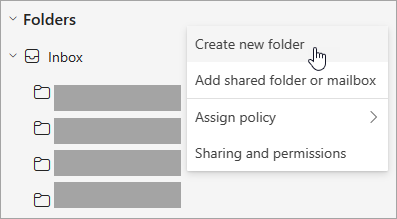
- 새 폴더의 이름을 입력한 다음 Enter 키를 누릅니 다.
웹용 Outlook 하위 폴더 만들기
- 하위 폴더를 만들 폴더를 선택합니다.
- 폴더를 마우스 오른쪽 단추로 클릭하거나 마우스로 가리키고 추가 옵션 추가>만들기 새 하위 폴더를 선택합니다.
- 새 폴더의 이름을 입력한 다음 Enter 키를 누릅니 다.
참고
Outlook.com은 Outlook.com 또는 Hotmail.com 계정과 같은 개인 Microsoft 계정에 로그인하는 사용자를 위한 웹 버전의 Outlook입니다.
Outlook.com 최상위 폴더 만들기
- 폴더 창에서 폴더 를 마우스 오른쪽 단추로 클릭한 다음 새 폴더 만들기를 선택합니다.
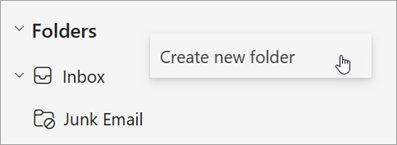
- 새 폴더의 이름을 입력한 다음 Enter 키를 누릅니 다.
Outlook.com 하위 폴더 만들기
- 하위 폴더를 만들 폴더를 선택합니다.
- 폴더를 마우스 오른쪽 단추로 클릭하고 새 하위 폴더 만들기를 선택합니다.
- 새 폴더의 이름을 입력한 다음 Enter 키를 누릅니 다.
관련 문서
Mac용 Outlook에서 폴더 추가 또는 제거
