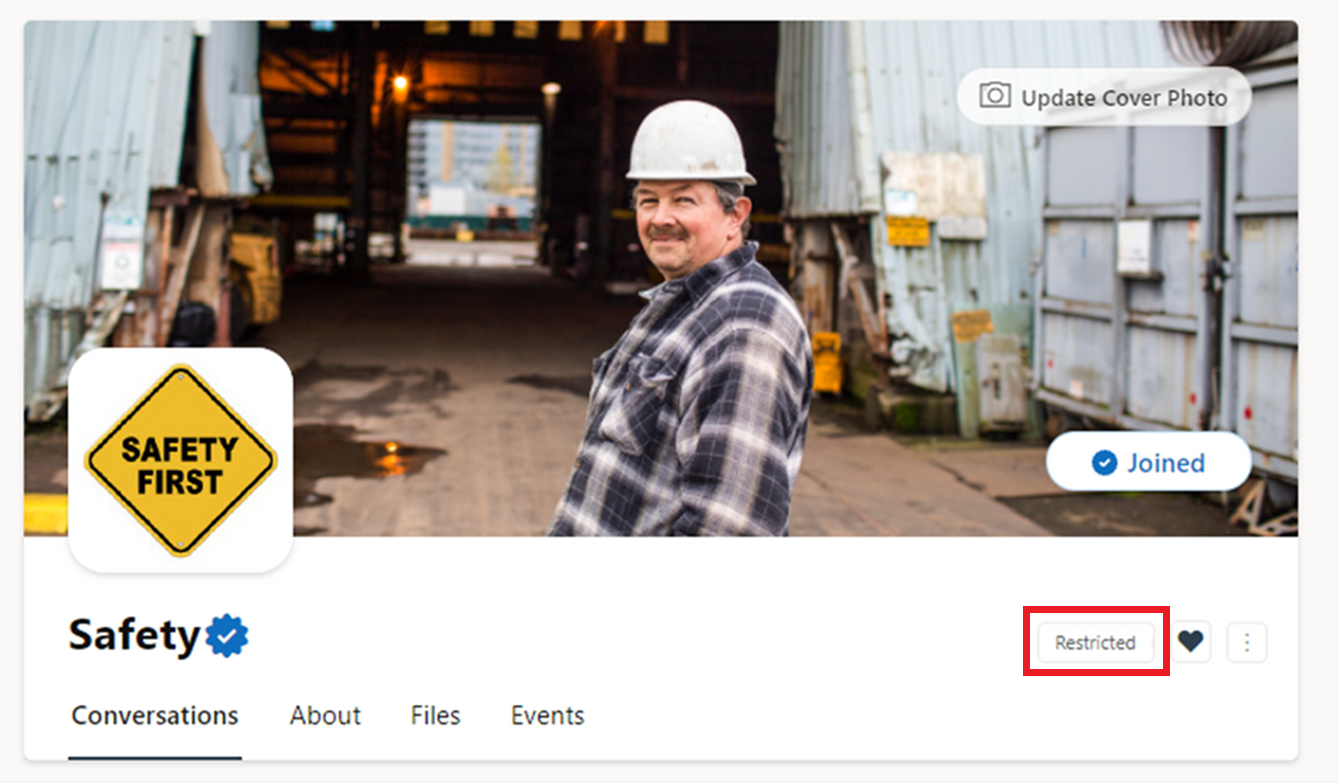
Begränsade inlägg gör det möjligt för nätverksadministratörer att hantera konversationer som äger rum i viktiga communities inom deras nätverk. När den här inställningen är aktiverad kan endast community-administratörer starta en tråd i communityn. Medlemmar kan bara svara och reagera på konversationer.
Så här ställer du in begränsad publicering
Obs
För att aktivera den här inställningen måste en community-administratör ge en nätverksadministratör status som community-administratör . Nätverksadministratören vidtar sedan följande steg.
Välj ikonen Mer
 i communityn och välj ikonen
 .
.
Under Konfiguration > av bokföringsbehörigheter väljer du Begränsad.
Obs
En begränsad community förblir begränsad i Viva Engage appen i Teams, SharePoint webbdelar och Outlook.
Vad community-medlemmar ser
På webben och mobilen ser inte personer som inte är administratörer alternativet att publicera i communityn.
På webben ser användarna Begränsad till höger om community-namnet.