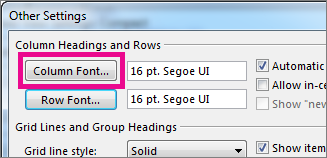
Para navegar rapidamente na Caixa de Entrada, considere ampliar o texto das linhas de assunto e cabeçalhos de coluna ou alterar sua fonte para melhor legibilidade.
Selecione uma opção de guia abaixo para a versão do Outlook que você está usando. Qual versão do Outlook eu tenho?
Observação
Se as etapas na guia Novo Outlook não funcionarem, talvez você ainda não esteja usando o novo Outlook para Windows. Selecione a guia Outlook Clássico e siga estas etapas.
Alterar o tamanho da fonte na sua nova lista de mensagens do Outlook
- No menu, selecione Exibir>Configurações de exibição.
- Selecioneo layoutdo email>.
- Em Tamanho e espaçamento do texto, selecione o tamanho de texto desejado (Pequeno, Médio ou Grande).
- Selecione Salvar para aplicar as alterações.
Ampliar temporariamente um email no Painel de Leitura no novo Outlook
No Painel de Leitura, você também pode aumentar o conteúdo de um email para facilitar a leitura.
No menu, selecione Exibir.
Selecione Zoom. Use o + ou - para selecionar o tamanho desejado entre 50% - 200%. (Se o Zoom estiver esmaecido, selecione uma mensagem para exibi-la no Painel de Leitura.) Você pode redefinir o tamanho a qualquer momento.
Dica
Aumentar o tamanho do texto no Painel de Leitura só funciona no email que você está visualizando no momento. Quando você seleciona outro email, o corpo do texto retorna ao tamanho de fonte padrão.