
Se você configurou uma regra para gerenciar mensagens na caixa de entrada do Outlook e ela não parece estar funcionando, há algumas maneiras de diagnosticar o problema.
Primeiro, marcar qual versão do Outlook você está usando. Se você vir Arquivo na parte superior da tela, você está usando o Outlook clássico. Caso contrário, você está usando um novo Outlook ou uma versão na Web. Encontre sua versão abaixo e siga as instruções.
Corrigir uma regra no novo Outlook
Nem todas as condições ou ações de regra disponíveis no Outlook clássico funcionam da mesma maneira no novo Outlook. Uma das razões pelas quais uma regra pode não funcionar no Novo Outlook pode ser que foi uma regra do lado do cliente migrada do Outlook clássico. Isso significa que as condições e as ações da regra ocorreram apenas em seu dispositivo, em vez de no servidor de email.
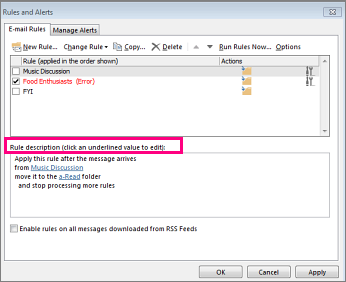
Quando isso acontece, sua regra mostra um alerta que diz que essa regra não pode ser editada ou exibida.

Se uma regra aparecer com esse alerta, você não poderá editá-la ou exibi-la. Tente criar a regra novamente no novo Outlook – confira criar uma regra no novo Outlook. Em muitos casos, isso será suficiente, mas também pode depender do que você deseja que a regra faça porque algumas ações ou condições não são suportadas no momento.
Por exemplo, se você estiver tentando recriar a regra no novo Outlook e não vir a condição ou ação usada anteriormente no Outlook clássico, isso significa que a ação não tem suporte no momento.
Observação
O Novo Outlook não dá suporte a regras do lado do cliente. Saiba a diferença entre regras do lado do servidor e do lado do cliente.
Editar uma regra de caixa de entrada no novo Outlook
Nos casos em que você deseja que uma regra se comporte de forma diferente, você pode editá-la:
- Na parte superior da página, selecione Configurações
 .
. - SelecioneRegras deEmail>.
- Na regra que você deseja editar, selecione
 .
. - Pressione Salvar para salvar sua regra editada.



A diferença entre regras do lado do servidor e do lado do cliente
As regras são executadas antes que uma mensagem ou item chegue ao seu dispositivo (lado do servidor) ou quando a mensagem ou item chegar em seu dispositivo (lado do cliente). A forma como as regras são executadas depende de quais condições e ações estão incluídas nelas.
O Novo Outlook não dá suporte a regras do lado do cliente.
Regras do lado do servidor
Regras do lado do cliente
Regras do Lado do Servidor usam condições e ações manipuladas pelo Exchange Server e essas regras serão executadas se você tiver feito login no Outlook do seu computador ou não. Aqui está um exemplo de uma regra do lado do servidor:
De <pessoas ou lista de distribuição na GAL ou na lista> de contatos, mova-a para a <pasta especificada>
Essa regra usa todas as informações do exchange server, como mover uma mensagem de um remetente que está em uma Lista de Endereços Global para uma pasta específica que está em sua caixa de correio do Exchange. As regras do lado do servidor podem mover o email para uma pasta especificada, por exemplo, quando essa pasta também existe no servidor. Uma regra do lado do servidor não pode mover o email para uma pasta que só existe em seu dispositivo.
Importante
Somente o Outlook clássico dá suporte a regras do lado do cliente e do lado do servidor. O Novo Outlook, Outlook na Web e Outlook.com só dão suporte a regras do lado do servidor.
As regras do lado do cliente têm pelo menos uma condição ou ação que usa um recurso do Outlook e elas não são executadas até que você faça logon no Outlook clássico para Windows com a conta que você usou para criar a regra. Por exemplo, esta é uma regra do lado do cliente:
De pessoas ou lista> de <distribuição, sinalizar mensagem para <reproduzir um som>
Neste exemplo, você diz à regra para reproduzir um som quando receber uma mensagem e esta condição pode ser executada apenas pelo Outlook, o que a define como uma regra do lado do cliente.
Exemplos clássicos do Outlook de ações e condições de regra somente cliente
As seguintes condições e regras do lado do cliente só têm suporte no Outlook clássico.
Exemplos de condições comuns especificadas em uma regra que a tornam uma regra do lado do cliente:
Exemplos de ações comuns especificadas em uma regra que a tornam uma regra do lado do cliente:
- Com palavras específicas no assunto
- Marcado como de Prioridade
- Marcado com confidencialidade
- Sinalizada para ação
- Com palavras específicas no corpo da mensagem
- Com palavras específicas no cabeçalho da mensagem
- Com palavras específicas no endereço do destinatário
- Com palavras específicas no endereço do remetente
- Atribuída à categoria
- Atribuir à categoria
- Excluir um registro permanentemente
- Sinalizar a mensagem para acompanhamento neste momento
- Limpar o sinalizador de mensagem
- Imprimir
- Reproduzir um som
- Marcar com lida
- Exibir uma mensagem específica na janela de alerta de novos itens
- Exibir um alerta de área de trabalho
Recursos de regra compatíveis com a versão do Outlook
| Recurso | Outlook Clássico | Novo Outlook |
|---|---|---|
| Aplicar política de retenção | Disponível | Disponível |
| Aplicar regra à mensagem que recebo | Disponível | Disponível |
| Atribuir a categoria específica | Disponível | Parcialmente disponível |
| Atribuído à categoria _______ | Disponível | Sem suporte |
| Categorizar | Disponível | Disponível |
| Limpar categorias | Disponível | Sem suporte |
| Limpar sinalizadores da mensagem | Disponível | Sem suporte |
| Copiar | Disponível | Disponível |
| Adiar a entrega por x minutos | Disponível | Sem suporte |
| Delete | Disponível | Disponível |
| Exibir uma mensagem personalizada na janela Novo Alerta de Item | Disponível | Sem suporte |
| Exibir um alerta de área de trabalho | Disponível | Próximo |
| Sinalizar com tempo específico | Disponível | Sem suporte |
| Tipo de formulário | Disponível | Sem suporte |
| Encaminhar como anexo | Disponível | Disponível |
| Encaminhar para | Disponível | Disponível |
| De | Disponível | Disponível |
| Tem anexo | Disponível | Disponível |
| Eu não estou na linha para | Disponível | Disponível |
| Estou na linha CC | Disponível | Disponível |
| Estou na linha to | Disponível | Disponível |
| Estou na linha Para ou CC | Disponível | Disponível |
| Eu sou o único destinatário | Disponível | Disponível |
| Marcar como importância | Disponível | Disponível |
| Marcar como Lixo | Sem suporte | Disponível |
| Marcar como lido | Disponível | Disponível |
| Marcar como lido | Disponível | Disponível |
| Marcar com importância | Disponível | Disponível |
| Marcado com importância | Disponível | Disponível |
| Marcado com sensibilidade | Disponível | Disponível |
| Tamanho da mensagem: no máximo | Parcialmente disponível | Disponível |
| O corpo da mensagem inclui | Disponível | Disponível |
| O cabeçalho da mensagem inclui | Disponível | Disponível |
| A mensagem inclui o sinalizador | Disponível | Disponível |
| Tamanho da mensagem: pelo menos | Parcialmente disponível | Disponível |
| Tipo de Mensagem: Resposta automática | Disponível | Disponível |
| Tipo de Mensagem: reencaminhado automaticamente | Disponível | Disponível |
| Tipo de Mensagem: Encriptação | Disponível | Disponível |
| Tipo de Mensagem: Respostas a eventos | Disponível | Disponível |
| Tipo de Mensagem: Convites para reuniões | Disponível | Disponível |
| Tipo de Mensagem: Entrega sem êxito | Disponível | Disponível |
| Tipo de mensagem: Controlo de permissão | Disponível | Disponível |
| Tipo de mensagem: Recibo de leitura | Disponível | Disponível |
| Tipo de Mensagem: Pedido de aprovação | Disponível | Disponível |
| Tipo de mensagem: Assinado | Disponível | Disponível |
| Tipo de mensagem: Voicemail | Disponível | Disponível |
| Mover para | Disponível | Disponível |
| Apenas neste computador | Disponível | Sem suporte |
| Eliminar permanentemente | Disponível | Sem suporte |
| Reproduzir um som | Disponível | A seguir |
| Imprimir | Disponível | Sem suporte |
| Recebido: Depois | Parcialmente disponível | Disponível |
| Recebido: Antes | Parcialmente disponível | Disponível |
| O endereço do destinatário inclui | Disponível | Disponível |
| Redirecionar para | Disponível | Disponível |
| Responder com um modelo específico | Disponível | Sem suporte |
| RSS Feeds | Disponível | Sem suporte |
| Enviar uma resposta automática ao servidor | Disponível | Sem suporte |
| O endereço do remetente inclui | Disponível | Disponível |
| Remetente no livro de endereços _____ | Disponível | Sem suporte |
| O remetente está no livro de endereços especificado | Disponível | Sem suporte |
| Palavras específicas no endereço do destinatário | Disponível | Disponível |
| Parar de processar mais regras | Disponível | Disponível |
| O assunto inclui | Disponível | Disponível |
| Assunto ou corpo inclui | Disponível | Disponível |
| Através da conta especificada | Disponível | Parcialmente disponível |
| Para | Disponível | Disponível |
| Utiliza o formulário | Disponível | Sem suporte |
| Com propriedades selecionadas de documentos ou formulários | Disponível | Sem suporte |