Você pode atrasar a entrega de uma mensagem individual mantendo-a na Caixa de Saída por um tempo especificado depois de selecionar Enviar.
Selecione uma opção de guia abaixo para a versão do Outlook que você está usando.
Qual versão do Outlook eu tenho?
Observação
Se as etapas na guia Novo Outlook não funcionarem, talvez você ainda não esteja usando o novo Outlook para Windows. Selecione a guia Outlook Clássico e siga estas etapas.
Agendar uma mensagem para mais tarde no novo Outlook
Observação
Este recurso não está disponível para contas IMAP ou POP.
- Ao redigir uma mensagem, selecione o menu suspenso ao lado de Enviar e selecione Agendar envio.

- Selecione uma das opções padrão, selecione Enviar ou escolha um horário personalizado e, em seguida, selecione Enviar.
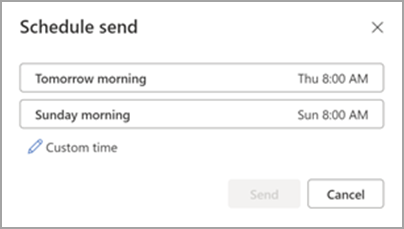
- Depois de selecionar Enviar, a mensagem permanece na pasta Rascunho até o momento da entrega.
Se, mais tarde, você decidir que deseja enviar a mensagem imediatamente, poderá fazer o seguinte:
- Alterne para a pasta Rascunho .
- Abra a mensagem agendada e selecione Cancelar envio.
- Selecione Enviar e a mensagem será enviada imediatamente.
Agendar uma mensagem para mais tarde no Outlook clássico para Windows
- Ao redigir uma mensagem, selecione a seta Opções de Mensagem no grupo Marcas na Faixa de Opções.

Se você não tiver essas opções, provavelmente terá a faixa de opções simplificada: Na faixa de opções, selecione a guia Opções e selecione  Mais comandos.
- Em Opções de entrega, marque a caixa de marcar Não entregar antes de escolher e escolha a data e a hora de entrega desejadas.

- Selecione Fechar.
- Quando terminar de escrever sua mensagem de email, selecione Enviar.
Depois de selecionar Enviar, a mensagem permanece na pasta Caixa de Saída até o momento da entrega.
Se você decidir depois que deseja enviar a mensagem imediatamente, proceda da seguinte forma:
- Alterne para a pasta Caixa de Saída .
- Abra a mensagem atrasada.
- Selecione a seta Opções de Mensagem no grupo Marcas na Faixa de Opções.
Se você não tiver essas opções, provavelmente terá a faixa de opções simplificada: Na faixa de opções, selecione a guia Opções e selecione Mais comandos.
- Em Opções de entrega, desmarque a caixa de seleção Não entregar antes de.
- Selecione Fechar e Enviar.
Observação
O Outlook precisa estar online e conectado para que esse recurso funcione.
Atrasar a entrega de todas as mensagens no Outlook clássico
Você pode atrasar a entrega de todas as mensagens em até duas horas criando uma regra.
- No Email, na faixa de opções, selecione a guia Arquivo .
- Selecione
 Gerenciar Regras & Alertas.
- Selecione
 Nova Regra.
- Na caixa Etapa 1: Selecione um modelo , em Iniciar a partir de uma Regra em Branco, selecione Aplicar regra em mensagens que eu enviar e, em seguida, selecione Avançar.
- Na Etapa 1: selecionar condição(ões), marque as caixas de marcação para as opções desejadas e selecione Avançar.
Se você não marcar uma caixa, será exibida uma caixa de diálogo de confirmação. Se você selecionar Sim, a regra que você está criando será aplicada a todas as mensagens que você enviar.
- Na lista Etapa 1: selecione as ações, marque a caixa de seleção adiar entrega por um número de minutos.
- Na Etapa 2: Edite a descrição da regra (clique em um valor sublinhado), selecione a frase sublinhada com um número e insira o número de minutos durante os quais deseja que as mensagens sejam retidas antes de serem enviadas.
A entrega pode ser atrasada em até 120 minutos.
- Selecione OK e, em seguida, Avançar.
- Marque as caixas de seleção das exceções desejadas.
- Selecione Avançar.
- Na caixa Etapa 1: especifique um nome para esta regra, digite um nome para a regra.
- Marque a caixa de seleção Ativar esta regra.
- Selecione Concluir.
Depois de selecionar Enviar, cada mensagem permanecerá na pasta Caixa de Saída pelo tempo especificado.
Agendar uma mensagem para mais tarde em Outlook na Web ou Outlook.com
- Ao redigir uma mensagem, selecione o menu suspenso ao lado de Enviar e selecione Agendar envio.
- Selecione uma das opções padrão, selecione Enviar ou escolha um horário personalizado e, em seguida, selecione Enviar.
- Depois de selecionar Enviar, a mensagem permanece na pasta Rascunho até o momento da entrega.
Se, mais tarde, você decidir que deseja enviar a mensagem imediatamente, poderá fazer o seguinte:
- Alterne para a pasta Rascunho .
- Abra a mensagem agendada e selecione Cancelar envio.
- Selecione Enviar e a mensagem será enviada imediatamente.
Artigos relacionados
Agendar envio para o Outlook no Mac
