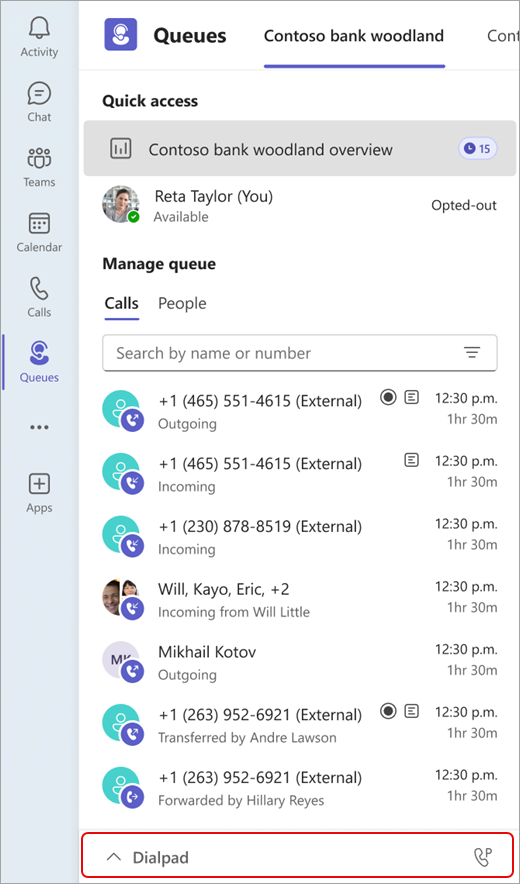
Appen Köer är en inbyggd Teams-upplevelse som utökar organisationens funktioner för kundengagemang. Med den här samarbetslösningen för samtalshantering kan gruppmedlemmarna hantera kundsamtal och gruppledningar för att hantera köer, komma åt rapporter och analysera data. Du kan fästa appen till vänster i Teams för enkel åtkomst.
Beroende på behörigheter kan ditt team använda appen Köer för att:
- Hantera inkommande samtal, oavsett om de är PSTN eller VOIP.
- Ring utgående samtal åt de samtalsköer eller automatiska dirigeringar som du har tilldelats.
- Granska måtten för samtalsköer och samarbeta smidigt med leads eller kollegor inom arbetsflödet.
- Övervaka samtalsköer och automatisk dirigering i realtid, registrera dig eller avregistrera dina teammedlemmar, generera prestandarapporter och konfigurera samtalsköer och automatisk dirigering.
Obs
Den Köer appen är tillgänglig som standard om din organisation har både en Teams Premium- och Teams Phone-licens.
Starta appen
När du har godkänts av IT-administratören är Köer-appen klar att använda.
- Välj Visa fler appar
 till vänster i Teams-fönstret.
- Leta reda på appen Köer.
- Du kan fästa appen i fältet genom att högerklicka på den och välja Fäst.
Visa samtalskön
Beroende på hur din organisation är strukturerad kan du ha flera samtalsköer som du kan registrera dig för. I appen Köer kan du se tillgängliga köer att ansluta till längst upp i fönstret.
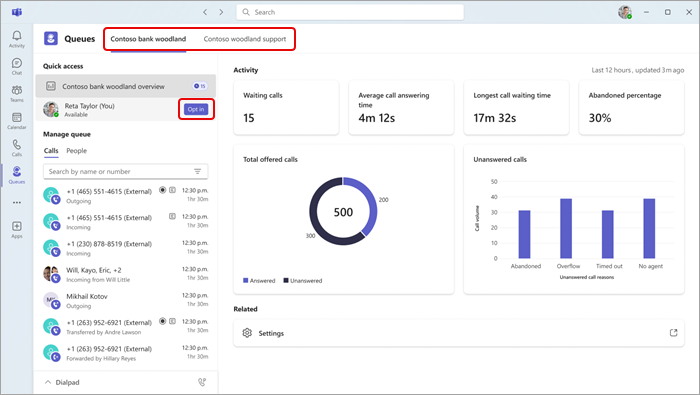
- Välj den kö du vill registrera dig för.
- Välj Registrera dig.
När du har valt att delta kommer du att börja ta emot samtal från den här kön. Om du vill avregistrera dig går du tillbaka till samma knapp och väljer Avregistrera dig. Då tas du bort från listan över angivna gruppmedlemmar och du slutar ta emot samtal.
Dessutom kan gruppledare registrera sig eller avregistrera sina teammedlemmar direkt. Hovra över namnet så visas knappen Registrera dig/Avregistrera dig.
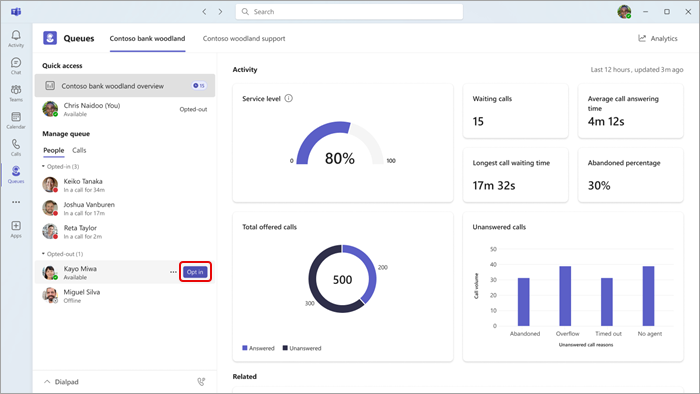
Obs
Om närvarobaserad routning är aktiverat i samtalsinställningarna måste gruppmedlemmarna båda vara angivna och ha statusen Tillgänglig för att kunna ta emot samtal.
Interagera med din grupp
Dina gruppmedlemmar grupperas efter statusen anmälning/avanmälning. Om du vill skicka ett meddelande eller starta ett samtal väljer du bara en teammedlem på menyn.
- Under Hantera kö väljer du People.
- Klicka på namnet på den person du vill interagera med. Om du ringer en gruppmedlem på det här sättet kan du välja vilket telefonnummer det utgående samtalet ska använda.
Använda knappsatsen
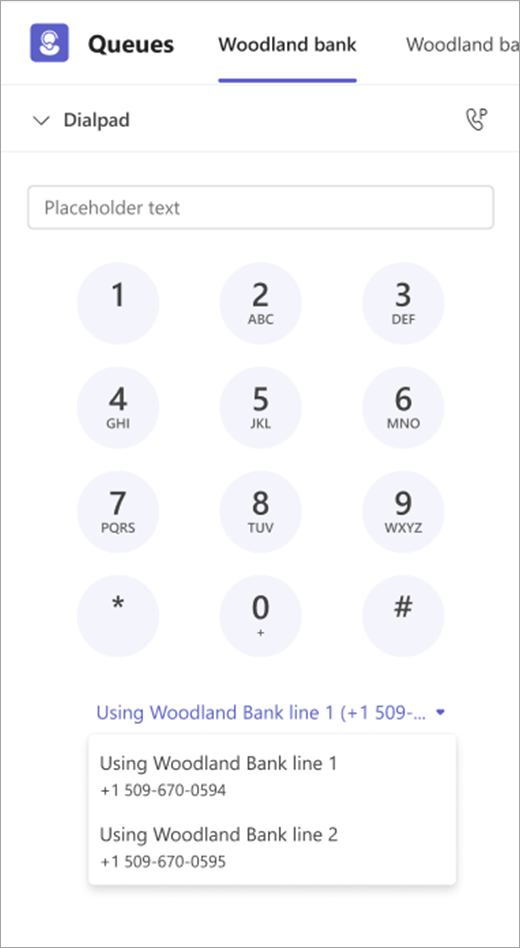
Välj Knappsats i fönstrets nedre vänstra hörn för att expandera vyn. Därifrån kan du ringa utgående samtal.
Om din organisation har flera utgående nummer att välja mellan visas en listruta ovanför knappen Ring upp, så att du kan välja vilket nummer du vill ringa utgående samtal med.
Visa samtalshistorik i appen Köer
Hantera inställningar för samtalskö och automatisk dirigering
Automatiska dirigerings- och samtalsköhistorikrapporter
Hantera samtalsköer och kommunicera med kunder vart arbetet än tar dig. Med Köer-appen på Teams mobile (iOS och Android) kan mobila medarbetare på språng hålla kontakten och svara vid hantering av kundsamtal.
Med smidig mobil åtkomst kan samtalsföreträdare och ledledare hantera sina tilldelade köer, kontrollera ködeltagande och granska samtalshistorik – allt från deras mobila enhet.
Om din organisation använder Teams Phone och Teams Premium kan berättigade användare komma åt appen Köer direkt från Teams-mobilapp för att hantera samtalsköer när de inte är vid sina skrivbord.
Med Köer-appen på Teams mobile:
- Samtalsrepresentanter och ledledare kan visa de samtalsköer de har tilldelats.
- Samtalsrepresentanter och ledledare kan granska köinformation, inklusive en fullständig lista över alla medlemmar som är associerade med kön.
- Samtalsombud kan registrera sig eller avregistrera sig från en kös samtalsdirigering från sin mobila enhet.
- Handledare kan masshantera köande deltagande för sina team.
- Samtalsrepresentanter och ledledare kan granska sin körelaterade samtalshistorik på mobilen.
Med mobil åtkomst till köer kan team svara snabbare, hantera samtal smidigare och ge en bättre kundupplevelse – när som helst, var som helst.
Starta appen
När du har godkänts av IT-administratören är Köer-appen klar att använda.
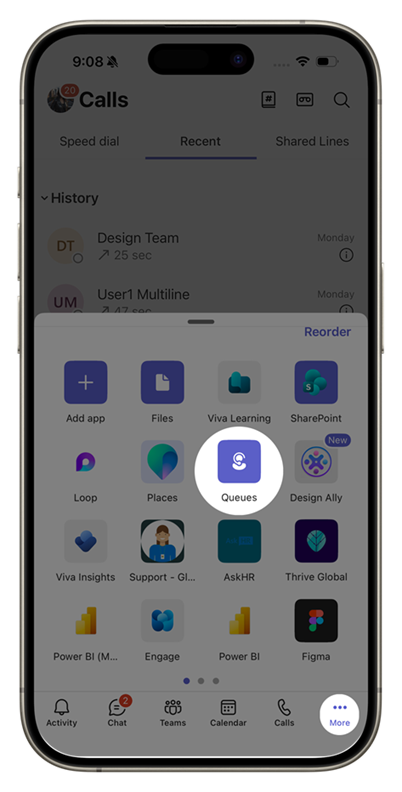
Öppna Teams-mobilapp och tryck sedan på Mer i flikfältet. Du kan behöva svepa genom appfältet för att hitta appen Köer.
Registrera dig för eller avregistrera dig från samtalsköer
Öppna appen Köer om du vill visa alla samtalsköer som du har lagts till i.
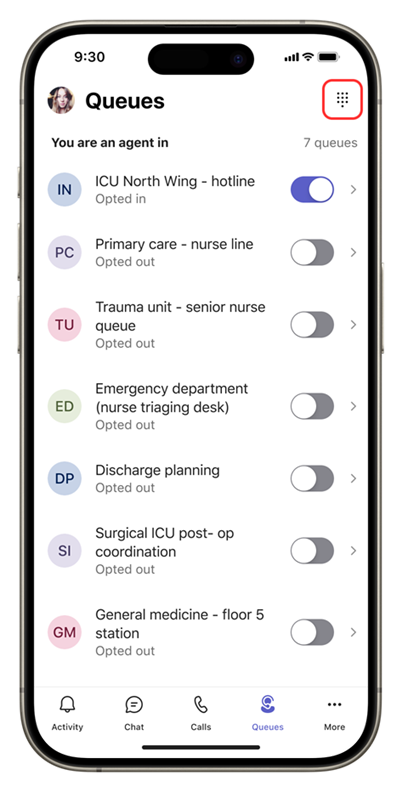
På startskärmen trycker du på växlingsknappen bredvid varje kö för att välja att delta eller inte. När du har valt det börjar du ta emot samtal från den kön.
Om du vill avregistrera dig går du tillbaka till samma växlingsknapp och inaktiverar den. Den här åtgärden tar bort dig från listan över angivna gruppmedlemmar och du slutar ta emot samtal från kön.

Tryck på en kö om du vill visa all information. Du kan också registrera dig eller gå härifrån.

Registrera dig för eller avregistrera gruppmedlemmar
Om du är chef kan du välja dina gruppmedlemmar in eller ut.
Registrera dig för eller avregistrera gruppmedlemmar i grupp
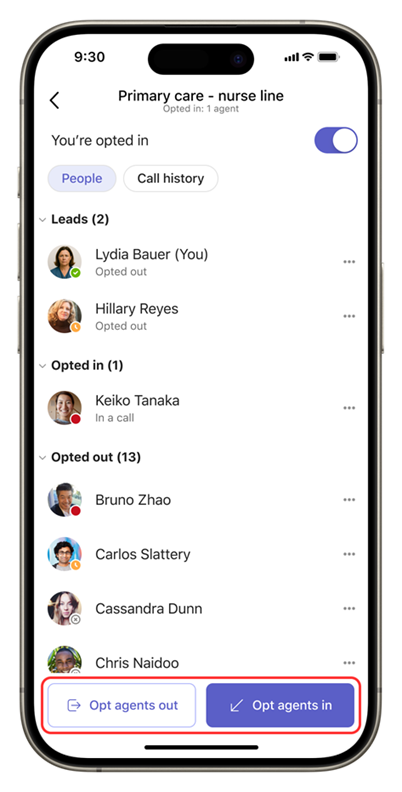
Öppna en samtalskö och gå till fliken People. Tryck på Opt agents in eller Opt agents out för att se hela listan.
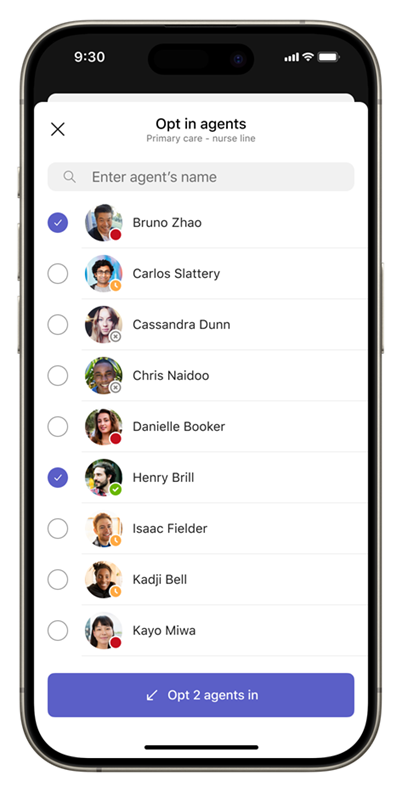
Markera alla som du vill registrera dig för eller välja bort och tillämpa sedan ändringen på en gång.
Registrera dig för eller avregistrera gruppmedlemmar individuellt
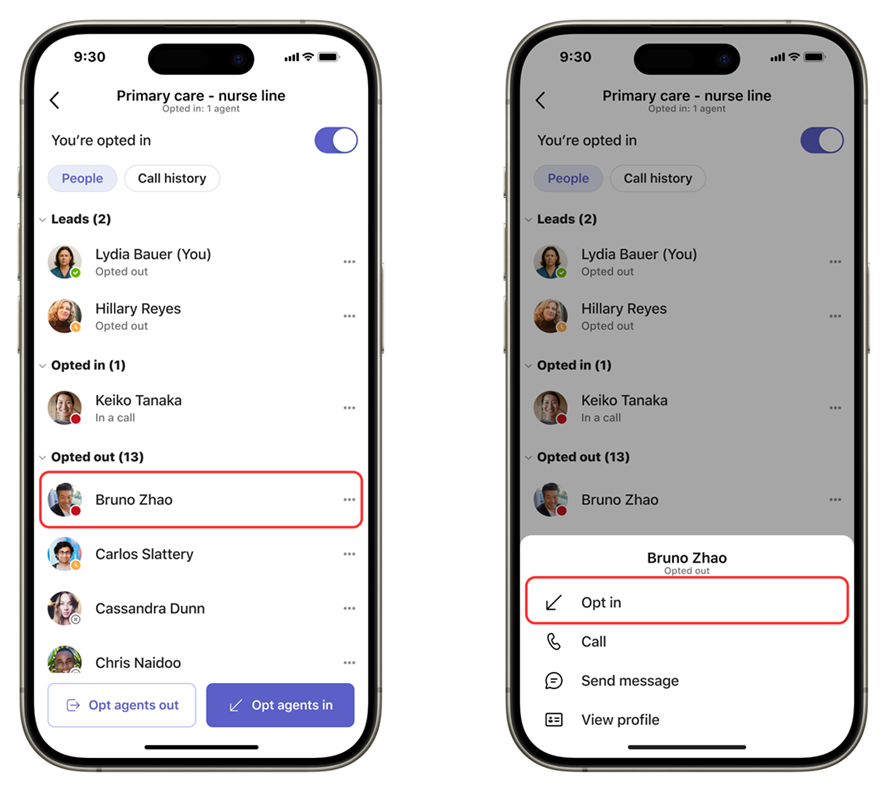
Du kan också trycka på en persons namn för att registrera personen i eller utanför kön.
Ringa samtal och visa samtalshistorik
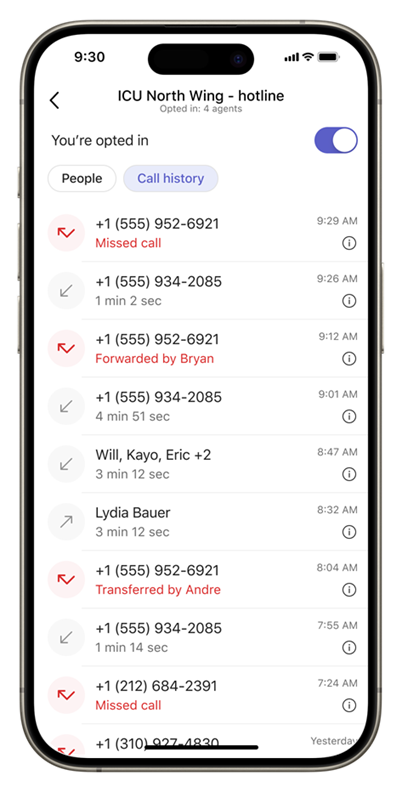
När du väljer en samtalskö visas två flikar under könamnet: People och Samtalshistorik. På fliken Samtalshistorik visas dina samtal i kön.
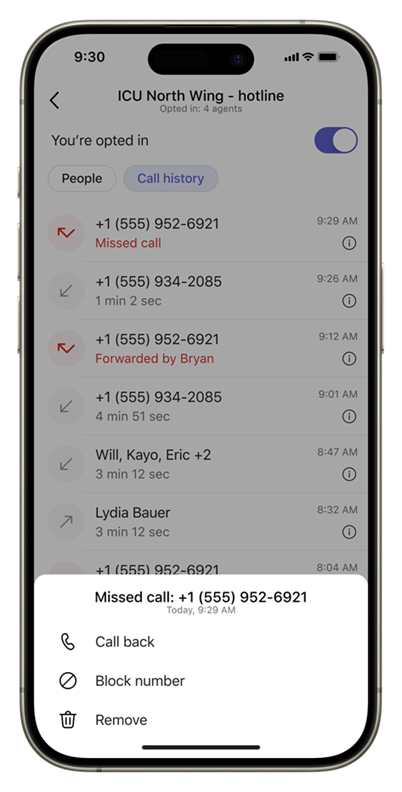
Tryck på en post om du vill ringa tillbaka eller tryck på tidsstämpeln för fler åtgärder.
Använda knappsatsen
Om du vill ringa utgående samtal trycker du på knappsatsen i det övre högra hörnet på startskärmen i appen Köer.
Interagera med din grupp
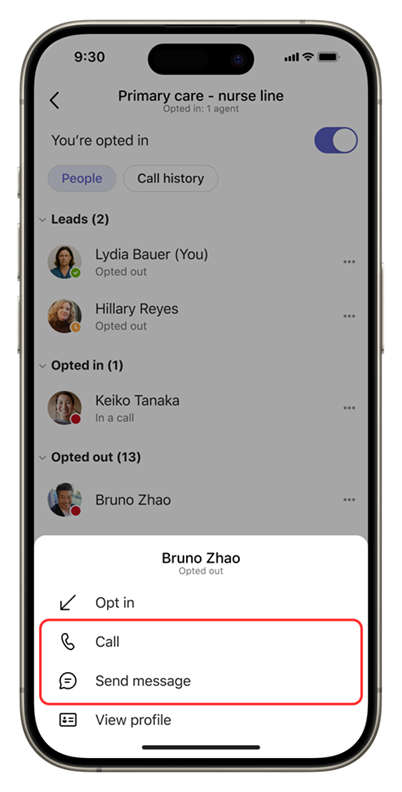
Dina gruppmedlemmar grupperas efter deras status för registrering eller avanmälning. Om du vill skicka ett meddelande eller starta ett samtal trycker du på namnet på den person du vill nå.
När din IT-administratör har slutfört konfigurations- och auktoriseringsprocessen är Köer-appen redo att användas på din Teams Phone-enhet.
Registrera dig för eller frånvaro av samtalsköer
Välj Köer på teams-telefonen för att komma igång.
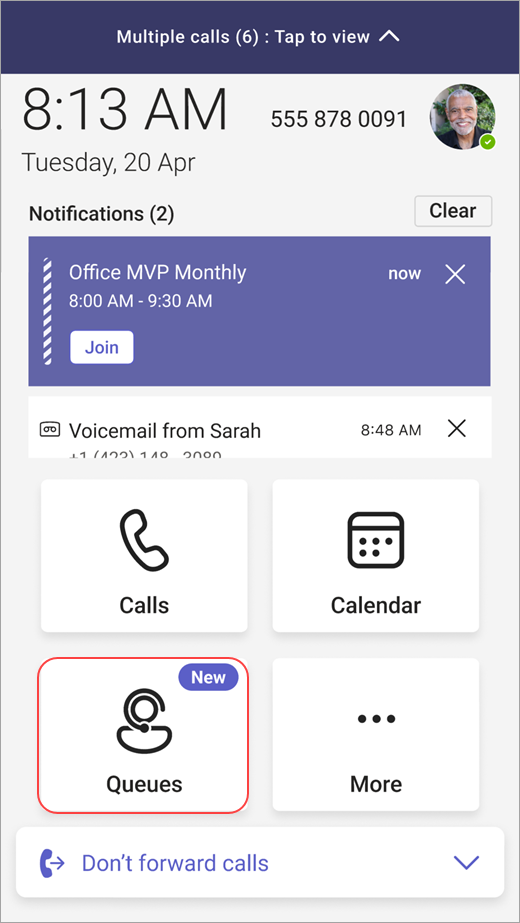
På nästa skärm visas tillgängliga köer att ansluta till.
Välj växlingsknappen bredvid kön för att anmäla dig eller inte.
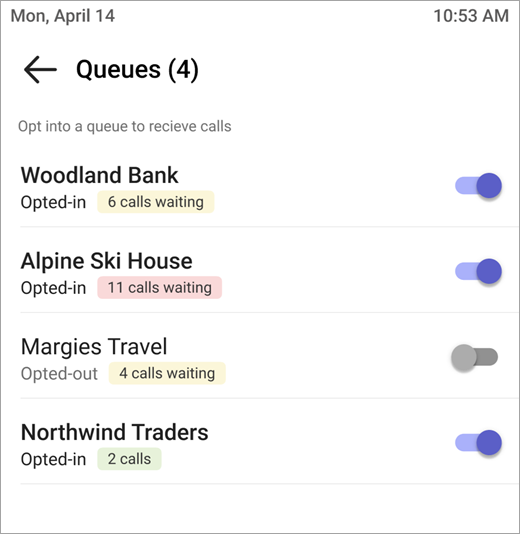
När du har valt att delta kommer du att börja ta emot samtal från den här kön.
Om du vill avregistrera dig går du tillbaka till samma växlingsknapp och inaktiverar den. Då tas du bort från listan över angivna gruppmedlemmar och du slutar ta emot samtal.
Ringa samtal och visa samtalshistorik
När du väljer en samtalskö visas två flikar under könamnet: Samtal och People.
På fliken Samtal kan du visa din samtalshistorik.
Välj ett samtal i din historik om du vill se mer detaljerad information och ringa tillbaka det numret med det nummer som är kopplat till samtalskön.
För närvarande innehåller samtalshistoriken tidigare samtal som du har ringt eller samtal som du har missat och som har ett röstmeddelande.
På fliken People visas Teams-status för leads och personer som du observerar.
Om du vill visa profilinformation och samtalsalternativ väljer du Fler alternativ bredvid personens namn.
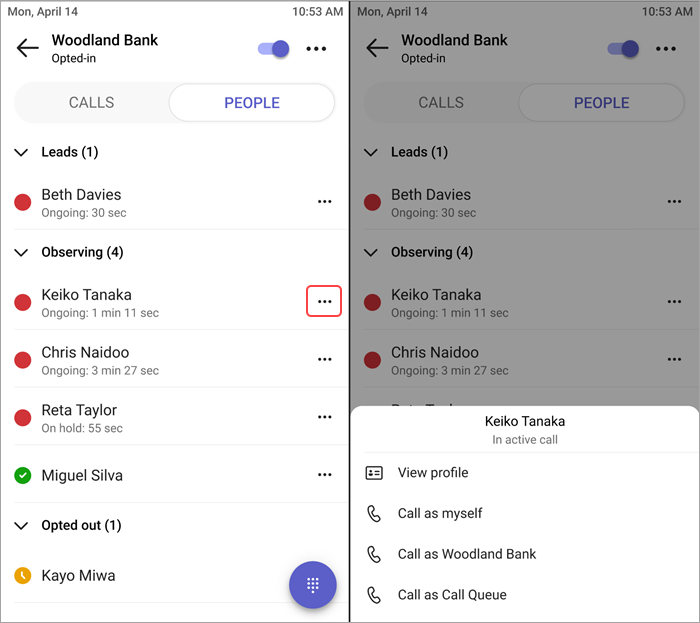
Du kan när som helst komma åt knappsatsen knappsats från knappen längst ned på skärmen. Om din organisation har flera utgående nummer att välja mellan visas en listruta ovanför knappen Ring upp, så att du kan välja vilket nummer du vill ringa utgående samtal med.