
A listákban található mappák hatékony módot kínálnak a tartalom csoportosítására és kezelésére, például a készletelemek vagy az alkalmazottak részlegek szerinti csoportosítására. Ha egy mappára már nincs szüksége, törölheti a listából.
Mappa törlése a modern felület listájában
Fontos
Amikor töröl egy mappát, a benne található fájlokat és almappákat is törli. A törlés előtt fontolja meg a mappa tartalmának áthelyezését vagy archiválását. Lehetséges, hogy Önnek vagy a rendszergazdának is lehetősége van a mappák és azok tartalmának helyreállítására a Lomtárból.
Nyissa meg a listát, és jelölje ki a törölni kívánt mappát.
Megjegyzés
Mást mutat a képernyője, mint amit itt lát, ha a SharePointot használja a Microsoft 365-ben vagy a SharePoint Server 2019-ben? Előfordulhat, hogy a rendszergazdája klasszikus felületet állított be a SharePoint-dokumentumtárban. Ha igen, olvassa el a Mappa törlése a klasszikus SharePoint-felület listájában című cikket.

Több mappa törléséhez ismételje meg ezt a lépést. Tetszés szerinti számú elemet törölhet.
Kattintson a Törlés
 a felső hivatkozáspult Törlés gombjára.
A Törlés párbeszédpanelen kattintson a Törlés gombra a mappa eltávolításához.
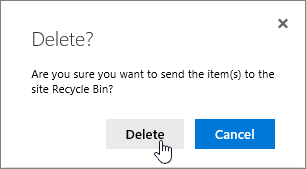
A lista tetején megjelenő állapotsor jelzi, hogy az elem törlése megtörtént.

Mappa törlése a klasszikus felület listájából
Fontos
Amikor töröl egy mappát, a benne található fájlokat és almappákat is törli. A törlés előtt fontolja meg a mappa tartalmának áthelyezését vagy archiválását. Lehetséges, hogy Önnek vagy a rendszergazdának is lehetősége van a mappák és azok tartalmának helyreállítására a Lomtárból.
Klasszikus módban nincs felső hivatkozáspult .
Nyissa meg a listát, és jelölje ki a törölni kívánt mappát.
Jelöljön ki egy vagy több törölni kívánt mappát: mutasson a mappára, és jelölje be a jelölőnégyzetet.
Kattintson a jobb gombbal egy mappaikonra, és válassza a Törlés parancsot.

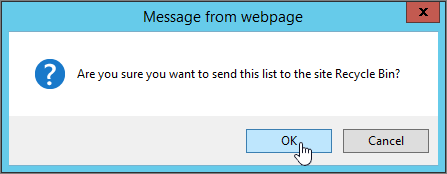
A törlés megerősítését kérő párbeszédpanelen kattintson az OK gombra.


Érdeklődési körnek megfelelő témakörök
Mappa létrehozása egy SharePoint-dokumentumtárban
Mappa létrehozása egy SharePoint-listában
Mappa létrehozása egy SharePoint-dokumentumtárban
Visszajelzés küldése
Hasznos volt ez a cikk? Hiányzik valami tartalom? Ha igen, kérjük, jelezze számunkra a lap alján. Tudassa velünk, hogy mi volt zavaró, vagy mi hiányzott. Kérjük, hogy a visszajelzésben tüntesse fel, hogy milyen verziójú SharePointot, operációs rendszert és böngészőt használ. Visszajelzése alapján felül fogjuk vizsgálni a cikkben szereplő adatokat, kiegészítjük további információkkal és frissítjük a cikket.