

Nota
Os temas de reunião estão disponíveis como parte do Teams Premium, uma licença de suplemento que fornece funcionalidades adicionais para tornar as reuniões e eventos do Teams mais personalizados, inteligentes e seguros. Para obter acesso ao Teams Premium, contacte o seu administrador de TI.
Os temas de reunião ajudam a promover uma experiência de imagem corporativa em reuniões e eventos ao incorporar recursos visuais (por exemplo, o logótipo, a imagem da marca e o tema de cor de uma organização) nos ecrãs e superfícies de reuniões. Atualmente, as experiências de marca não são suportadas no Salas Microsoft Teams.
Importante
A Microsoft não valida a propriedade de logótipos de marca ou imagens associados a temas de reunião. Quando participar em reuniões ou eventos com outras organizações, verifique sempre a autenticidade da organização com a qual se vai reunir.
Ecrãs e superfícies com temas
Fomente a notoriedade da marca e a cultura da empresa com ecrãs e superfícies temáticos para reuniões e eventos. Veja as cores e imagens da empresa aplicadas aos ecrãs de pré-adesão e lobby, controlos de reunião e muito mais.

Nota
Os participantes que ativarem o ecrã de alto contraste em reuniões e eventos do Teams não verão conteúdo de marca.
Fundos personalizados
Aplique fundos definidos pela organização durante a reunião ou evento para apresentar o logótipo ou imagem da marca da sua empresa no fundo do seu feed de vídeo.
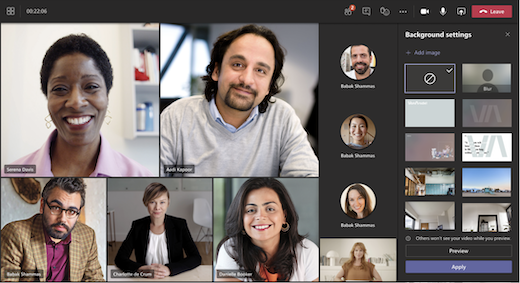
Saiba mais sobre como alterar o seu fundo durante uma reunião do Teams.
Nota
Os fundos definidos pela organização só estão disponíveis para participantes com licenças Teams Premium. Os participantes convidados e anónimos não irão ver estes fundos nas respetivas definições.
Reações com marcas
Adicione um toque às reuniões com reações de marca, personalizadas pela sua organização para refletir elementos da marca ou temas de eventos. Uma vez na reunião, selecione React nos controlos da reunião para abrir as reações com a marca juntamente com as reações normais do Teams.
Se o seu administrador de TI tiver carregado reações com a marca, estas ficarão disponíveis para utilização automática.
Ativar temas de reunião
Para aplicar um tema de reunião à sua reunião:
- Selecione Calendário no Teams.
- Selecione uma reunião ou evento.
- Selecione Ver evento.
- Selecione Opções.
- Em Ferramentas de produção, ative o Tema da Reunião .
- Em Tema de reunião aplicado, selecione o tema que pretende aplicar.
- Selecione Aplicar.
Para desativar os temas da reunião, regresse às opções da reunião e desative o botão de alternar do tema da reunião .
Nota
Desativar temas de reunião aplica-se apenas à reunião ou evento específico em que a alterar. Outras permanecerão temáticas por predefinição.
Se não vir esta opção de reunião, os temas da reunião poderão não estar disponíveis na sua organização. Para saber mais, contacte o seu administrador de TI.


 no Teams.
 de produção, desative o botão de alternar do Tema da Reunião .
Nota
Os participantes que tenham ativado a visualização de alto contraste em reuniões e eventos do Teams não verão conteúdo de marca.