
User feedback is essential to the continuous improvement of the PowerScribe One platform. It provides valuable insight into how features and functionality are used, helping identify what works well and where improvements are needed. This ongoing process helps ensure that PowerScribe One continues to meet evolving user needs.
PowerScribe One includes in-app feedback tools that are available from a consistent location on the menu bar. You can provide general product feedback or report issues by using the dedicated User Feedback icon located next to the color theme toggle.
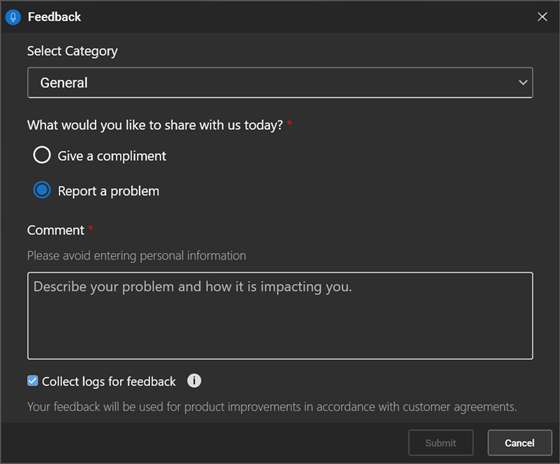
The feedback form lets you select a category and subcategory, choose the type of feedback you want to share, and optionally provide comments about your experience.
To give a compliment:
Select the User Feedback icon
 next to the color theme toggle.
Select a Category (for example, General). If available, select a Subcategory that matches the feature or area related to your feedback.
Under What would you like to share with us today?, select Give a compliment.
Enter your feedback in the Comment (Optional) field. Avoid entering personal information.
Select Submit.

To report a problem and collect diagnostic logs:
Select the User Feedback icon
next to the color theme toggle.Select a Category (for example, General). If available, select a Subcategory that matches the feature or area where the issue occurred (for example, Edit Screen).
Under What would you like to share with us today?, select Report a problem.
Enter details about the issue in the Comment field. Avoid entering personal information.
Note
Collect logs for feedback is selected automatically. Log collection continues in the background, so you can continue working without interruption.
Select Submit.
Important
Reporting a problem and collecting logs in PowerScribe One does not create a support case. Continue to follow your organization's normal process to submit a support case, and provide the collected logs if requested.
Provide feedback for Smart Impression
After Smart Impression content is generated, you can provide feedback directly to the Microsoft Smart Impression team.
- Select the User Feedback icon next to the AI-generated content message.
- In the Feedback dialog, verify that Category is set to AI Tools and Subcategory is set to Smart Impression.
- Under What would you like to share with us today?, select one of the following options:
- Looks good
- Needs improvement
- Offensive, inappropriate, or biased
- Optionally, enter comments in the Comment (Optional) box.
- Select Submit.