
Use Export to download search results from mPower Clinical Analytics so you can review, share, or analyze reports outside the application.
Export results when you need to:
- Review reports offline.
- Share data with colleagues.
- Perform further analysis in Microsoft Excel or other tools.
Steps to export search results
Run a search and refine results as needed.
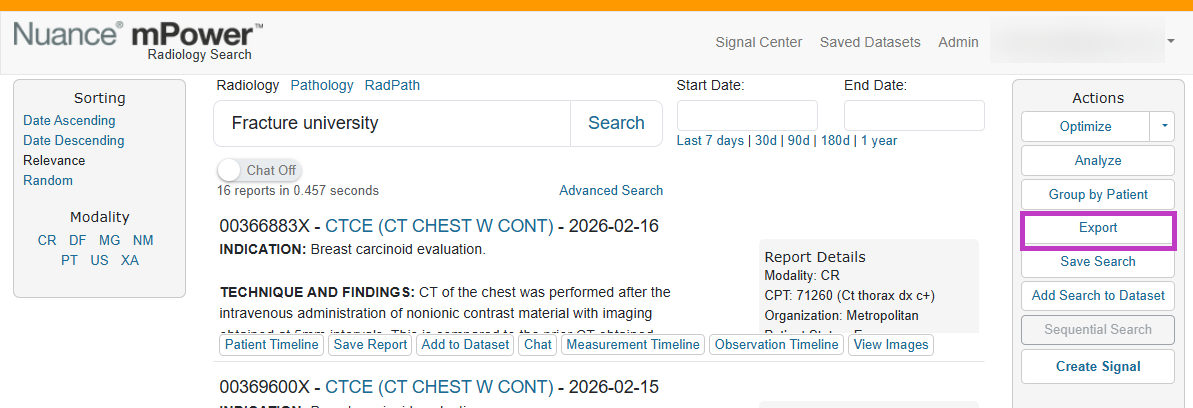
On the search results page, select Export.
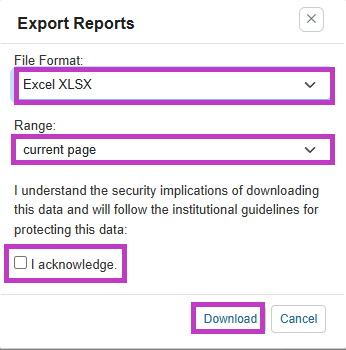
- Choose a file format:
- CSV (comma‑separated values)
- Excel (XLS)
- Select the range of results to export:
- Current results shown on the screen, or
- The entire result set (up to the allowed limit)
Select the I acknowledge checkbox.
Select Download.
Note
- By default, mPower limits exports to 90,000 reports for performance reasons.
- To export more data, narrow your search using date ranges and export in smaller batches.
- Changes to export limits may require assistance from mPower Support.
Tip
- Refine results before exporting to reduce file size and improve relevance.
- Use CSV for large datasets and XLS for smaller, formatted reviews.
- Verify that you have the required permissions to export PHI, if applicable.
Next up: Save and reuse searches and datasets
Learn how to save searches and datasets so you can quickly rerun analyses and reuse curated results without starting from scratch. Let's go