
Use Advanced Search with scores and assessments to find reports that include specific clinical scores or assessment values. This option helps you narrow results using structured scoring information instead of relying on keywords alone.
Use scores and assessments when you want to:
- Find reports with a specific score or risk category.
- Narrow results using standardized assessment values.
- Focus on reports that meet defined clinical criteria.
Steps to use Advanced Search with scores and assessments
Sign in to mPower using a supported web browser.
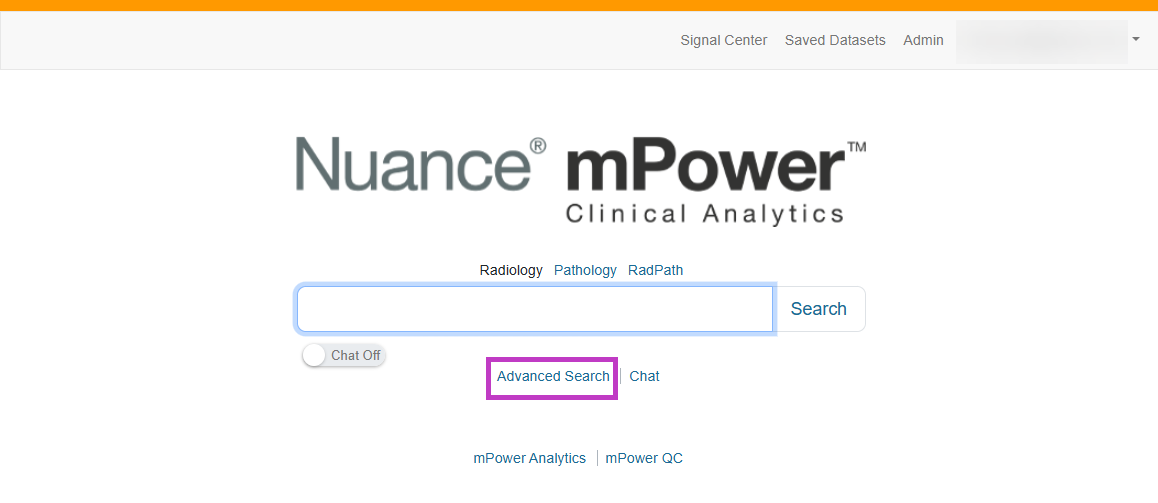
On the home page, select Advanced Search below the Search box.
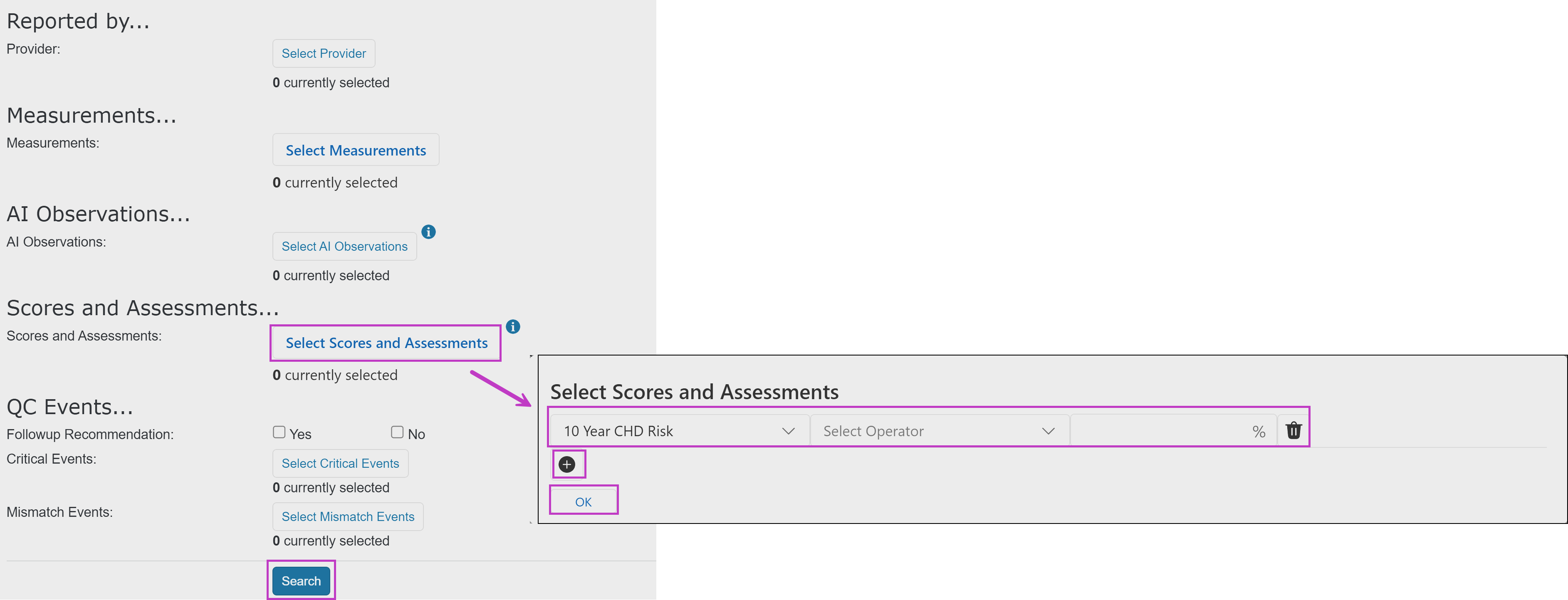
In Advanced Search, go to the Scores and Assessments section.
Select Select Scores and Assessments.
Choose an assessment type (for example, 10 Year CHD Risk).
Select a comparison option (such as equal to, greater than, or less than).
Enter or select the score value.
Select OK to return to the Advanced Search page. The selected score or assessment is added as a filter.
Select the Add (+) option to include additional criteria.
Review the selected score or assessment filters and any other criteria.
Select Search at the bottom of the page.
Tip
- Start with a single score, then add more if results are too broad.
- Combine scores with keywords or date ranges for better accuracy.
- If no results appear, adjust the score range or remove extra filters.
Next up: Build Boolean searches
Learn how to build Boolean searches to include, exclude, or combine terms for more precise results. let's go.